
Payroll, commission and partner profit sharing
How to run payroll in Nexto: one profile per employee, a monthly period with automatic commission, payslips and vouchers, plus partner profit sharing.
Watch this video on: YouTube
In most exchange offices salaries are worked out somewhere outside the software: a spreadsheet, a notebook, or the owner's memory. At the end of the month one round number lands in the expenses as salaries, and afterwards nobody can say how much of it was base pay, how much was commission, and what the office still owes in insurance.
This episode moves that work inside Nexto. You write a payroll profile for each employee once, build a period every month, read the draft, and approve it — and approval is what turns the numbers into vouchers. Commission is not typed in: Nexto works it out from the profit of that person's own trades.
The second half of the episode is the other side of the same coin, partner profit sharing. It all picks up where users, permissions and two-step sign-in left off, because payroll is the clearest case of a page not everyone in the office should be able to open.
What you will learn
- Who can open the payroll module, and how to keep an employee's ledger away from the rest of the team
- How to build a payroll profile: base salary, its own currency, commission percent and the two insurance shares
- How to create a monthly period and let Nexto calculate commission from that employee's own trades
- How to read the draft, add an extra line such as overtime, and print or send a payslip
- Why an advance you paid in the middle of the month is not deducted again on the payslip
- What approving a period actually books, and what the automatic month-end tick does
- How to split profit between partners, and where that money lands
Paying an employee, step by step
Step 1 — Decide who can see it
Payroll has a permission of its own, so the module opens only for the users you grant it to. Go one step further while you are there: an employee's personal account can be hidden the way any account in Nexto is hidden — visible to the owner and to that employee, invisible to everybody else. What colleagues earn is not office-wide information, and this is the moment to settle it, before the first period exists.
Step 2 — Write the payroll profile
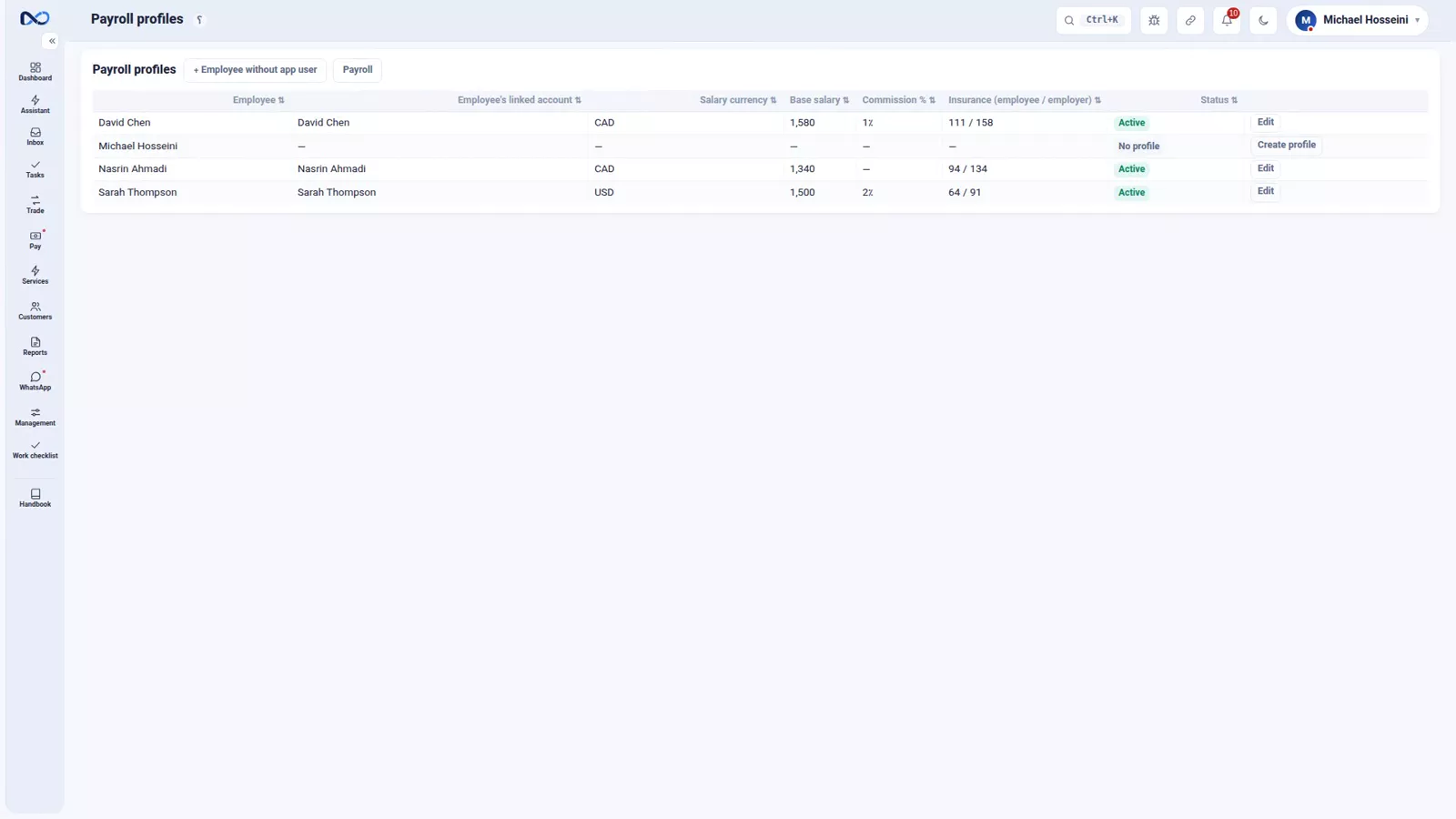
Each employee gets one profile, and you only do it once. It holds the base salary and the currency that salary is paid in, the commission percent, the employee's share of insurance and the employer's share, and the account in Nexto that this person's pay goes to.
The salary currency is a separate field on purpose, because it is particular to an exchange office: one colleague may be paid in US Dollars and the next in Canadian Dollars. In the recording, Sarah's profile is 1,500 US Dollars, two percent commission, and her linked account. Save it, and from the next period on it joins the calculation by itself.
One thing surprises people here: an employee does not have to be a user of the software. A driver or a cleaner who never signs in still gets a profile and still gets paid through it.
Step 3 — Create the month's period
A period is a date range plus a name — "September payroll" — and when you create it, Nexto builds that month's pay for every active profile at once.
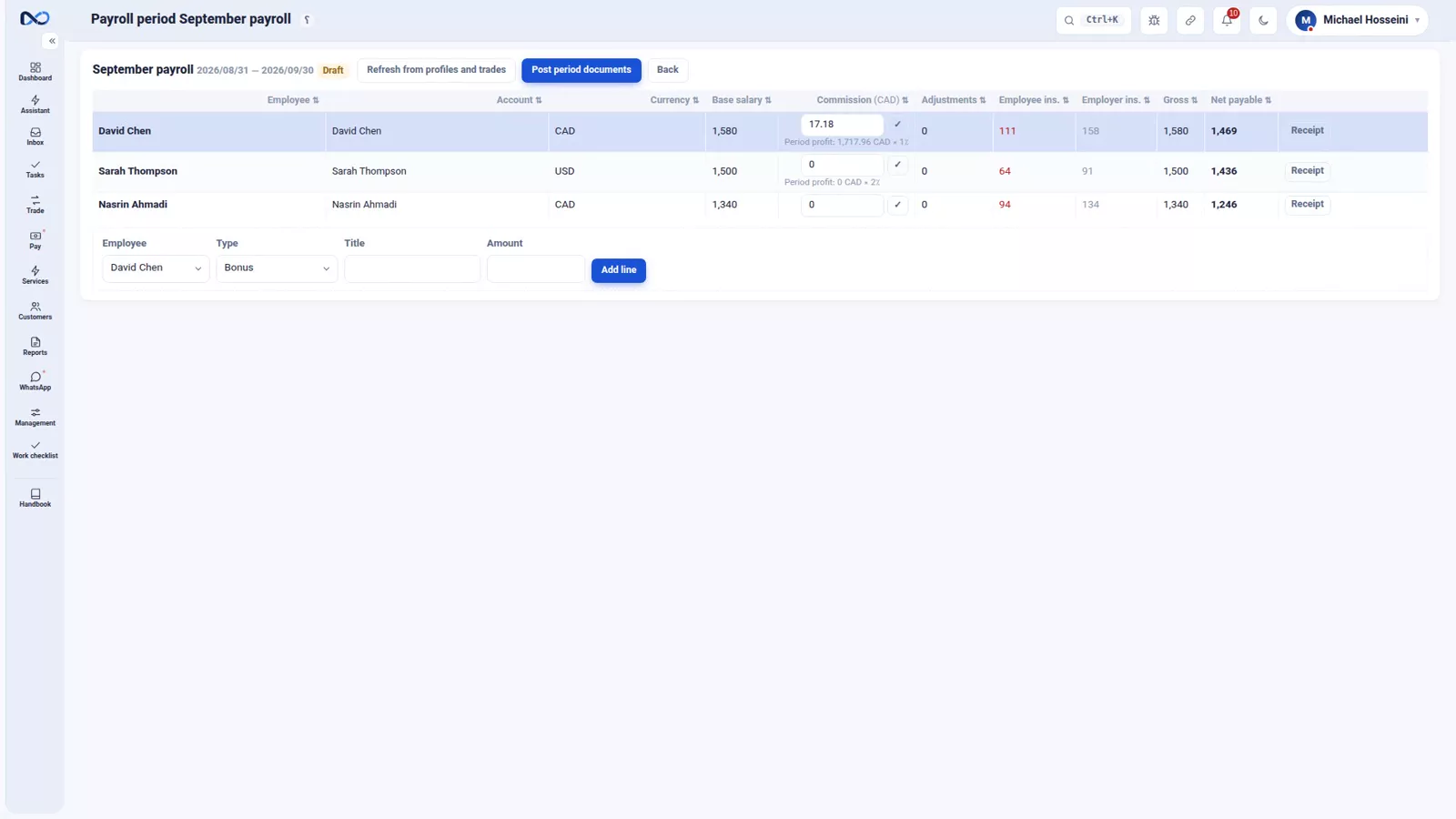
This is the step a spreadsheet cannot do for you: the commission is worked out from the profit of that person's own trades inside the date range, rather than estimated afterwards. If the salary currency is not your reference currency, the period simply shows two currencies for that person. In the demo office, Maple Exchange in Toronto, the reference currency is the Canadian Dollar, so Sarah's pay appears as salary in US Dollars and commission in Canadian Dollars. Both are transferred to her account, and if she later wants one converted into the other, that is an ordinary trade on her own account.
Step 4 — Read the draft
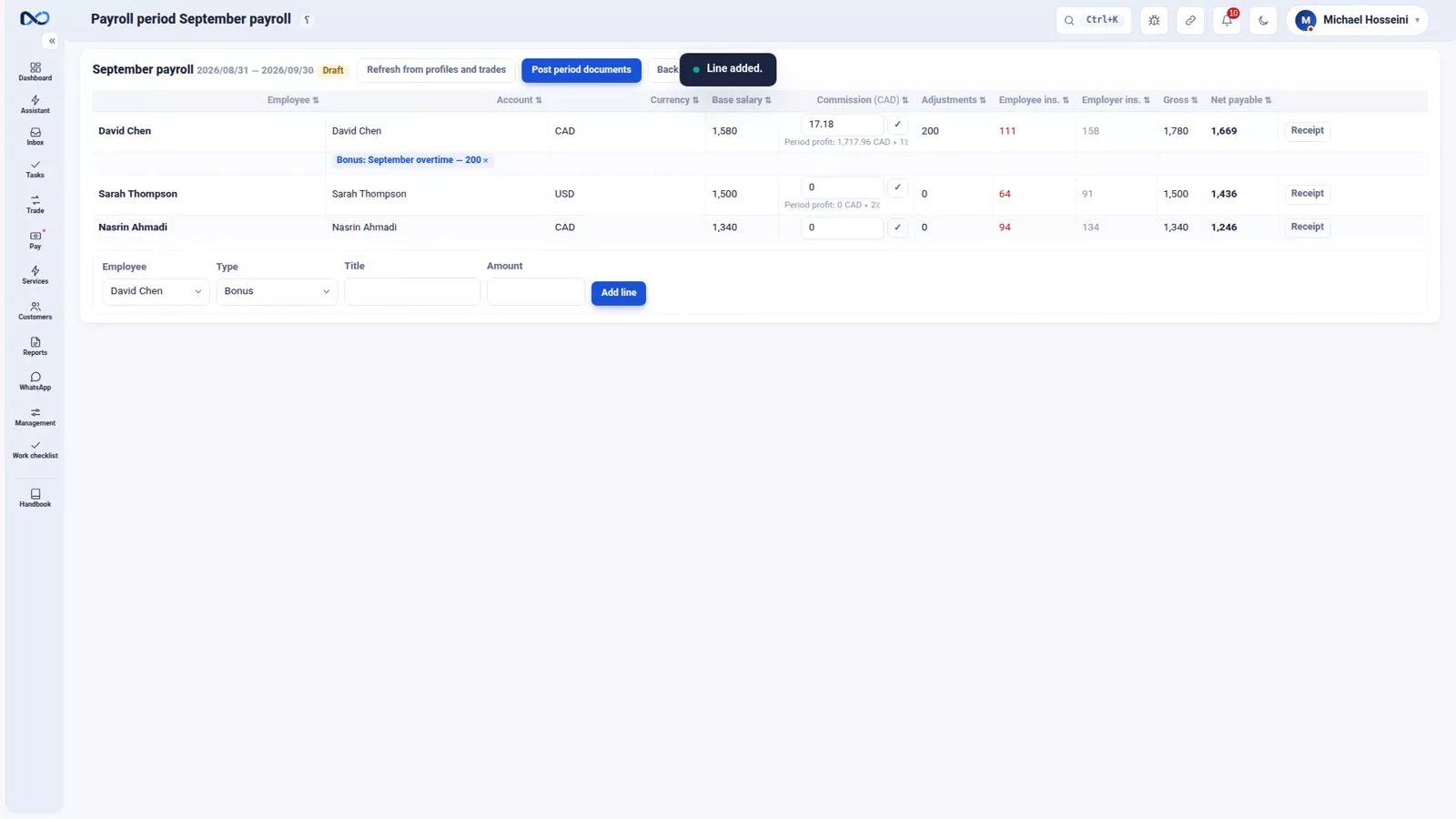
A new period starts as a draft: everything is calculated, nothing is booked. Inside it you see the detail for each person — base salary, commission, any extra lines, employee insurance, employer insurance, and the net payable. If something is missing, "Add line" puts it in; a row of overtime is the usual case.
Each person also has their own payslip from this page, to print or to send. It is the same slip the employee signs, so the numbers they sign for are the numbers that will be booked.
Step 5 — Approve, and let it book
There is one rule to understand before you approve: an advance is not deducted separately. If you handed someone money in the middle of the month, that was a transfer to their own account and it debited them at that moment. Taking it off the payslip as well would count it twice. The employee's balance already holds both sides together.
Then post the period's documents and accept. Now the vouchers exist: the salary expense against each employee's account, and the insurance to insurance payable. Nothing before this point touched the ledger — the draft was only a draft.
If you would rather not do this by hand every month, the payroll page has a tick for automatic month-end. With it on, Nexto builds the period at the end of each month, works out salary and commission, and credits the employee's account.
Sharing the profit between partners
The second half of this episode is about what the owners take, not what the staff earn.
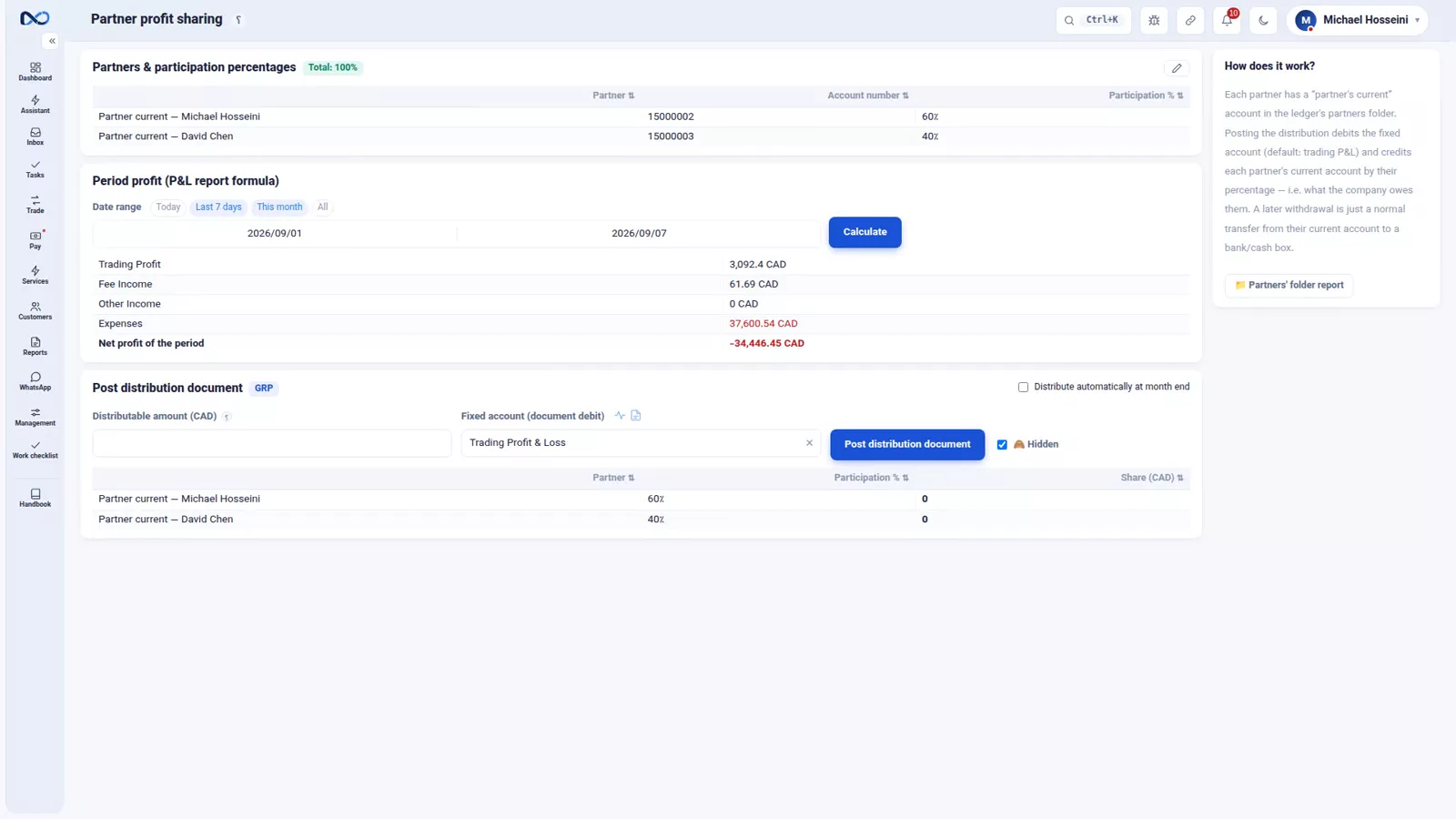
On the profit sharing page you define the partners and their share once — in the recording, Michael and David at sixty and forty percent. After that, every time you run a split, the period's profit moves out of retained earnings and into each partner's current account in their proportion, and the statement of capital you met in the reports chapter is updated with it.
The profit figure is not a second opinion. The split uses the very formula of the Profit & Loss report, so the number the partners divide is the number that report shows. As with payroll, there is a tick to run the split automatically at the end of each month.
Tips and warnings
- Set the payroll permission and hide the employee accounts before you build the first period. It is much harder to take a number back once a colleague has seen it.
- The salary currency belongs to the employee, not to the office. Set it in the profile, and do not convert salaries by hand to keep them all in one currency.
- Never deduct an advance on the payslip. It was already booked as a transfer to that person's account, and deducting it again charges them twice.
- A draft period books nothing. Until you post the documents and accept, none of it is in the ledger — and until then it is safe to correct.
- Commission is calculated from that person's own trades inside the period's date range, so a wrong date range gives a wrong commission. Check the range before you create the period.
- The automatic month-end tick saves time but reviews nothing. If you switch it on, still open the period and read it.
Where to go next
The previous episode, users, permissions and two-step sign-in, sets up the accounts and permissions that payroll then relies on. Next comes tasks and document review, the other half of running a team inside the software. The profit figure the partners divide is explained in where is the profit, and the advance that must not be deducted twice is an ordinary voucher from transfers, receipts and payments.
FAQ
Does an employee need a Nexto user account to be paid?
No. A payroll profile is independent of signing in, so a driver or a cleaner who never opens the software still gets a profile, a payslip and a booked salary.
How is employee commission calculated?
Nexto computes it from the profit of that employee's own trades inside the period's date range, using the commission percent in their payroll profile. You do not type the commission in.
Can a salary be paid in a currency other than the reference currency?
Yes. The salary currency is a field in the payroll profile, so one person can be on US Dollars and another on Canadian Dollars. When the two differ, the period shows the salary in its own currency and the commission in the reference currency, and both go to the employee's account.
Should I deduct an advance from the payslip?
No. An advance was a transfer to the employee's own account and it debited them when you booked it. Deducting it on the payslip as well would count it twice; their balance already reflects it.
What happens when I approve a payroll period?
Approving turns the draft into vouchers: the salary expense against each employee's account, and the insurance amounts to insurance payable. Before approval the period is calculated but nothing is in the ledger.
How is profit split between partners?
You define each partner and their percentage once on the profit sharing page. Each split moves the period's profit — calculated with the same formula as the Profit & Loss report — from retained earnings into each partner's current account, and updates the statement of capital. It can also run automatically at each month end.
Full video transcript
Employee salaries are usually worked out outside the software: a spreadsheet, a notebook, or the owner's memory. Then at the end of the month one round number lands in the expenses as salaries. This episode is about bringing salaries and commission inside the software — and after that, sharing the profit between partners. And before anything else: this module has a permission of its own. And the personal ledger of an employee — like anything else in the software — can be visible to only certain users and hidden from the rest: open to the owner and to the employee, hidden from everybody else.
What people earn is something only a few people should see. It starts with the payroll profile. For each employee you define it once: base salary and its currency, the commission percent, the employee's and the employer's share of insurance. The salary currency is set separately, because that is particular to an exchange office: one person may be paid in US Dollars and another in Canadian Dollars. For Sarah we enter 1,500 US Dollars, two percent commission, and her linked account in Nexto.
And an employee does not have to be a user of the software; a driver or a cleaner gets a profile without ever signing in. Save — the profile is ready, and from the next period on it joins the calculation by itself. Step two is the period: a date range and a name — September payroll — and Nexto builds that period's pay for every active profile. Create period. And here it does something a spreadsheet cannot: it works out the commission itself, from the profit of that person's own trades inside that range.
If the salary currency differs from your reference currency — a salary in US Dollars, say — it shows the pay in two currencies: the salary in US Dollars, the commission in Canadian Dollars; both are transferred to the employee's account, and later, if they want, converted into each other right there. The period starts as a draft: built, but with no voucher booked yet. Inside it you see the detail for each person: base salary, commission, extra lines, employee insurance, employer insurance, net payable.
Let's put one row of overtime on somebody: Add line. And each person has their own payslip, to print or to send — the same slip the employee signs. And something you need to know: an advance is not deducted separately. If you gave someone money in the middle of the month, that was a transfer to their own account and it debited them at that moment; it is not taken off the payslip again, otherwise it would be counted twice. The employee's balance already holds everything together.
Post period documents, and Accept: now the vouchers are booked — the salary expense against each employee's account, and the insurance to insurance payable. And if you switch the automatic tick on, at the end of every month it builds the period itself, works out salary and commission, and credits the employee's account. The automatic month-end posting tick is right here, on the payroll page. And the other side: the partners. On the profit-sharing page you define the partners and their share once.
We add two partners: Michael and David. The percentages: sixty and forty. Every time you run a split, the period's profit — using the very formula of the Profit & Loss report — moves from retained earnings into each partner's current account in their proportion, and the statement of capital we saw in the reports chapter is updated. You can also tick split automatically at the end of each month. To sum up: define the profile once, build a period each month, look at the draft and approve it; the commission works itself out, an advance is not deducted twice, and the partners' profit is split every month with a single tick.
From then on, salaries sit in the accounts like every other voucher.
Try it yourself right now
A complete private demo with sample data — no installation, no credit card.
Create free demo