
Tasks and document review
How to use tasks and document review in Nexto: assign a job to several colleagues, comment on it, and check every voucher as Reviewed or Has an issue.
Watch this video on: YouTube
Two problems outlive every other one in an exchange office: the job somebody forgot to do, and the voucher that was booked wrong and nobody noticed. Neither is really an accounting problem. Both are habits.
Nexto has one small tool for each. Tasks is the team to-do list, except it lives inside the software and next to the voucher it belongs to, instead of scrolling away in a WhatsApp group. Document review is a second pair of eyes: someone other than the person who booked a voucher marks it as checked, or flags it with a note.
Neither tool is complicated, and that is the point: they only pay off once they become a habit. The episode follows payroll and profit sharing.
What you will learn
- How the three tabs of the Tasks page divide the work, and how to assign one task to several colleagues
- How to keep the conversation about a job under the job, as comments
- How to create a task straight from a voucher so the two stay linked
- Where a task assigned to you shows up, and what happens when you tick it done
- How document review works: the three states, bulk approval, and flagging a voucher with a note
Tasks: so nothing is forgotten
The three tabs
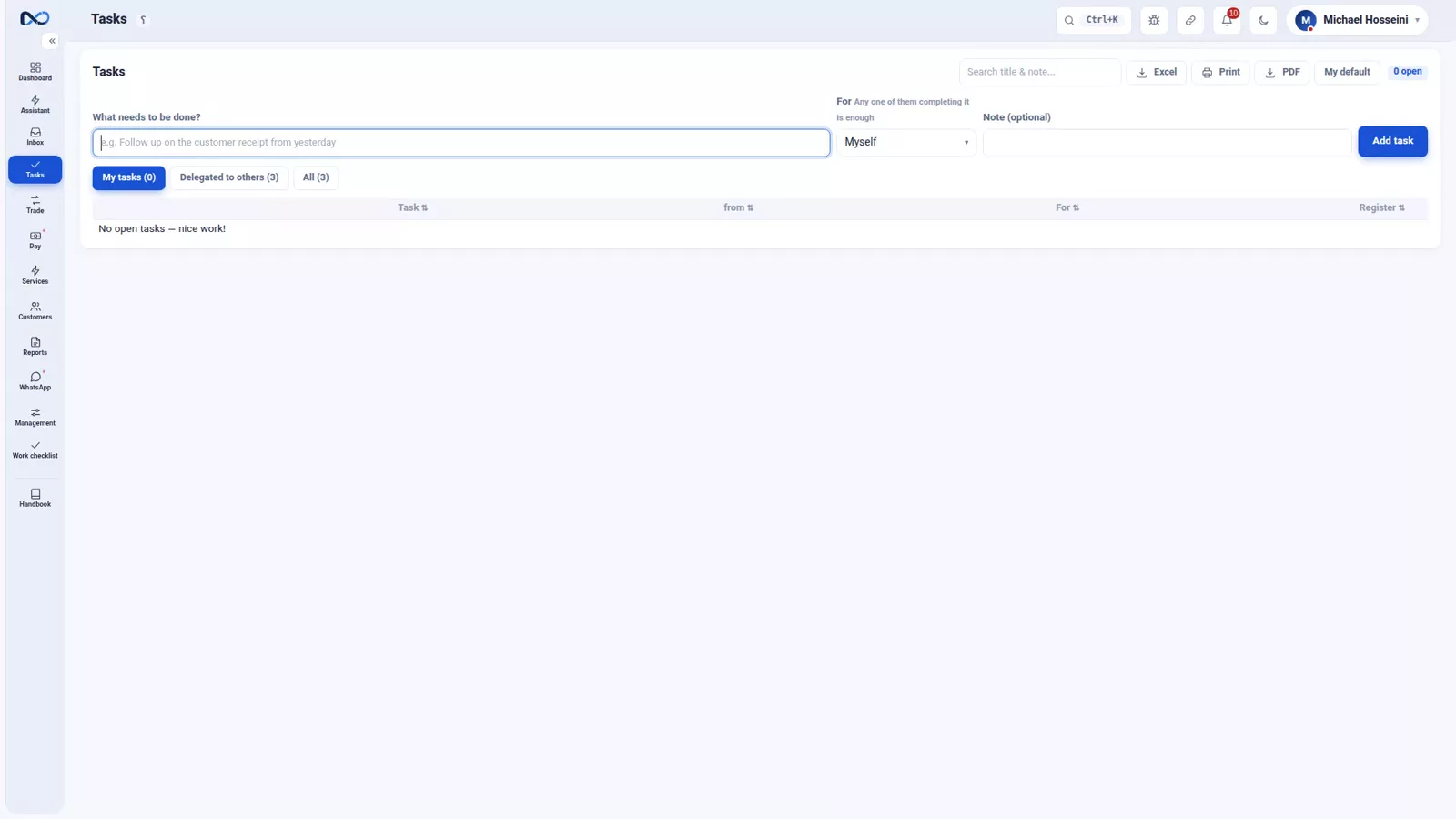
Jobs in an exchange office are usually handed out on WhatsApp, and lost there. The Tasks page is that same list, kept where the work is. It has three tabs, and they are its whole logic: your own tasks, the ones you delegated to other people, and all of them.
Writing a task
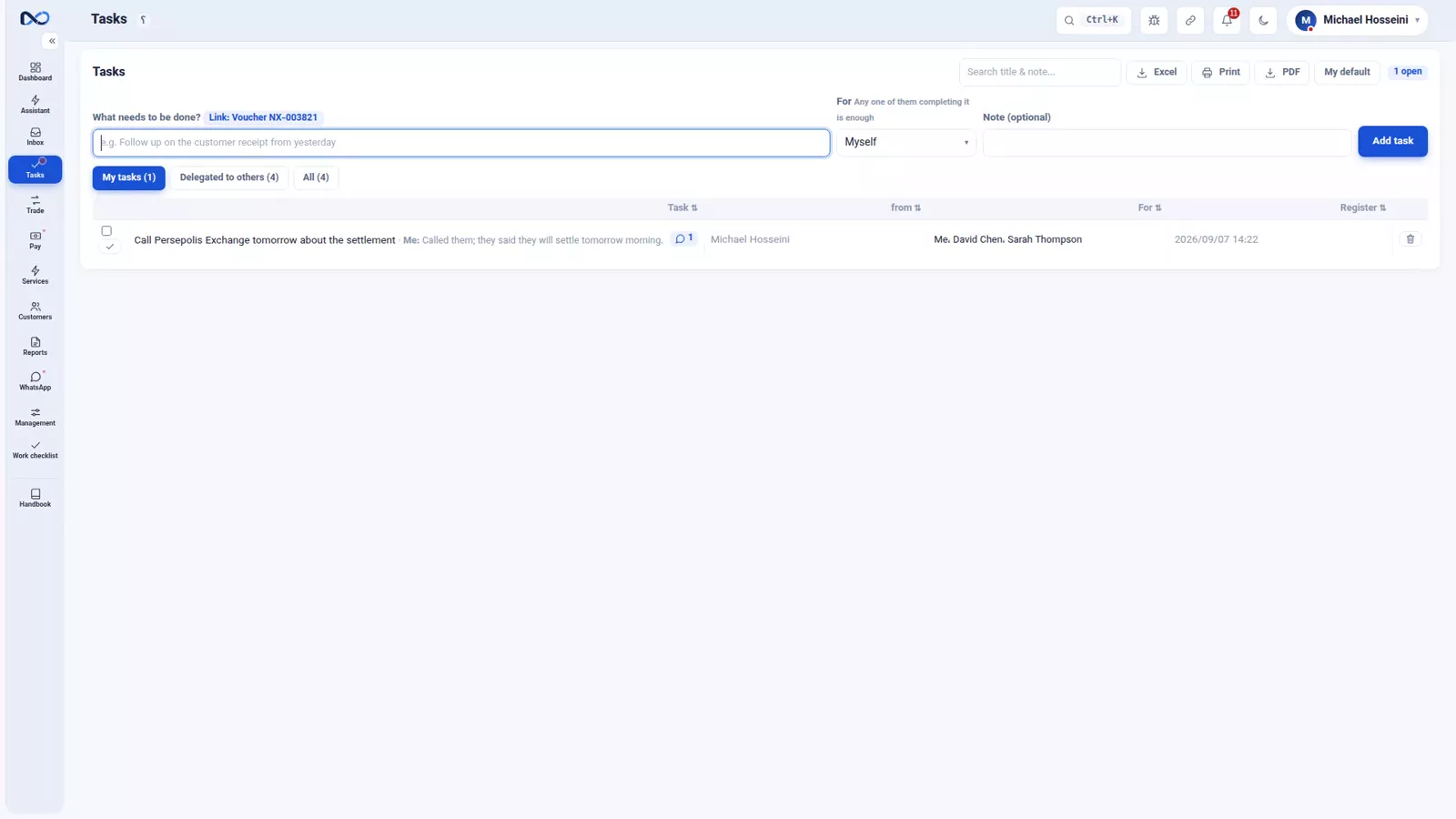
A task is a line of text and a set of assignees. In the recording it is "call Persepolis Exchange tomorrow about the settlement", assigned to David, to Sarah and to the person writing it. Several assignees is deliberate: whoever gets there first does it, and the task then closes for everybody.
Until a task is closed, comments can be posted under it. A note like "called them, they will settle tomorrow morning" stays under that task, so the conversation about the job sits next to the job rather than in a group chat nobody can find tomorrow.
A task from a voucher
You do not have to start on the Tasks page. Every voucher has a plus Task button at the top of it. Press it and the task form opens already linked to that voucher, so whoever picks the task up is one click away from the document. Use this route for anything that is really about one voucher.
Where a task reaches you
A task assigned to you turns up in two places: the word Tasks in the menu carries a number, and it also lands in the notification bell in the header. Looking at those two when you open the software in the morning is the whole habit.
When the job is done, tick it and it leaves your list. Because several people may be assigned, ticking it closes it for the others too.
Document review: so no mistake stays hidden
Three states
In an exchange office a voucher booked wrong can sit unnoticed for weeks. Document review is the second person — usually the owner or the accountant — checking the work of whoever booked it.
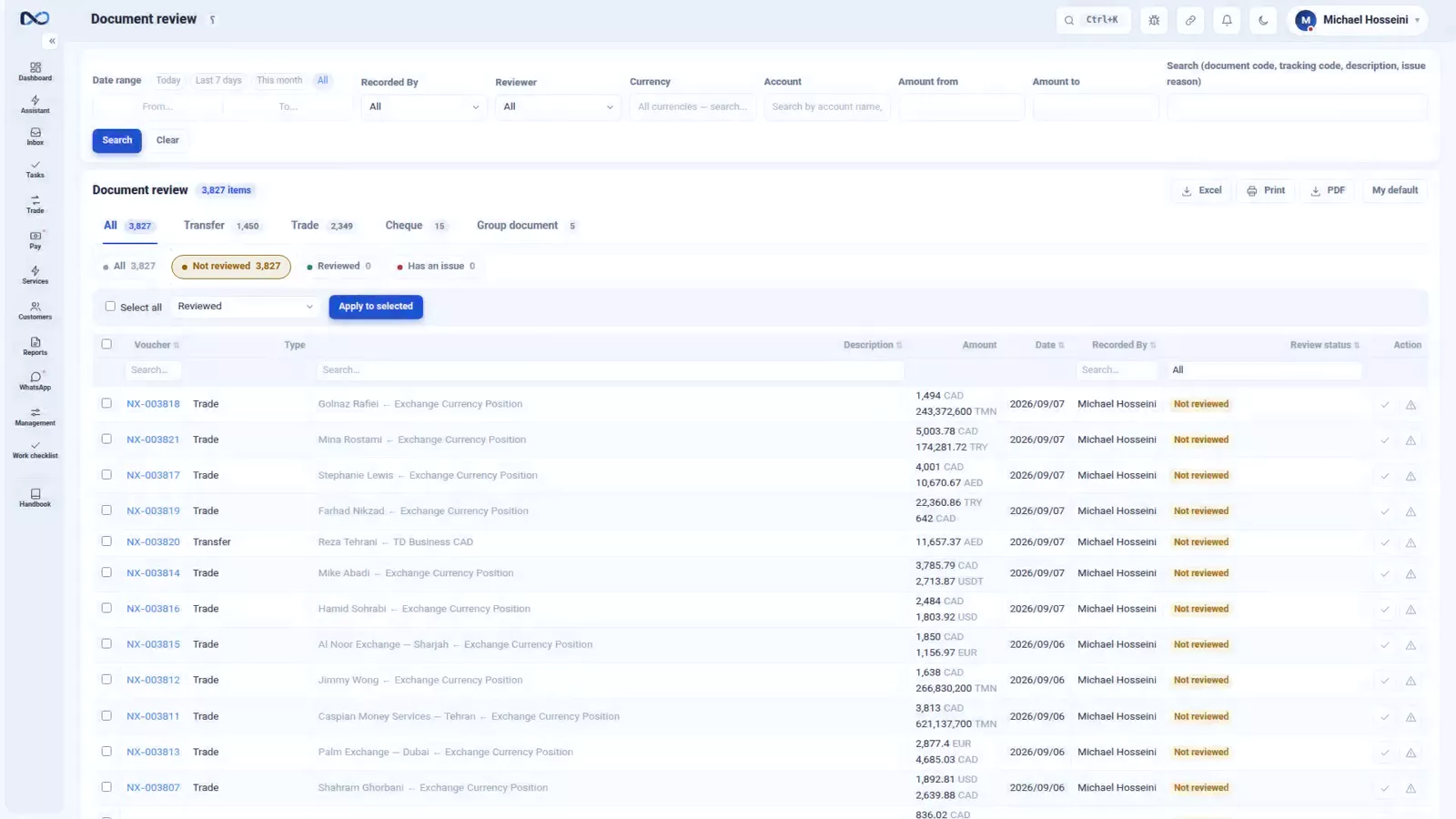
Every voucher is in one of three states: Not reviewed, Reviewed, or Has an issue. The default is Not reviewed, and no voucher is ever approved by itself, so the unreviewed list is a real queue.
A tab per document type, and bulk approval
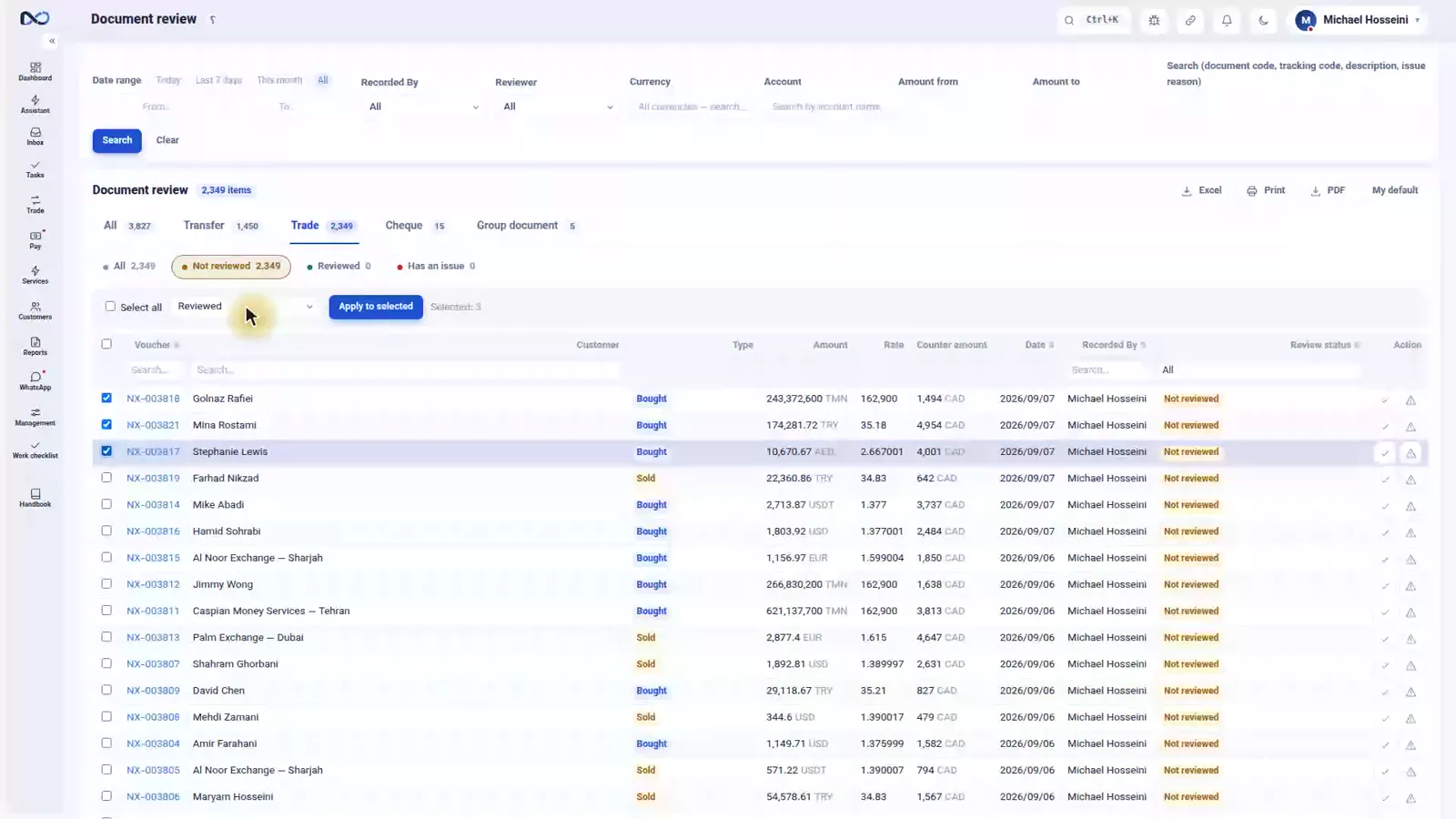
The review page has a tab for each document type, each with the columns that type needs — what you check on a trade is not what you check on a transfer.
Inside a tab, tick several vouchers and approve them in a single move. For an owner who sits down once a week and works through a hundred vouchers, that alone frees up hours.
Flagging an issue
When something is wrong, mark the voucher as Has an issue, write a short note with it — in the recording, "the rate does not match the board" — and apply. Whoever booked it sees that same note next to their document and knows exactly what to fix.
Flagged vouchers get their own card on the dashboard, so they are not left behind. Flagging is not the end of the job; it is the start of the follow-up.
Tips and warnings
- Assign a task to several people only when you mean "first one there", because ticking it done closes it for everyone.
- Put the progress in a comment; that is what makes the task readable to a colleague a week later.
- For anything tied to one document, create the task from the voucher, so the link is there from the start.
- Check the menu counter and the bell every morning. Neither tool works if nobody looks.
- Flagging a voucher is a note to whoever booked it, not a correction. The fix is still a change to the document.
- Do not let Not reviewed pile up for months. A weekly pass with bulk approval keeps the queue short.
Where to go next
The previous episode, payroll and profit sharing, covers the other half of managing a team, and users, permissions and two-step sign-in decides who may do the reviewing. Next comes backup, restore and support, and the exchange health checklist turns both of these habits into a daily routine.
FAQ
What are Tasks in Nexto?
Tasks is a team to-do list inside the software. Each task has text, one or more assignees and comments, and it can be linked to the voucher it is about. The page has three tabs: your tasks, the ones you delegated, and all of them.
Can one task be assigned to several people?
Yes. You assign as many colleagues as you like, and whoever gets to it first does it. Ticking it done removes it from everybody's list, not just yours.
How do I create a task from a document?
Use the plus Task button at the top of the voucher. The task form opens already linked to that voucher, so anyone who opens the task can jump to the document in one click.
Where do I see the tasks assigned to me?
In two places: the Tasks entry in the menu shows a number, and new tasks also appear in the notification bell in the header.
What is document review?
It is a second person checking a voucher after it was booked, usually the owner or the accountant. Every voucher is Not reviewed, Reviewed, or Has an issue, and Not reviewed is the default state.
What happens when I flag a voucher as Has an issue?
You add a short note explaining the problem, and the person who booked the voucher sees that note next to their document. Flagged vouchers also get a card on the dashboard so the follow-up is not forgotten.
Full video transcript
Two of the oldest pains in any exchange office: the job we forgot to do, and the voucher that was booked wrong and nobody saw. This episode is about the two tools built for exactly those two: Tasks, and document review. Jobs in an exchange office are usually handed out on WhatsApp, and lost there. The Tasks module is that same team to-do list, but inside the software and next to the voucher it belongs to. It has three tabs, and they are its whole logic: My tasks, tasks I have delegated to others, and All.
Let's write a task: call Persepolis Exchange tomorrow about the settlement — and we assign it to two people, David and Sarah, and to myself; whichever of them gets to it first does it. Add task. Until a task is closed, comments can be posted under it; that means the conversation about that job stays next to the job, not in a group chat nobody can find tomorrow. Let's leave one: called them, they will settle tomorrow morning. It stays right here, under that task.
And you can also make a task straight from a voucher: the plus Task button at the top of every voucher. We press it; the task form opens already linked to that voucher, so the task stays attached to it, and whoever opens the task is one click away from the voucher itself. Where do you see a task that was assigned to you? Two places: the word Tasks in the menu carries a number, and it also lands in the notification bell up in the header. In the morning, when you open the software, look at those two.
Done? Tick it, and it leaves the list; and it closes for the other assignees too, because whoever gets there first does it. The second tool. In an exchange office, a voucher booked wrong can sit unnoticed for weeks. Document review means a second person — usually the owner or the accountant — checks the work of whoever booked it. Every voucher is in one of three states: Not reviewed, Reviewed, Has an issue. The default is Not reviewed; no voucher is ever approved by itself.
There is a tab for each document type, with the columns that type needs — because what you check on a trade is not what you check on a transfer. The Trade tab. We tick several vouchers together and approve them in a single move; for an owner who sits down once a week and works through a hundred vouchers, that alone frees up hours. And one of them we flag as Has an issue, with a short note: the rate does not match the board. Apply. Whoever booked it sees that same note next to their voucher and knows exactly what to fix.
Flagged vouchers get their own card on the dashboard so they do not get left behind; flagging is not the end of the job, it is the start of the follow-up. To sum up: tasks so nothing is forgotten, review so no mistake stays hidden. Both are simple, and they only pay off once they become a habit. Tasks and review: two small habits that take the edge off two old pains.
Try it yourself right now
A complete private demo with sample data — no installation, no credit card.
Create free demo