
Backup, restore and Nexto support
How Nexto backs up an exchange office every night, how to take a manual backup, how to download your exchange data and read it without Nexto, what a restore costs you, the activity log, and the three support routes up to a temporary access link.
Watch this video on: YouTube
Nobody in an exchange office enjoys thinking about this part. Backups feel like pure overhead, right up to the morning a machine dies, someone runs a bulk correction the wrong way round, or a balance changes and nobody can say who changed it.
This episode is the safety net under everything else in the course: what Nexto backs up on its own, what you should do on top of that, how to take your data out and read it without Nexto, what a restore really costs, and the three routes to help when something is wrong. It follows tasks and document review, which catches mistakes while they are small. This one is about the accidents you cannot catch.
We hope you never need it. Ten minutes now is what makes that true.
What you will learn
- Where the automatic nightly backups live and what is kept
- How to take a manual backup before a risky job, and download it
- Why one copy must sit somewhere other than the server, and how cloud backup does that for you
- How to download your exchange data and read it in the viewer, without Nexto and without internet
- What a restore does to every voucher booked after that point
- How to answer "why did this number change?" from the activity log
- The three support routes, and how to create a temporary access link with exactly the limits you choose
Backups
What runs without you
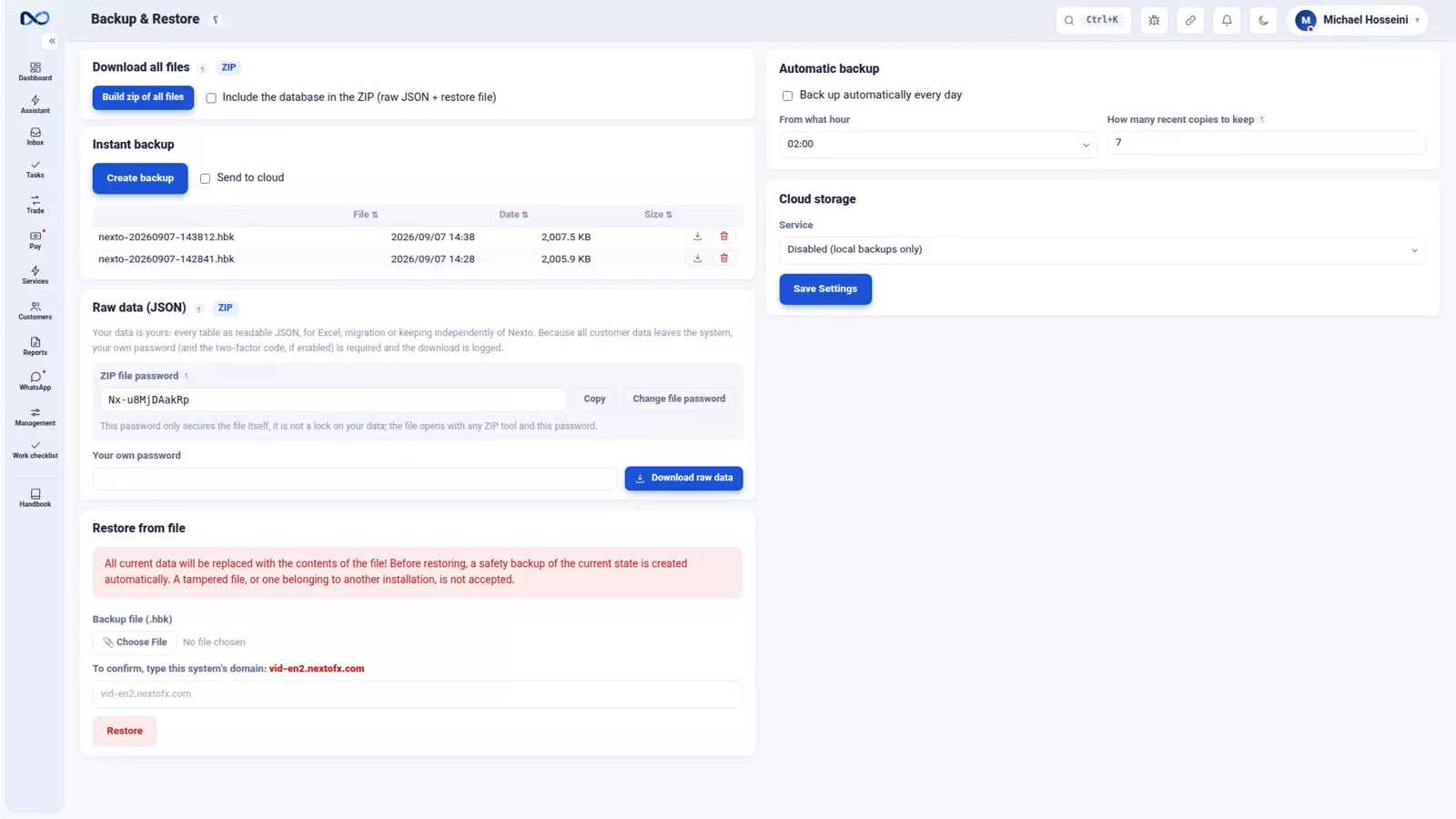
The backups page lists the copies Nexto has taken. A backup runs every night, at an hour you choose, and the last few copies are kept. There is nothing for anyone on the team to remember and no daily habit to build. Open the page now and then, just to confirm the list is growing and the dates look right.
Take a manual backup before a big job
Automatic covers ordinary days. Before anything big — closing a period, a bulk correction, an important settings change — take a manual backup yourself first. It is one button, "Create backup". The new file appears in the list with its date and size, and you can download it from the same row.
It costs a few seconds, and it is the difference between undoing a bad afternoon and living with it.
Get one copy off the server
This is the most important sentence in the episode: a backup that only sits on the same machine as the software goes down with that machine.
There are two ways to fix that. Download one of the copies every now and then and keep it somewhere else. Or, better, turn on cloud backup — Dropbox, Google Drive or WebDAV — so the copies leave the server by themselves. You set it up once and then stop thinking about it.
Exchange data: the data is yours
Backups are for restoring into Nexto. The "Exchange data (readable copy)" card on the same page is for something else: your core exchange data — customers, balances, documents and trades — downloaded as one file that you open and read yourself, without Nexto and even without internet.
The first time, there are two steps:
- "Create file password". You choose this password yourself and type it twice; you can also write a "Password hint (optional)" next to it. If the file ever falls into the wrong hands, it will not open without this password, so keep it somewhere safe — next to your banking passwords, for example.
- "Download exchange data". Because all of your customers' data is leaving the software, you confirm with your own sign-in password in the "Your own password" field (and the two-step code, if it is switched on), and the download is recorded in the activity log. From then on, this is the only step.
The download is an ordinary ZIP with three files: the viewer (nexto-viewer.html), the data file (encrypted, with the .nxd extension) and a short README. Unzip it like any other file and open the viewer in a browser (Chrome, Edge, Firefox or Safari). In the viewer, choose the data file or drag it in, and type the file password.
The first page is "Customers and balances", with the debtor and creditor totals for each currency at the top. Click any customer to open their statement with a running balance; trades, documents and the stock of each currency are there too, and every table has an "Excel of this table" button. For a developer, or for moving to another program, there is also a "Download raw JSON" button inside the viewer.
If cloud backup is connected, the same file is also saved automatically next to your backups once a week. Only the core exchange data is in this file; passwords, keys and the software's internal logs never leave.
Restoring, and what it costs
Any copy can be brought back, but understand what that means first: a restore is not a merge. Everything returns to the moment that backup was taken, and every voucher booked after it disappears.
So the rule is simple. Before you restore, take a backup of the current state as well. Then, if the copy you restored turns out to be the wrong one, you still have a way back.
When something looks wrong
Start with the activity log
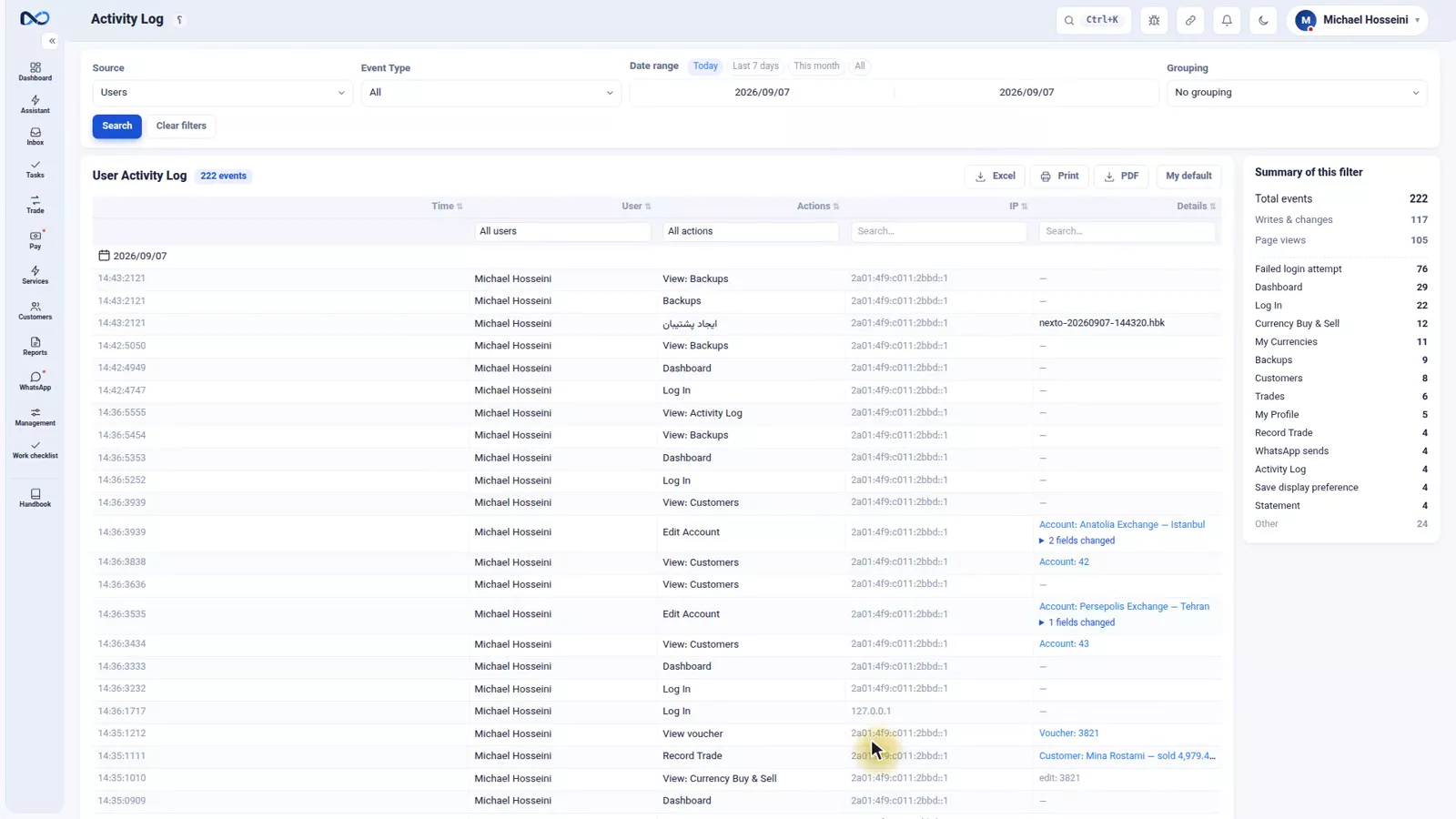
Before you contact support, there is a page that answers most questions by itself: the activity log. For every voucher it shows who changed it and when, and exactly which field changed, with the old value and the new value next to each other.
"Why did this number change?" usually ends right here, in under a minute, without a phone call.
Route one: report a problem
If there really is a problem, there are three routes, in order. The first is "Report a problem to support", in the "?" menu next to the title of every page.
Unlike a plain message, it also sends the state of the page you were on: where you were, the software version, the errors the page itself saw. You do not have to explain or reproduce anything. Support's reply comes back inside the software itself: in your bell, and on the "My reports to support" page.
Route two: the tracking code on an error page
If what you hit was an error page, it carries a tracking code. Send that code. With it, support finds exactly that error, not something that looks like it.
Route three: a temporary access link
If someone does need to look inside the software itself, the "Temporary access (support)" card in Settings creates a one-time sign-in link with the "Create temporary access link" button. Its default is deliberately narrow: read-only, with no profit and loss.
Two tick boxes widen it, and only you tick them: "See P&L" and "Allow create/edit". Tick them only if you have decided more is needed. You also decide how long it lasts; Nexto suggests one hour.
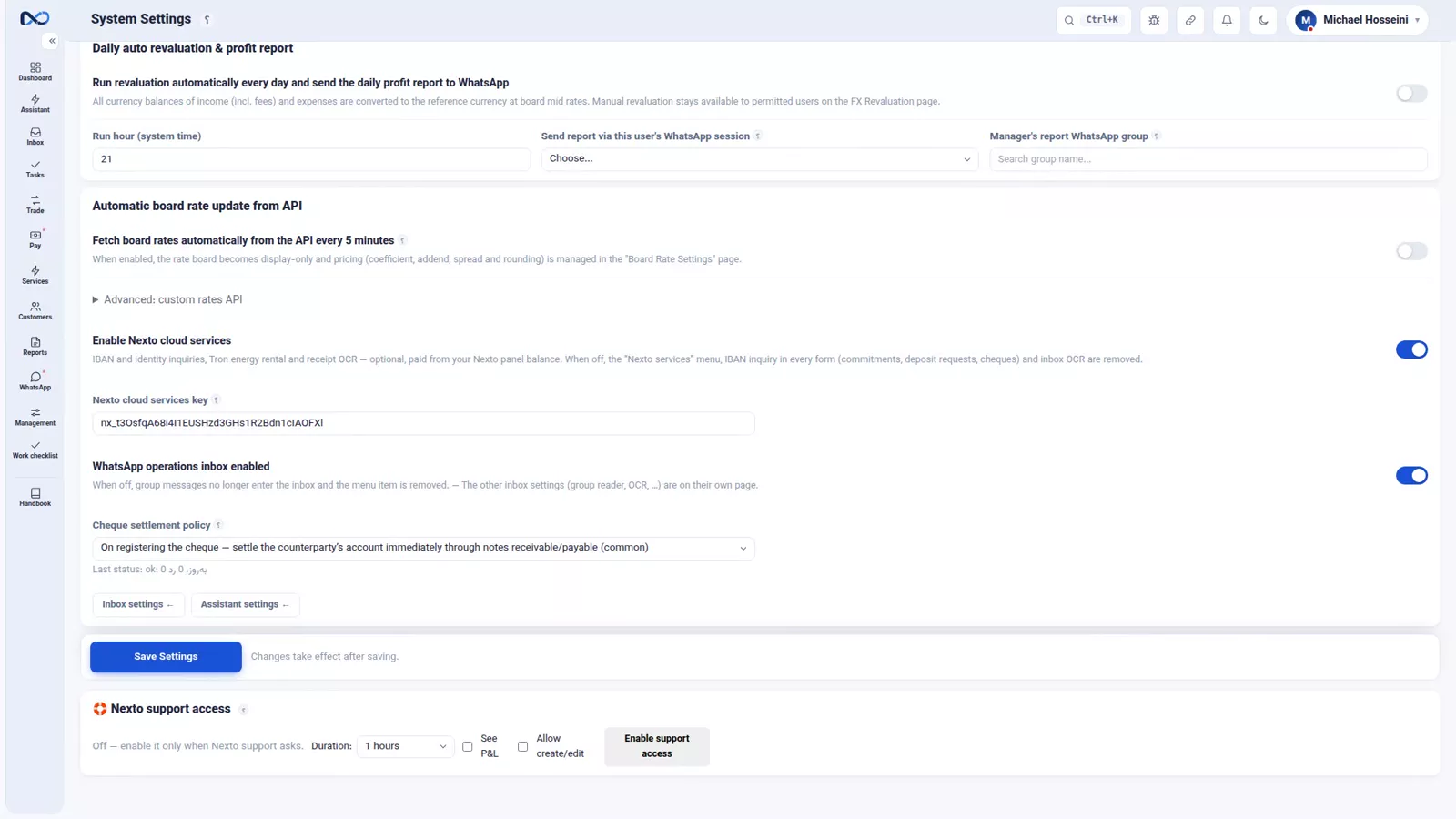
The link is shown only once, right there, and only to you. You copy it or send it by WhatsApp yourself — to Nexto support, or to anyone else you choose, for training for example. The "For:" field records who the link is for; left empty, it is for Nexto support. The link works only once, the sign-in time and device are recorded on the same card, and you can end it at any moment with the "Revoke access" button. You never hand over your own password for any of this.
The settings doctor
One quiet helper works in the background: the settings doctor checks every hour for settings that are incomplete and rings the owner's bell with a warning. Read that warning rather than dismissing it; it is usually a setting that will cause a wrong number later.
Tips and warnings
- Take a manual backup before closing a period, before a bulk correction and before any settings change that touches many documents at once.
- Never restore without backing up the current state first. A restore erases every voucher booked after the copy was taken.
- A backup that has never left the server is only half a backup. Download a copy or switch on cloud backup.
- Check the activity log before you report a problem. Most "the number changed by itself" questions are answered there, with a name and a timestamp.
- You create the exchange data file password yourself, and the file will not open without it. Keep it somewhere safe and use the password hint.
- Use "Report a problem to support" in the "?" menu rather than a plain message; it carries the page state, the version and the errors with it.
- Create the temporary access link at the lowest level and for the shortest time unless support has told you exactly why it needs more, and revoke it when the job is done. Nexto support never asks for your password.
Where to go next
The previous episode, tasks and document review, covers the routine that keeps small mistakes from becoming large ones. Next comes Nexto services and plans, which explains the optional inquiries and how the plans differ. Two related episodes are worth having read: users, permissions and two-step sign-in, because the activity log is only useful when each colleague has their own user, and FX revaluation and closing the period, the job you should always take a manual backup before.
FAQ
How often does Nexto back up my data?
Every night, at an hour you choose, and the last few copies are kept. It runs automatically, so nobody on the team has to remember it. You can also create a manual backup at any time with one button.
What happens to today's work if I restore an old backup?
Everything returns to the moment that backup was taken, and every voucher booked after it disappears. That is why you should take a backup of the current state before restoring anything.
Can I get my data out of Nexto?
Yes. The "Exchange data (readable copy)" card gives you customers, balances, statements, documents and trades in one encrypted file that opens with the viewer that comes with it, without Nexto and without internet, and every table can be exported to Excel. A raw JSON version, for moving to another program, is also inside the viewer.
How do I find out who changed a voucher?
Open the activity log. For each voucher it shows who made the change and when, which field was changed, and the old and new value side by side.
What can Nexto support see with temporary access?
Only what you allow, and only once you send the link yourself. By default the temporary access link is read-only: it cannot book or edit anything, and it does not show your profit and loss. You set how long the access lasts, the link works only once and expires on its own, and you can revoke it with one button. Only you can widen it by ticking "See P&L" or "Allow create/edit".
Where should I keep a copy of the backup?
Somewhere other than the server the software runs on. Download a copy yourself, or turn on cloud backup to Dropbox, Google Drive or WebDAV so copies leave the server automatically.
Full video transcript
Nobody enjoys thinking about this part, but anyone who has lost their data once knows why these are ten important minutes. The good news first: backup is automatic; there is nothing you have to remember. Every night, at an hour you choose, and the last few copies are kept. But here is a good habit: before any big job — closing a period, a bulk correction, an important settings change — take a manual backup yourself. It is one button: Create backup.
The new file appears in the list with its date and size, and it can be downloaded right here. And the most important advice in this episode: always keep one copy of the backup off this server as well; because a backup that only sits on the same machine as the software goes down with that machine. Or download one of the copies every now and then, or better: turn on cloud backup — Dropbox, Google Drive or WebDAV — so the copies leave the server by themselves.
You set it up once. And a promise we make on our website, kept right here: the data is yours. In the Raw data card, everything you hold in the software — accounts, vouchers, customers, settings — is downloaded as one complete JSON file: raw, readable, usable in any other program. The file is locked with a password you choose yourself; that password is only there to protect your own data, it is not a limit: the password is yours, and so is the data.
And now restore: any copy can be brought back. But it means everything returns to that moment, and every voucher booked after it disappears. So before you restore, take a backup of the current state as well. Here we only show you the button. Before you go to support, there is a place that often answers by itself: the activity log. For every voucher, who changed it and when, and exactly which field changed — with the old value and the new one, next to each other.
The question why did this number change usually ends right here. And if there really is a problem, three routes, in order. First: the report-a-problem button in the top bar. Unlike a plain message, it also sends us the state of the page you were on — where you were, the version, the errors the page saw — so you need not explain. Here we open it, close it again, and move on; nothing is sent to support. Second: if you see an error page, send us its tracking code; with that we find exactly that error, not something like it.
And third: if we do need to look ourselves, you give us a temporary access. Its default is narrow: read-only; Nexto support books nothing and edits nothing, and it does not see your profit and loss either. You decide how long it lasts; our suggestion is one hour, which is usually enough, and it expires on its own. Only if you decide support needs to see more or to fix something do you tick these two boxes: See P&L, and Allow create/edit. You never give anyone your own password; everything stays in the log, and you can cut the access at any moment, with one button in this same card.
And one quiet helper: the settings doctor, which checks every hour for incomplete settings and rings the owner's bell with a warning. To sum up: backup is automatic, but keep one copy off the server; the activity log answers most of the questions; and for the rest there is the report-a-problem button, the tracking code, and temporary access. We hope you never need this episode.
Try it yourself right now
A complete private demo with sample data — no installation, no credit card.
Create free demo