
Buying and selling currency: one trade, form to voucher
How to record a currency trade in Nexto step by step, read the voucher it creates, and correct it afterwards by editing in place or by reversal.
Watch this video on: YouTube
This is the heart of the course. Currencies, the rate board, customers — everything in the day-one chapter was for this moment: a customer walks in, wants US Dollars, and the trade has to be recorded before the next one walks in.
A trade means you give one currency and get another, at a rate. That is all it is. In this episode Persepolis Exchange wants 5,000 US Dollars and pays in Iranian Toman; from your side that is a dollar sale. Always name a trade from your own side — whatever leaves your hands, you are selling.
By the end you will have recorded one trade completely, read the voucher it produced, and learned what to do when you get one wrong.
What you will learn
- How to fill in the trade form field by field, and which direction is which
- How to read the edge against the board before you commit
- When to use the fee fields and when to use third-party commission
- What the voucher code tells you, and why a trade is an obligation and not a delivery
- How to correct a trade: editing in place, reversal, and the clock that decides which
Recording a trade, step by step
The trade form is not busy: four main things — the customer, the currency you sell, the currency you receive, and the amount and rate. The rest is optional, and worth going through once.
Step 1 — Pick the customer
Type the name and choose from the list; you can search the middle of a name, not just the start. The moment you pick someone their balance appears beside the form, so before you record anything you know whether this customer owes you or you owe them.
Step 2 — Set the direction and the two currencies
At the top of the form you choose the trade type: sell to the customer, or buy from the customer. Then the currency you hand over — US Dollars — and the one you take in return, Iranian Toman.
Direction is the field to be careful with: get it backwards and instead of selling dollars you have recorded buying dollars, and both balances move the wrong way.
Step 3 — Enter the amount and the rate
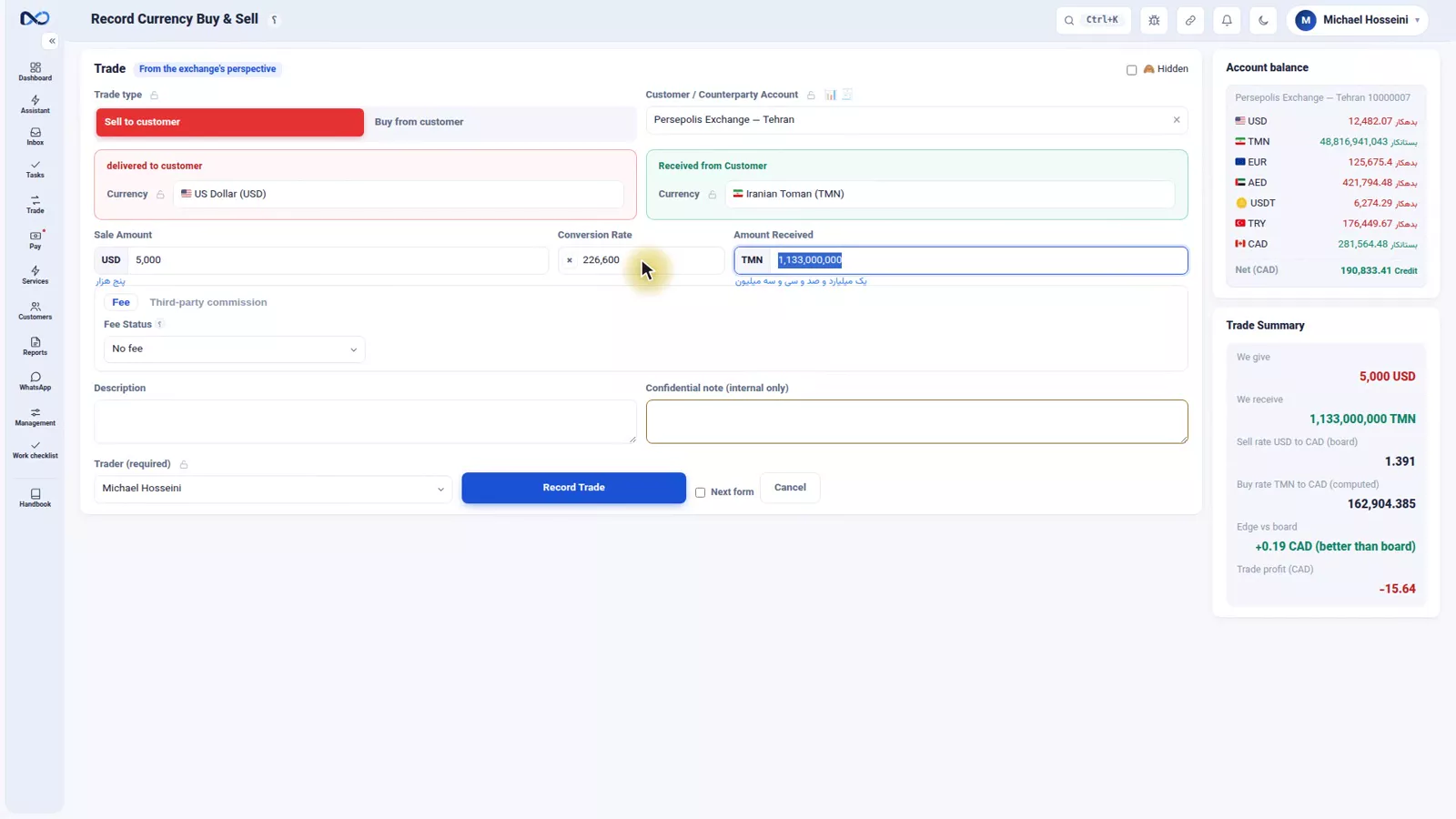
The sale amount here is 5,000. Under the box Nexto writes the figure out in words, so no zero gets added or lost. Then the rate: 226,600. The received amount is computed for you: 1,133,000,000 Toman.
Step 4 — Look at the edge against the board
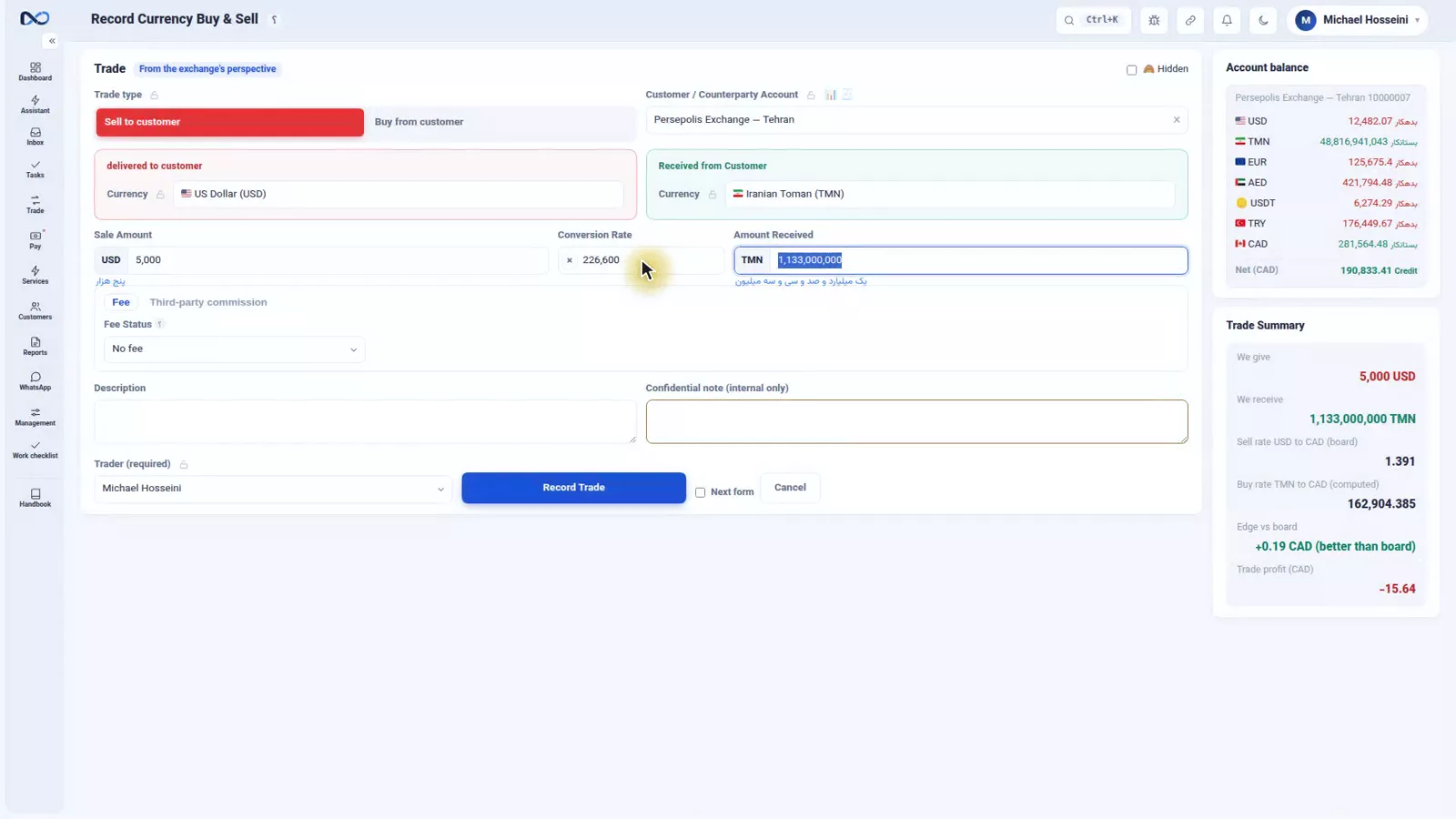
Now glance at the trade summary panel beside the form. Its most important line is the edge against the board: how far the rate you just typed sits from today's board rate, and how many dollars that gap is worth on this trade. That number does not exist without a correct board, which is why the rate board is a daily habit and not a settings page you visit once.
Step 5 — Fee, if there is one
The fee section has three states: no fee, we charge the customer, we pay the customer. Choose one of the last two and the fee currency and amount appear. The fee is merged into the settlement amount but written separately in the ledger, which is what makes your fee report come out right. In this trade there is no fee.
Step 6 — Third-party commission, if a broker is involved
If a broker brought this trade and takes a share, their account, the commission currency and the amount go here. The commission is credited to the broker's account, deducted from this trade's profit, and never shown on the customer's statement.
Step 7 — Description, private note and trader
The description is required — the guard switched on in settings, currencies and your first users. Write one line that will still make sense in three months. The private note is for what the customer must not know, and nothing else; do not put the voucher summary there.
The trader field says who carried out the trade, and is required too, because traders' commissions and each user's track record are built from it. Last, the next form checkbox: tick it and an empty form opens again after recording, for when trades come in a row.
Step 8 — Record the trade
Press Record trade. The voucher is created and its page opens.
The voucher: what went where
The code
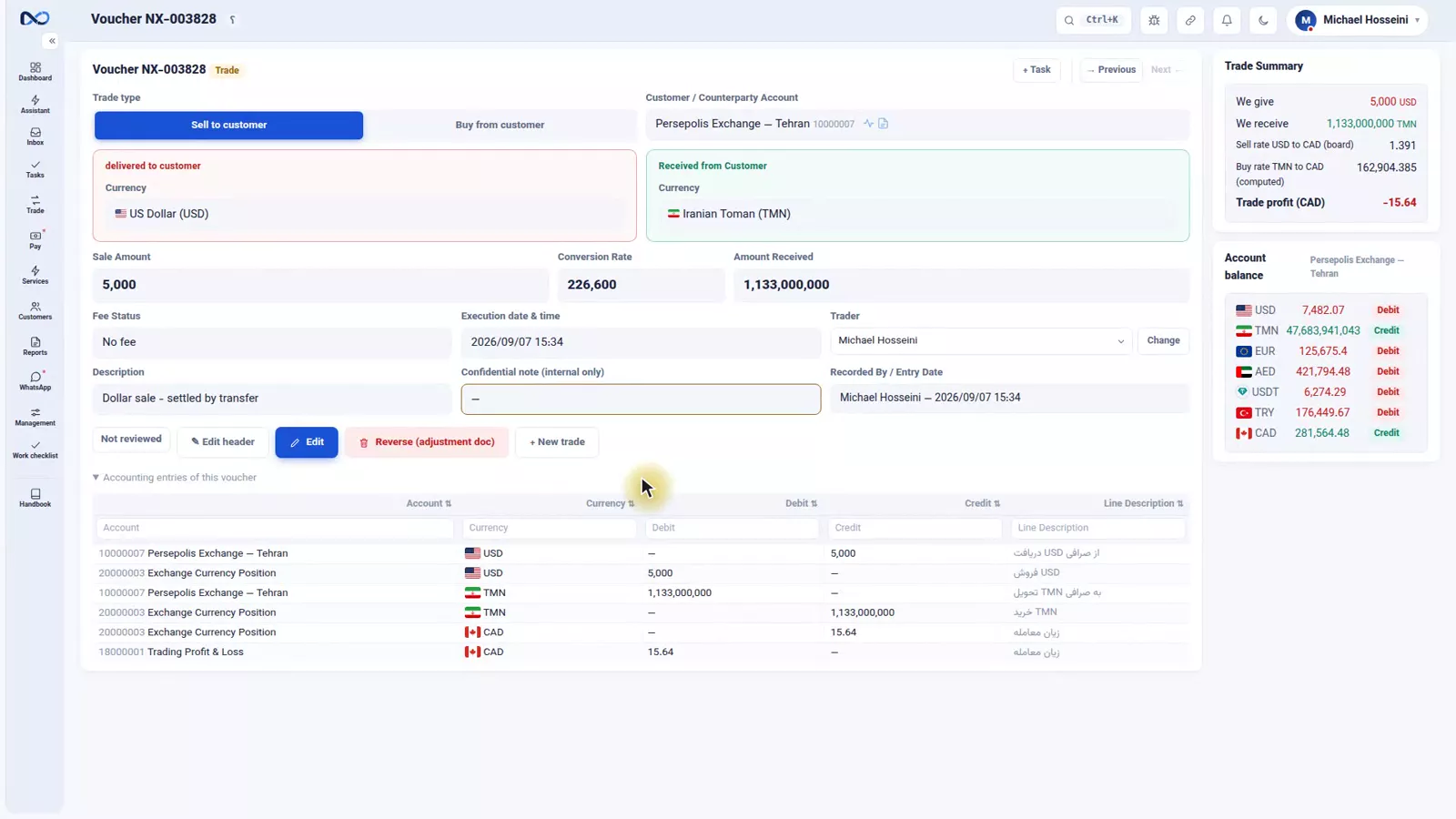
The voucher code starts with NX and a number; trade and transfer vouchers work that way. Special families carry their own prefix — commitment, deposit request, cashier order, cheque — so the code alone tells you what you are dealing with.
The four accounting lines
Open the accounting entries and there are four lines: two for the customer, two for the exchange's own currency position. The customer line in dollars is 5,000 credit, meaning you owe them dollars; the customer line in Toman is 1,133,000,000 debit, meaning they owe you Toman. The two currencies did not mix — the same rule you met in the four basics.
What it did to the customer
On the customer's statement, Persepolis Exchange's claim on you in dollars rose by 5,000, because the dollars have not been handed over yet; in Toman, their claim fell by 1,133,000,000.
This is what catches people out: a trade only creates an obligation. The real handover of money is a separate document, a transfer, covered in transfers, receipts and payments.
If you booked it wrong
Nothing bad happens, and there are two ways out. Edit brings the same form back, fixes the voucher in place and keeps the history. Reversal creates an opposite voucher that zeroes out the wrong one; you then record the correct trade afresh.
Which one you get depends on the clock. Up to twenty-four hours, editing is in place. Up to the correction deadline it is not: Nexto reverses the old voucher itself and creates a fresh one. After the deadline, the voucher is locked.
Editing inside twenty-four hours
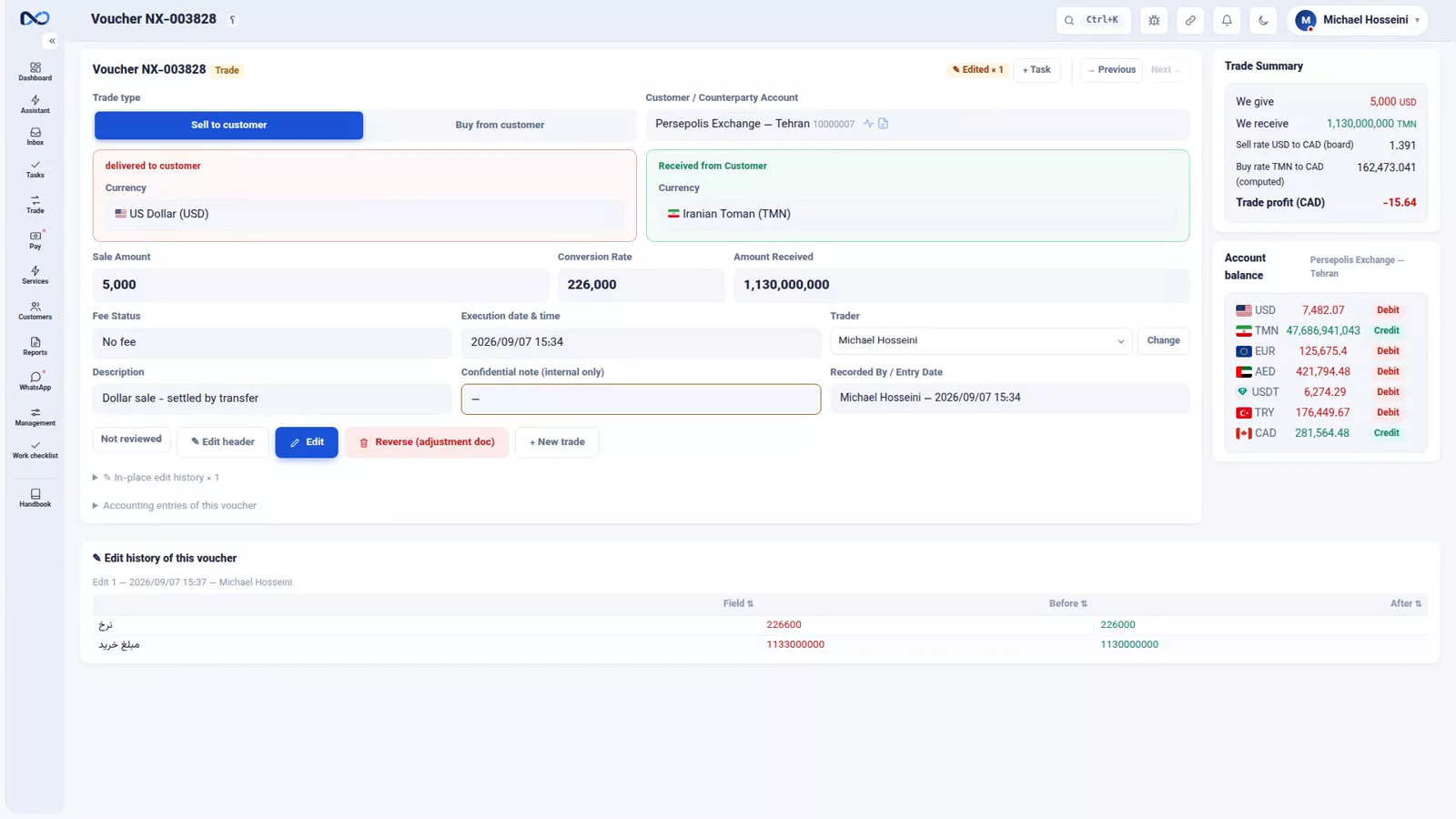
Suppose the rate went in wrong. The new voucher is at the top of the trades list; open it and press Edit, and the same form comes back with the same values. Change the rate to 226,000 and press Record adjustment. Inside the twenty-four-hour window the same voucher is fixed in place, and no new voucher is created.
The trail an edit leaves
The voucher now carries an edited mark, and at the bottom of its page sits the history: which field changed, what it was before, what it became, who did it and when. No correction is trace-free — not to catch anyone out, but so that three months later, when someone asks, you have an answer.
Reversal, and the lock
For a voucher that can no longer be edited in place, the reversal button creates the opposite voucher that cancels the first. Both stay in the ledger — that is the point — and you record the correct trade afresh.
Past the correction deadline the guard you set yourself takes over and the voucher locks. On an older voucher an Unlock editing button appears instead: only a user with the unlock permission can open it, for two hours, and that is written into the log.
Tips and warnings
- Look at the edge against the board every time. A trade well outside your board is either a decision or a typo — know which before you press the button.
- Never use the private note as a summary. The description is what the customer reads; the private note is what they must not see.
- A trade is not a delivery. Until you record a transfer, the money is an obligation on both sides.
- Correcting is normal, hiding is not. Every edit and reversal is stored with the user and the time.
Where to go next
The previous episode, customers and accounts, sets up the record every trade points at. Next comes cash trades and the till — the same trade, when the cash changes hands on the spot. After that, where trade profit comes from explains what the edge against the board turns into, and transfers, receipts and payments settles the obligation you just created.
FAQ
Is it a buy or a sell?
Name it from your own side: whatever leaves your hands, you are selling. If the customer wants US Dollars and pays in Toman, you are selling dollars.
Does recording a trade move the money?
No. A trade creates an obligation on both sides, and each currency sits separately on the customer's account. The actual handover is a separate document, a transfer.
What is the edge against the board?
It is the line in the trade summary panel showing how far your rate is from today's board rate, and what that gap is worth on this trade. It is only meaningful if your board is up to date.
Can I correct a trade I recorded wrong?
Yes. Inside twenty-four hours you edit it and the same voucher is fixed in place. Up to the correction deadline, Nexto reverses the old voucher itself and creates a fresh one. Either way the change is recorded with the user and the time.
What happens after the correction deadline?
The voucher locks. An Unlock editing button appears instead: only a user with the unlock permission can open it, for two hours, and that goes into the log too.
Full video transcript
This part is the heart of the course. Everything we did in the previous chapter, currencies, the board, customers, was for this moment: a customer walks in, wants dollars, and you have to record the trade. By the end of this part we record one trade completely, read its voucher, and learn what to do if it goes wrong. A quick definition: a trade means you give one currency and get another, at a rate. That's it. Persepolis Exchange wants five thousand dollars today and pays toman; for you that's a dollar sale.
Always name it from your own side: whatever leaves your hands, you are selling. This is the trade form. It isn't busy; it has four main things: the customer, the currency you sell, the currency you receive, and the amount and rate. The rest is optional and we'll see it one by one. First, the customer. You type the name and pick from the list, you can even search the middle of a name. The moment you pick, their balance appears beside the form; so before you record, you know whether this customer currently owes you or is owed.
Next, the direction and the two currencies. At the top of the form you choose the trade type: sell to the customer or buy from the customer. Then the currency you hand over, dollars, and the one you take in return, toman. Direction matters: get it backwards and instead of selling dollars you record buying dollars, and the balances go the wrong way. The sale amount: 5,000. And below it, it's written out in words so no zero gets added or lost. Then the rate: 226,600.
It computes the received amount itself, 1,133,000,000 toman. At this very moment, glance at the trade summary panel that comes alive beside the form. Its most important line is the edge vs board: how far your rate is from today's board, and how many dollars that gap is worth. The very number we said, back in the board part, doesn't exist without a correct board. The fee: if you charge or pay a fee on this trade, here. It has three states: no fee, we charge the customer, we pay the customer.
Let's pick we charge the customer: the fee currency and amount appear. The fee is merged into the settlement amount but written separately in the ledger, so your fee report comes out right. Today we have no fee; we go back to no fee. Third-party commission: if a broker brought this trade and takes a share, you enter their account, the commission currency and amount right here. The commission is credited to their account, deducted from this trade's profit, and never shown on the customer's statement.
Today we leave it empty and return to the fee tab. The description is required, the same guard we switched on in settings. Write one line so that three months later you understand what this was. And the private note: only what the customer shouldn't know; don't write the voucher summary there. The trader: who carried out this trade. It's required, because traders' commissions and users' track records come from it. And the next form checkbox: if you have several trades in a row, after recording, an empty form opens again.
Record trade. The voucher is created and its page opens. This is the voucher page. Its code starts with NX and a number, trade and transfer vouchers work that way. Vouchers of special families have their own prefix: commitment, deposit request, cashier order, cheque; from the code you know what you're dealing with. The top of the page is what we recorded; below, its effect. And the accounting entries: let's open them. Four lines: two for the customer, two for the exchange's currency position.
The customer line in dollars: 5,000 credit, meaning we owe them dollars. The customer line in toman: 1,133,000,000 debit, meaning they owe us toman. The currencies didn't mix; the same rule from the basics part. And its effect on the customer: in dollars, Persepolis Exchange's claim on us rose by five thousand, because we haven't delivered the dollars yet; in toman, their claim fell by one billion one hundred thirty-three million. A trade only creates an obligation; the real handover of money is a transfer, which we'll see in part eleven.
Now the biggest fear of anyone just starting: what if I recorded it wrong? The answer: nothing bad happens; you have two ways. The first, edit: the same form comes back, the voucher is fixed in place, and the history stays. The second, reversal: an opposite voucher that zeroes out the wrong one; then you record the correct one afresh. And timing matters. Up to twenty-four hours, editing is in place. Up to the correction deadline, editing is no longer in place; Nexto reverses the old voucher itself and creates a fresh one.
And after the deadline, the voucher is locked. Let's see edit. Suppose we entered the rate wrong. The new voucher is at the top of the trades list; we open it and hit Edit: the same form, with the same values, comes back. We change the rate to two hundred twenty-six thousand, and Record adjustment. Because we're still inside the twenty-four-hour window, the same voucher is fixed in place; no new voucher is created. See what remained: the voucher now carries an edited mark, and at the bottom of the page, the history: which field, what it was before, what it became after, who and when.
No correction is trace-free, not to catch anyone; so that three months later you have an answer. And the reversal: for a voucher that can no longer be edited in place. This button creates an opposite voucher that zeroes out the effect of the first; both stay in the ledger, and then you record the correct one afresh. Here we only show it, we don't press it. And the guard you set yourself: after the correction deadline, the voucher locks. This voucher is from a few days ago; see how the Unlock editing button has appeared, only someone with unlock permission can open it for two hours, and even that stays in the log.
Wrap-up. One trade from start to finish: customer, the sold currency and the bought currency, amount and rate, description, record, and before recording, a glance at the edge vs board. The voucher places each currency separately on the customer's account and creates an obligation, not a delivery. Went wrong? Up to twenty-four hours, edit in place; after that, reversal. Next part is cash trades: the same trade, when the cash changes hands at that very moment.
Try it yourself right now
A complete private demo with sample data — no installation, no credit card.
Create free demo