
The customer statement and the customer portal
How to read a customer statement in Nexto, filter it by currency and date, reconcile a disputed row in colour, and share it by WhatsApp, Excel, PDF or portal.
Watch this video on: YouTube
Sooner or later a customer calls and says the same sentence: my account does not match yours. That call is not really about accounting — it is about two people looking at two different lists. The statement is where you put both lists side by side.
A statement in Nexto is the line-by-line record of every document you have had with one customer, in time order, with the balance left after each one. It is the page you open most often once the office is running, and this episode covers all of it: reading it, filtering it, the Confidential column, settling a disputed row in colour, the four ways to get it to the customer, and the customer stats page next door.
What you will learn
- How to read a multi-currency statement and the net balance in your reference currency
- How to narrow a statement down to one currency, a date range, or the latest rows
- What the open items block at the top is telling you
- What belongs in the Confidential column — and what must never go there
- How colour reconciliation settles a disputed row while the customer is on the phone
- Four ways to deliver a statement: WhatsApp, Excel, PDF and the read-only portal
Reading a statement
The page itself
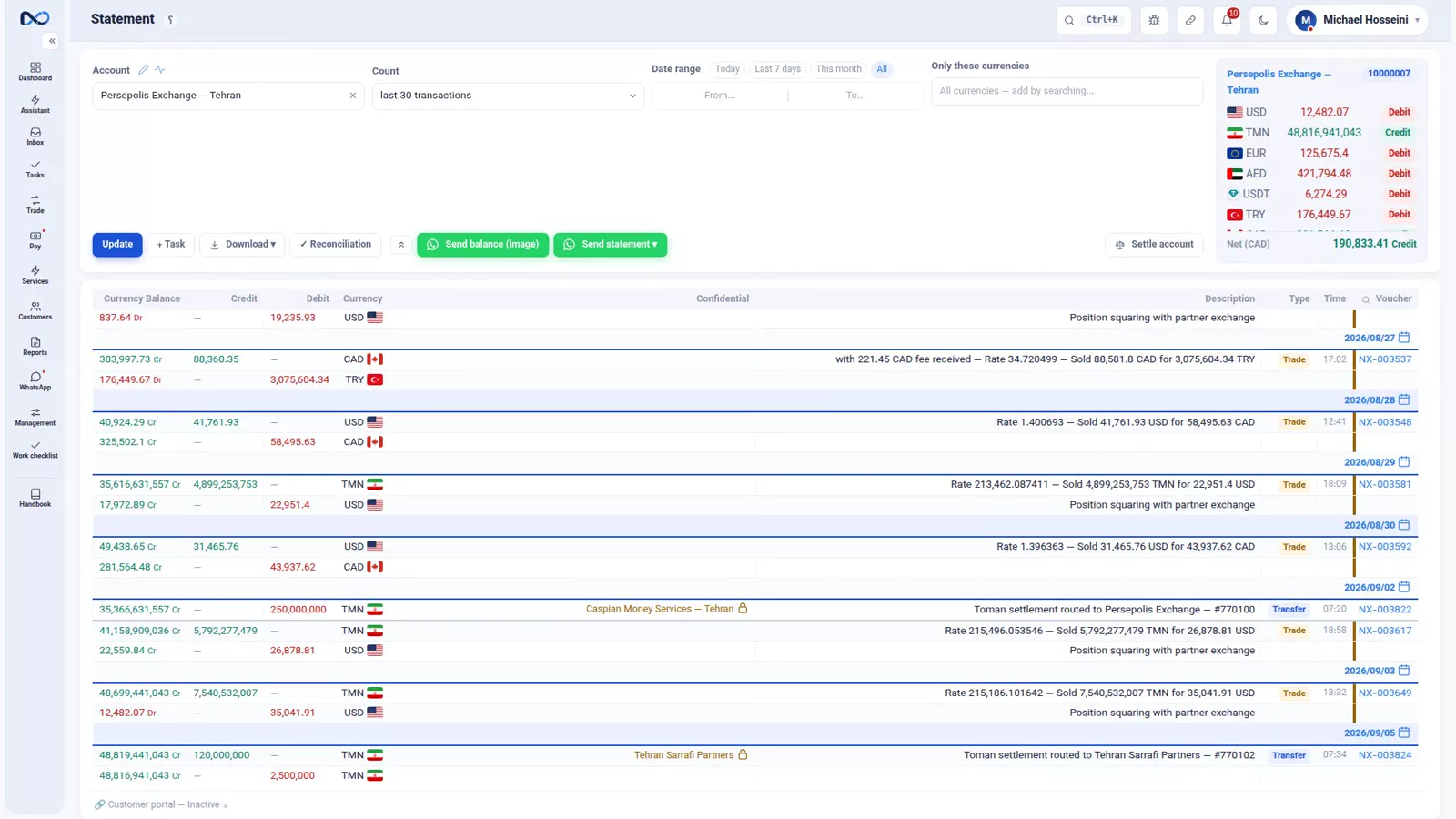
Open the statement for one customer and you get their whole history with you: every trade, transfer, receipt, payment and cheque, oldest to newest, and after each row the balance that was left. Nothing here is a summary — each line is a real document you can click through to.
Balances by currency
Exchange work is multi-currency, so a single balance figure would be a lie. The top of the page shows the balance of each currency separately, plus the net converted into your reference currency. Read the per-currency lines first; the net is for a quick glance, not for a conversation with the customer.
Narrowing it down
Three filters do most of the work: a single currency, a date range, or the most recent transactions only. Pick Canadian Dollar and press Update, and the moment the page refreshes only that currency's rows are left, with that currency's running balance. This is what you use when the customer disputes one currency and agrees on the rest.
Open items, right at the top
Next to the balances sits this customer's open items: receipts still awaiting collection, open commitments, open deposit requests. Each one has a counter, and each one has a button that sends its card straight to the customer's WhatsApp. These are the same open items you met in the daily-work chapter — the statement simply gathers them in one place so you do not have to go looking.
The Confidential column
There is one column you need to understand before you use the page in front of a customer: Confidential.
Anything you write there stays inside your office. In every copy that reaches the customer — the WhatsApp message, the PDF, the plain Excel, the portal — that column does not exist at all.
The rule is narrow on purpose: write there only what the customer must not know. Do not use it to summarise the document; the Description column already does that, and the customer is supposed to read the description. Confidential is for the note you would not want read aloud.
Settling a dispute in colour
Back to that phone call. The customer says they do not accept one of the rows.
Step 1 — Turn reconciliation on
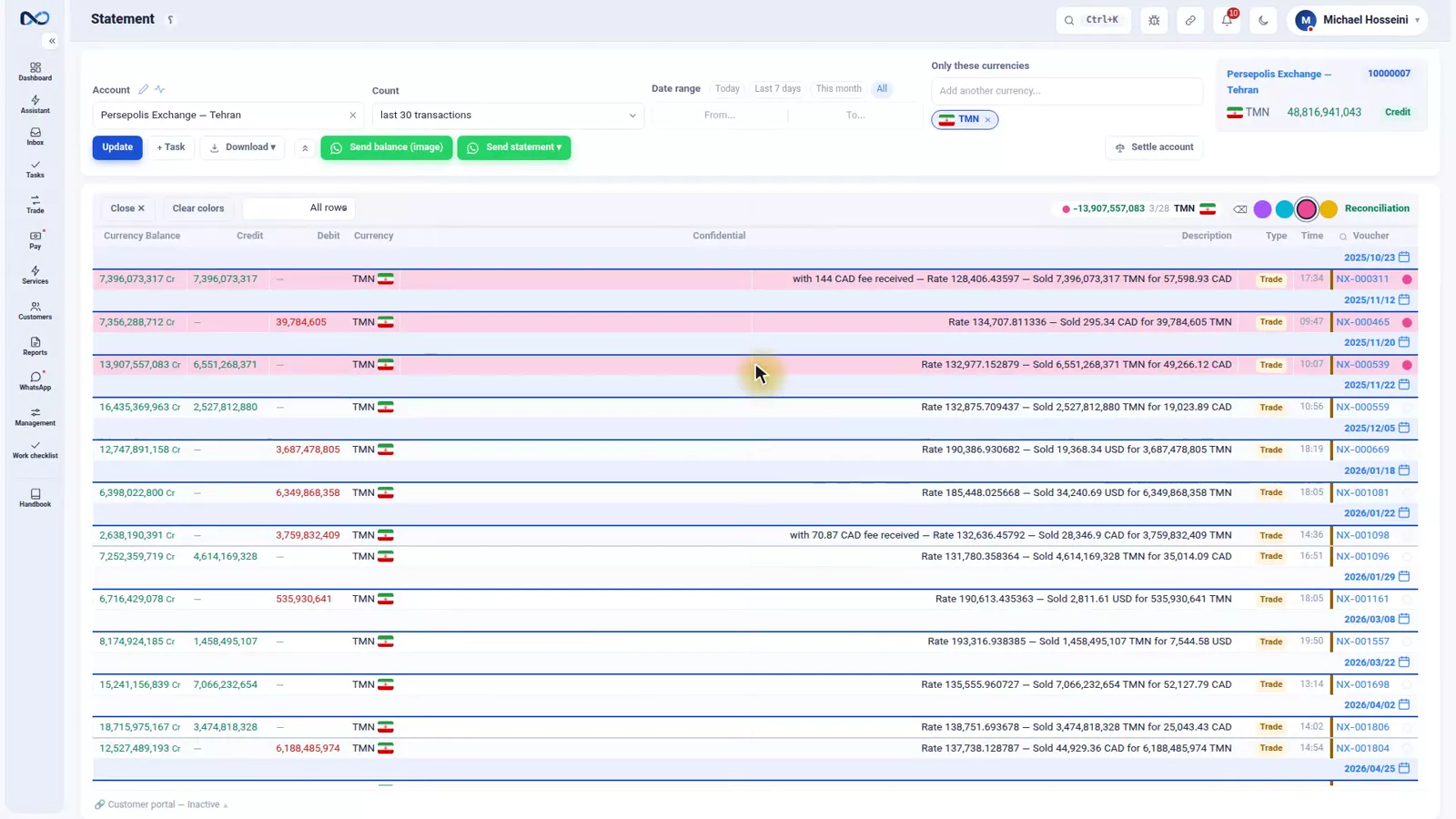
Switch reconciliation on for the statement you are both looking at. The rows become markable.
Step 2 — Colour the rows you agree on
Pick a pen colour and colour in the lines you both accept. Use a second colour for the rows only one of you has. It is the same thing you used to do with a highlighter on a printout, except the totals keep up with you.
Step 3 — Read the gap
The total for each colour is computed live. By the time you have gone through the list you can tell the customer, in that same call, exactly how much you both agree on and exactly how large the gap is — instead of promising to check and call back.
Getting the statement to the customer
When you are done, there are four routes out of this page.
- WhatsApp — one button sends the balance, the whole statement, or the open-items card to that customer's own WhatsApp, carrying the same filter you have on screen. Filter to one currency first and that is what they receive.
- Excel — the plain Excel comes in Nexto's official layout and contains no Confidential column. If you need that column for your own use, there is a separate Excel with private that is meant to stay internal.
- PDF — the same statement as a document you can attach or print.
- The portal — a secure, read-only link of their own.
The customer portal
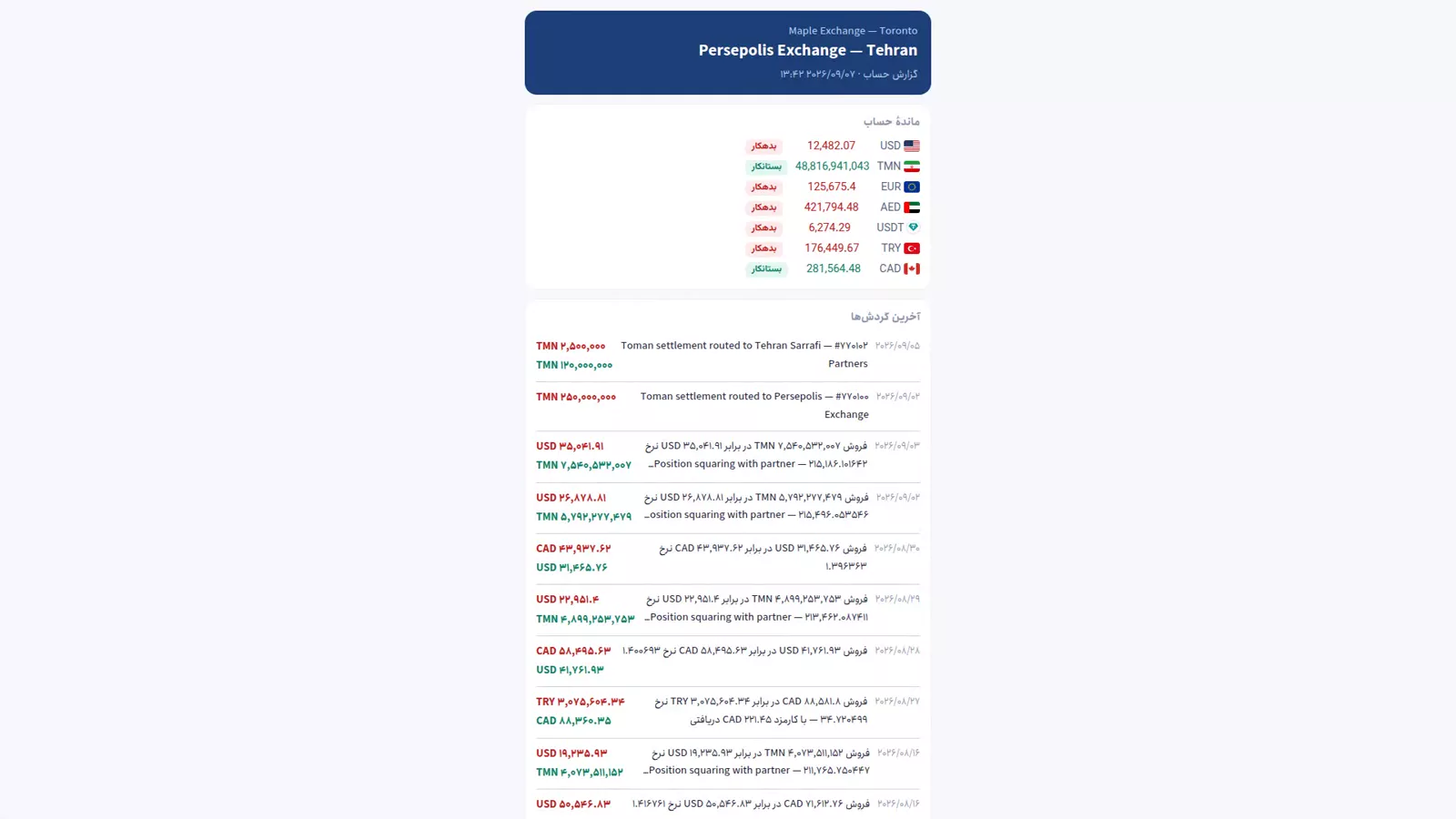
The portal is the route that stops the sending altogether. You enable it for that customer and they get a link they can open whenever they like.
Four things make it safe to hand out: the link shows only that one account; it is read-only, with no button that can change anything; you can revoke it whenever you want; and it lives on a separate domain that search engines never crawl. What the customer sees is the same statement you see, minus the menu and minus the Confidential column.
Customer stats: what this customer is worth
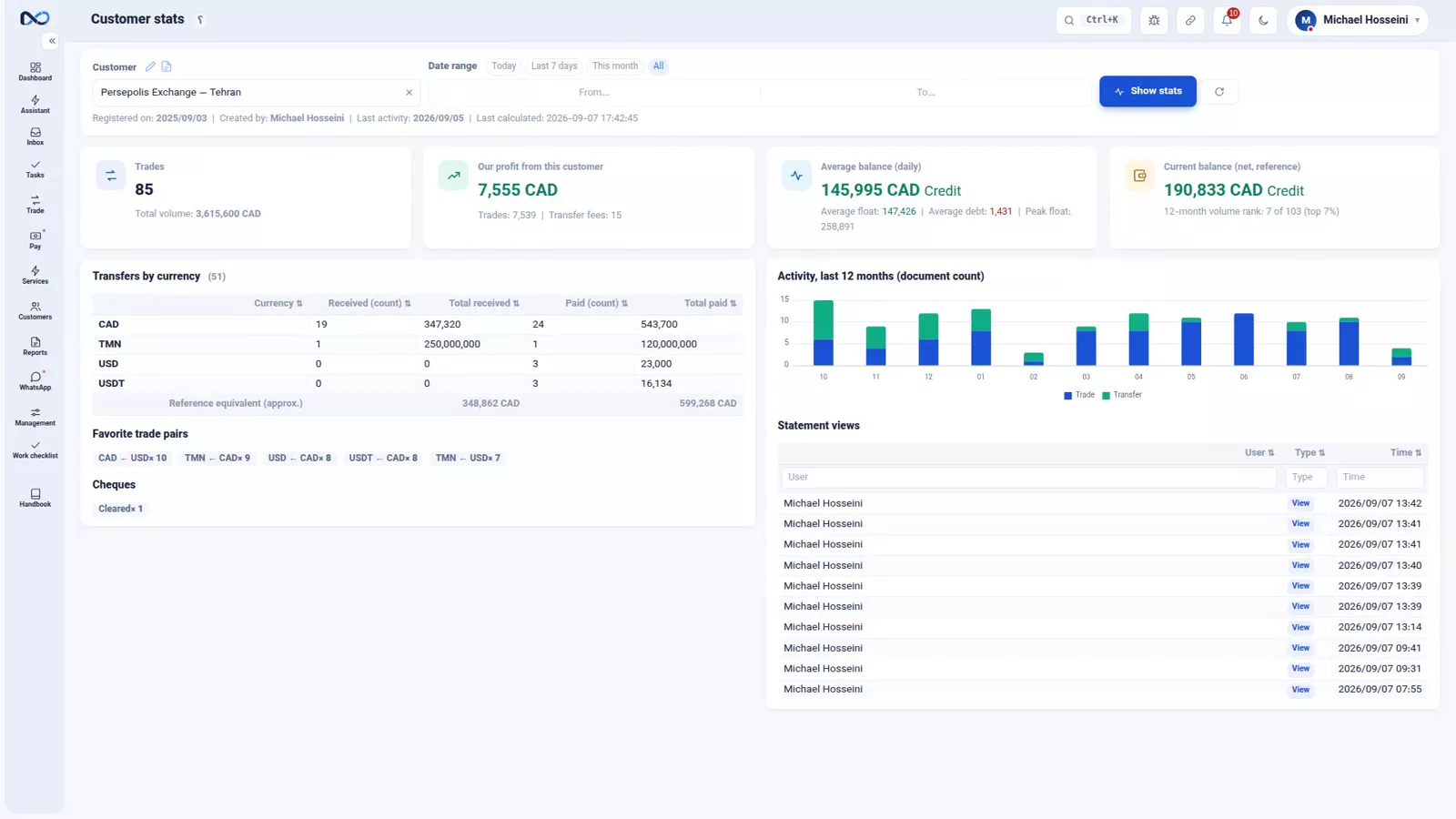
Next to the statement is a second page about the same customer, and it answers a different question. The statement says what you did with them; the stats say how much they are worth to you.
You get trade volume, your profit from them, their average balance and their current balance; transfers broken down by currency; their favourite trade pairs; and their activity over the last twelve months. Profit figures here are only visible to users who hold the Profit & Loss Report permission.
Tips and warnings
- Never read the net reference-currency balance to a customer as if it were the balance. In an exchange office the balance is one number per currency; the net is a management figure.
- Before you send anything, check which filter is active. The WhatsApp message and the exports carry the filter that is on screen, not the full statement.
- Keep the Confidential column for things the customer must not see. Putting a document summary there hides it from the customer's copy for no reason.
- Reconciliation colours are a working tool for the conversation, not an accounting correction. If a row is genuinely wrong, it still has to be fixed as a document.
- The portal link is revocable, but it is still a link. Send it to the customer, not into a group.
- Profit numbers on the stats page follow the Profit & Loss Report permission, so a teller and an owner will not see the same page.
Where to go next
The previous episode, the map of reports and exports, shows which report answers which question and how every table leaves Nexto as Excel or PDF. Next comes where is the money, which moves from one customer to the whole office. The open items at the top of the statement are explained where they are created, in payment commitments and deposit requests, and the WhatsApp button relies on the setup in WhatsApp: groups, templates and the send queue.
FAQ
What exactly is a customer statement in Nexto?
It is the line-by-line record of every document you have had with one customer, in time order, with the balance left after each row. It also shows the balance of each currency separately plus a net figure in your reference currency, and the customer's open items at the top.
Can I show a statement for a single currency?
Yes. Filter the statement to one currency and press Update; only that currency's rows remain, with that currency's running balance. You can combine it with a date range or with the latest-transactions filter.
What is the Confidential column and who can see it?
It is a column for notes that must stay inside your office. It never appears in anything the customer receives — not the WhatsApp message, not the PDF, not the plain Excel, not the portal. Only the internal Excel with private includes it.
How does colour reconciliation work?
You turn reconciliation on, pick a pen colour and mark the rows you and the customer both accept. Nexto totals each colour live, so during the same call you can say how much is agreed and how much is in dispute.
Is the customer portal safe to give to a customer?
It is read-only and limited to that one account, it can be revoked at any time, and it sits on a separate domain that search engines do not crawl. The customer cannot change anything and cannot see the Confidential column.
Where do I see how profitable a customer is?
On the customer stats page, next to the statement: trade volume, profit from that customer, average and current balance, transfers by currency, favourite pairs and twelve months of activity. The profit figures require the Profit & Loss Report permission.
Full video transcript
A customer calls and says: my account doesn't match yours. This screen is where that conversation ends — and it is the most important page in Nexto. A statement is the line-by-line record of every document you have had with one customer, in time order, with the balance left after each one. And because exchange work is multi-currency, the top of this page shows the balance of each currency separately, plus the net in the reference currency. You can narrow it down to a single currency — Toman — or to a date range, or to the most recent transactions only.
Update — and in that instant only the rows of that currency are left, with the balance of that currency. At the top of the statement, next to the balances, this customer's open items sit as well: uncollected receipts, open commitments, open deposit requests — each with a counter, and each with one click to send its picture to the customer's WhatsApp. We met them in the daily-work chapter; here they are all gathered in one spot. There is one column you need to know: Confidential.
That is where you write the things that only mean something inside your own office, and in the copy that reaches the customer — WhatsApp, PDF, portal — it simply does not exist. The rule: only what the customer must not know; don't write the summary of the document there, the Description column already does that. Back to that phone call. The customer says: I don't accept one of these rows. You switch reconciliation on, you pick a pen colour, and you colour in the lines you both accept.
The total for each colour is computed live; so right at that moment you see how much you both agree on, and exactly how big the gap is — work that used to take paper and a calculator. When you are done, you have three ways. First: one button straight to the customer's own WhatsApp — the balance, the whole statement, or the open-items card — carrying the same filter you have on screen. Second: Download; the plain Excel comes in Nexto's official layout and has no Confidential column in it, and if you yourself need that column, there is a separate Excel with private that stays internal.
And the third way: the portal. You create a secure, read-only link for that customer, and whenever they like they look at their statement themselves — without you sending anything every time. We press the enable button. The link shows only that one account, it is read-only, you can revoke it whenever you want, and it lives on a separate domain that search engines never crawl. Let's open it: this is exactly what the customer sees; the same statement, read-only, no menu, no Confidential column, and no button that can change a thing.
And next to the statement, customer stats: trade volume, your profit from them, their average balance, their current balance; transfers by currency, their favourite trade pairs, and activity over the last twelve months. The statement says what you did; the stats say how much this customer is worth to you — and profit is only visible with the Profit & Loss Report permission. To wrap up: the statement is where you answer “what have you done with me” — multi-currency, with the open items right at the top; the Confidential column for internal notes; colour reconciliation for settling a dispute; WhatsApp, Excel, PDF or the portal to deliver it; and customer stats so you know what this customer is worth.
Try it yourself right now
A complete private demo with sample data — no installation, no credit card.
Create free demo