
WhatsApp groups, templates and the send queue
How to connect WhatsApp to Nexto, set each customer's group or number, write templates once, send from inside a page and track every message sent.
Watch this video on: YouTube
For most exchange offices WhatsApp is the second office. Receipts arrive on it, customers ask for their balance on it, account numbers are handed out on it. Nobody is going to talk a customer out of that habit, so the useful question is a different one: how do you stop retyping the same messages all day, and how do you prove afterwards what was sent?
Nexto brings WhatsApp inside the software in four layers. Each colleague connects their own number; each customer gets a destination, a group or a phone number; the messages you send every day become templates you write once, in your own words; and after that you send from inside the page you are already looking at, with everything logged in a queue you can search. A fifth thing needs no button at all: late every night, the day's reports go to your management group on their own.
What you will learn
- How to connect a line with a QR code, from each colleague's own number
- Where to set the group or number each customer's messages go to
- How templates and their variables work, and how to rewrite them in your own words
- How to send a balance, a statement or a voucher from inside the page you are on
- How to read the send queue when a customer says nothing arrived
- How to set up the automatic nightly report to the management group
Layer one: connecting the line
Each colleague connects their own number
In Nexto each user connects their own WhatsApp, not a shared office number, so a message goes out from the number of the colleague who sent it. The reason is the relationship: your customer is dealing with a person, not a bot. The message still comes from the same someone they always talk to — the typing is simply no longer needed.
Scan the QR code once
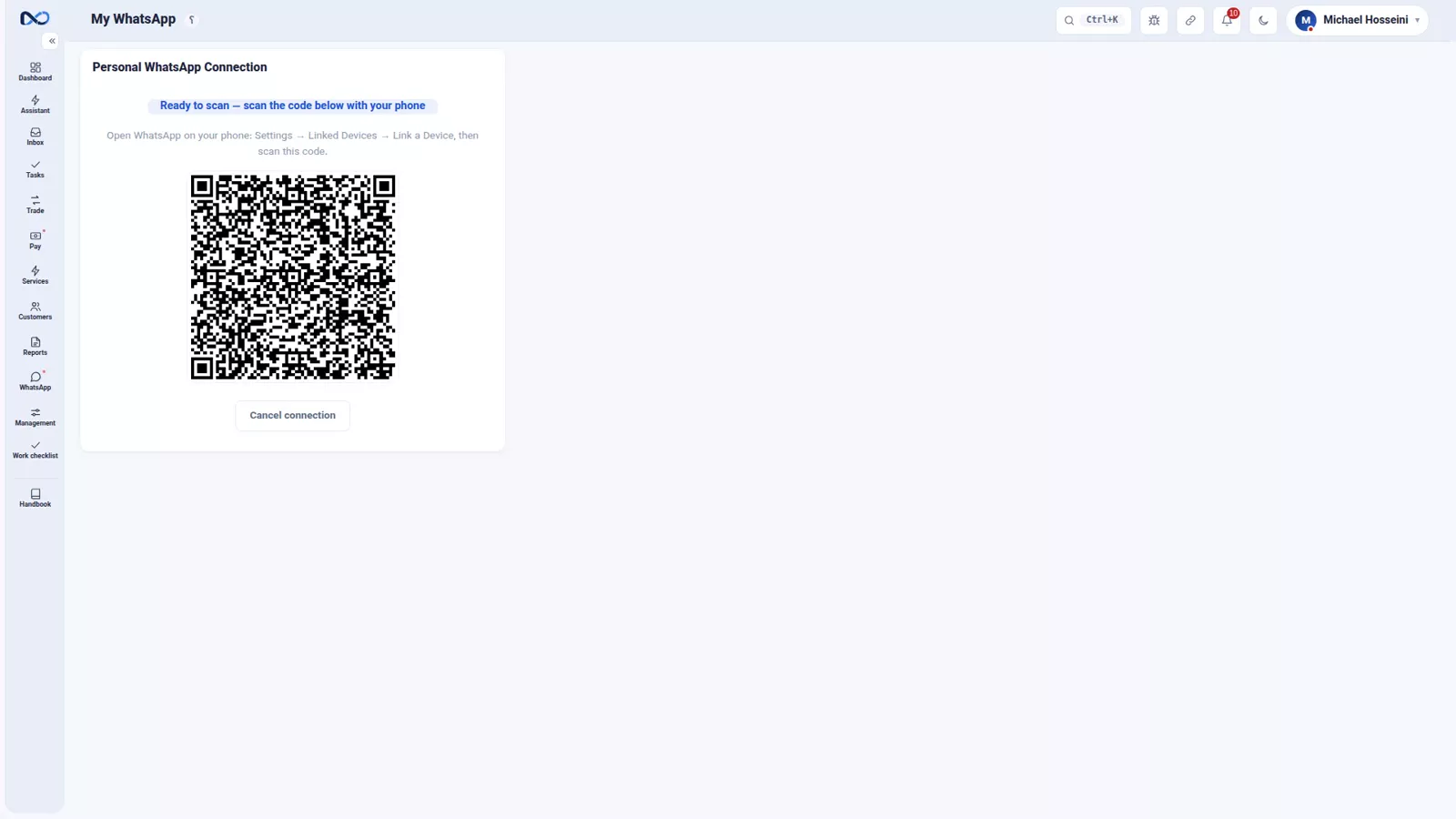
The WhatsApp page shows the status of your line. Nexto shows a QR code, you scan it with the WhatsApp on your phone, and seconds later the line turns to connected. If it drops you reconnect in the same place by scanning again; in practice this is done once and stays up for months.
Layer two: where each customer's messages go
Set the destination on the customer's page
Before templates comes one small step, without which no message goes anywhere: Nexto has to know where this customer's messages should go.
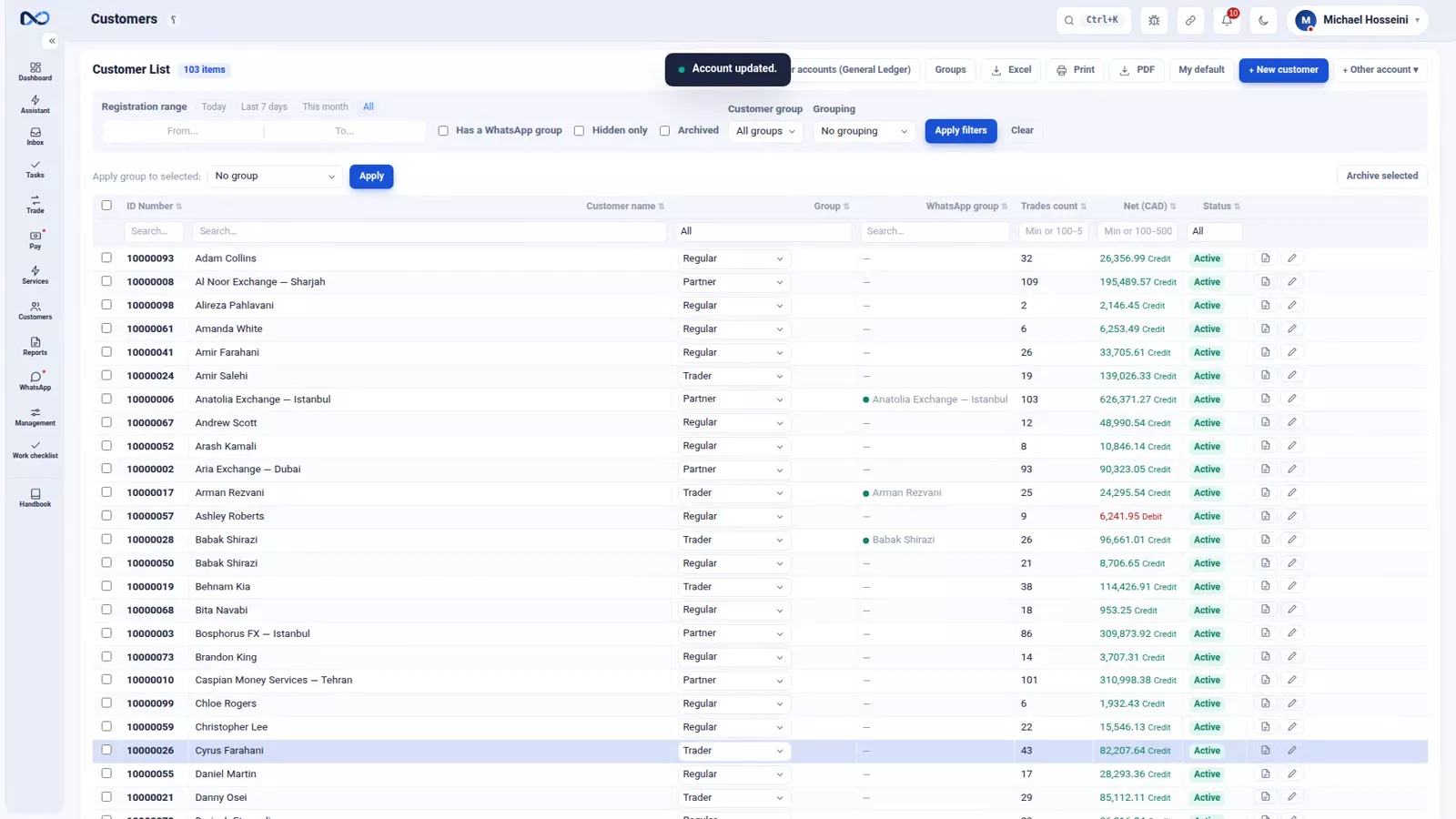
Open the customer's page and find the box for this account's WhatsApp groups. Either pick their group from the list of groups your own line belongs to, or — if they have no group — type their number in the same box in international format: country code, no leading zero, then the number, and pick it from the list. Save once, and every message for this customer goes there from then on. The Phone box on the customer record is a separate thing: it is for finding the customer, not for receiving messages.
Layer three: templates
Write the message once
The messages you send over and over become templates: a balance notice, the statement, open items, a voucher, an account number for a commitment, a cash order, the steps of a Sayad cheque, a note that a receipt is unreadable. Written once, then sent with a button.
Variables do the personalising
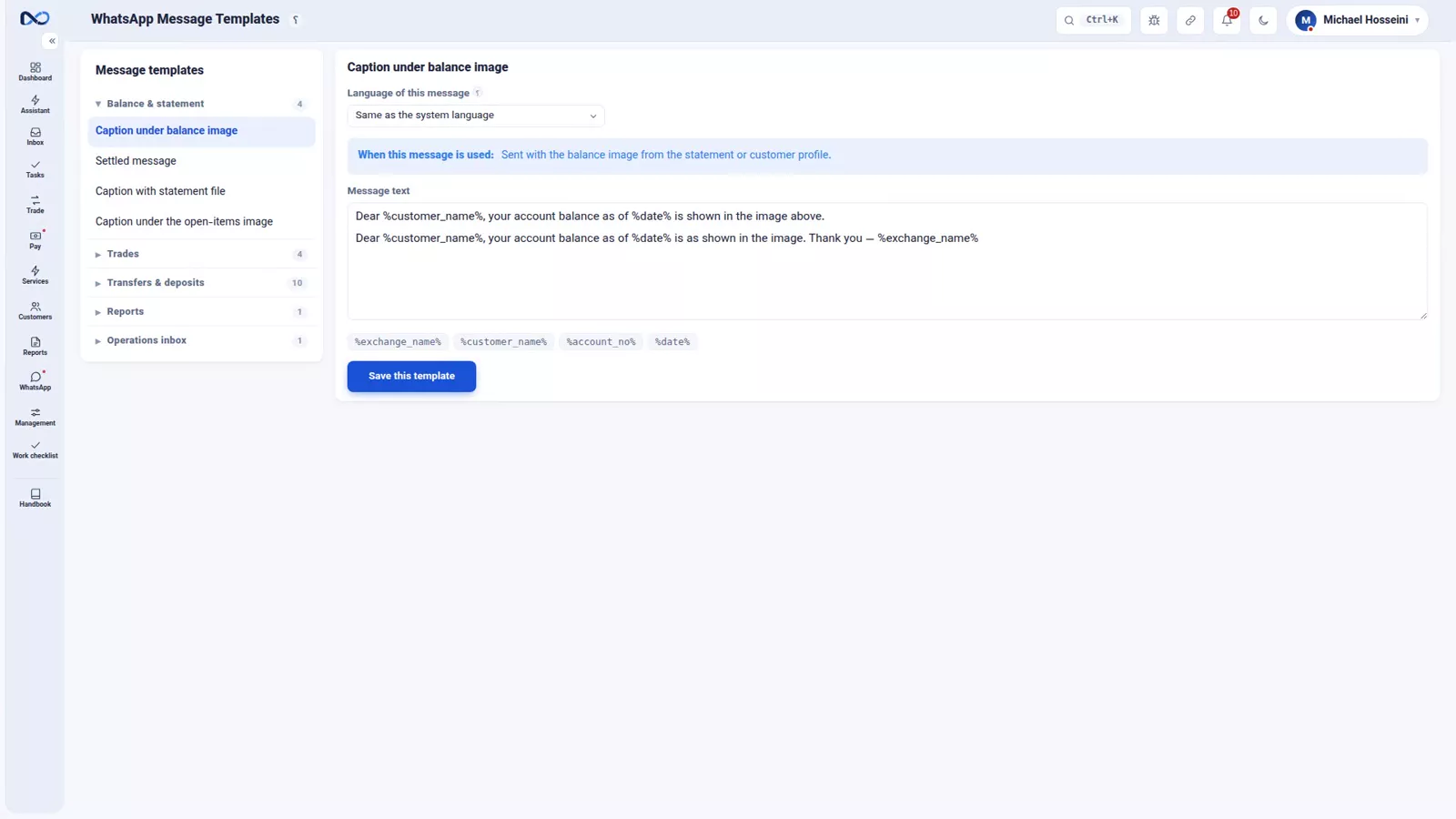
Inside the text you place variables such as the customer name and the date, and at send time the real value takes their place. You are not writing a message per customer, but the shape of the message once.
Rewrite them in your own words
Every template is editable, and you should edit them: your firm's tone is not the wording Nexto ships. Read them through once at the start and rewrite them the way you would say it — shorten the balance text, for example, and save. From that point the Send balance button sends exactly your text, with the real name and date in place of the variables.
Layer four: sending from inside the pages
There is no separate page for sending a message, and that is deliberate: you send from wherever you already are. A customer's statement has a Send balance button and a Send statement menu; every open commitment and deposit request has an image card you can send; and a voucher, a cash order or a Sayad cheque goes to the customer's WhatsApp from the document itself, without copying anything.
Because the message leaves from inside that page, it carries the filter you have on screen. Narrow the statement to one currency and one date range and that is what the customer receives, so check the filter first.
Traffic runs the other way too: messages and receipts arriving in your WhatsApp groups land in the Nexto Inbox, where a receipt can be turned into a voucher instead of retyped.
The send queue
Everything sent is logged
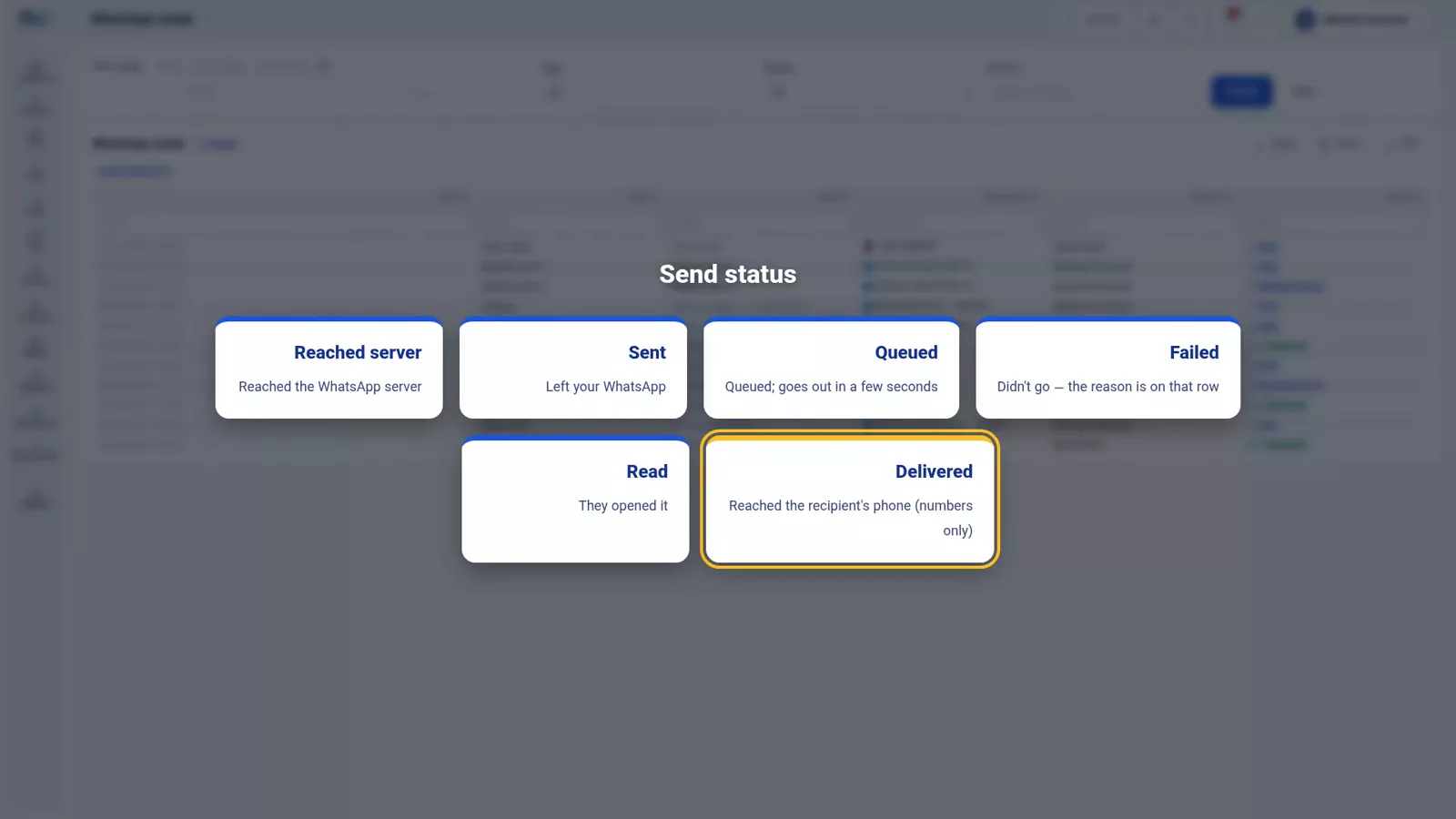
Every message is written into a queue first and goes out from there, so the queue is your tracking report. When a customer says they got nothing, you open it instead of arguing: when it went, to which number or group, what kind of message, and its status — queued, sent, reached the server, delivered, read, or failed with a reason.
Two things to know about the statuses
Delivered and read only mean something for a number: for a group the status stays at sent, because WhatsApp returns no delivery receipt for group messages. And the queue has its own permission — a user without it sees only their own sends, not everyone else's.
The nightly report
This one needs no button. Late at night, before twelve, that day's reports — trades, balances, the day's profit, open items — go to the management group by themselves, so the day can be reviewed on a phone that same night. In settings you choose the hour, the sending session and the destination group, and tick which reports go. The trail sits in the same send queue, with the type Nightly report and the time it went.
Tips and warnings
- Set the destination before you try to send anything. A connected line with no group or number on the customer's page sends nothing.
- International format means the country code with no leading zero; a local-format number will not be found.
- Read every template once before you go live; the default wording is a starting point, not your firm's voice.
- The filter on the page travels with the message: filter the statement first, then send.
- If a customer disputes what arrived, the send queue answers it: destination, type and failure reason.
Where to go next
This episode opens the WhatsApp and AI chapter, after FX revaluation and closing the period closed the books. Next comes the AI assistant, which can be reached from WhatsApp too, on its own line. The page most of these buttons live on is the customer statement and the portal, the open-items cards come from payment commitments and deposit requests, and the permission behind the send queue is set in users, permissions and two-step sign-in.
FAQ
Does everyone in the office share one WhatsApp number?
No. Each user connects their own number with a QR code, and a message goes out from the number of the colleague who sent it, so the customer keeps talking to the same person as always.
Where do I tell Nexto which group or number a customer's messages go to?
On the customer's own page, in the box for that account's WhatsApp groups. Pick their group from your line's groups, or type their number there in international format, country code first and no leading zero. The Phone field is only for finding the customer.
Can I change the wording of the messages Nexto sends?
Yes. Every template is editable and you are expected to rewrite them in your firm's own words. Variables such as the customer name and the date are filled in at send time, so one template serves all customers.
How do I check whether a message really reached the customer?
Open the send queue. It shows when the message went, to which number or group, what type it was, and its status: queued, sent, reached the server, delivered, read, or failed with the reason. For a group the status stops at sent, because WhatsApp returns no delivery receipt for groups.
What is the nightly report and where does it go?
Late at night Nexto sends the day's reports — trades, balances, the day's profit and open items — to the management group by itself. In settings you pick the hour, the sending session, the destination group and which reports go.
Full video transcript
In practice WhatsApp is every exchange's second office: receipts arrive on it, balances are asked on it, account numbers are given on it. Rather than fighting it, Nexto has brought it inside — in this order: connection, each customer's destination, templates, and sending from inside the pages. And one that needs no button: the automatic late-night report. Layer one is connection, with an important point: each user connects their own WhatsApp, not a shared number.
A message that goes to a customer goes from the number of the same colleague who sent it. Why? Because your customer is dealing with a person, not a bot; when the message comes from the number of the same someone they always talk to, nothing has changed — the typing is simply no longer needed. This page shows the line's status. Connecting it is this simple: Nexto gives you a QR code, you scan it with the WhatsApp on your phone, and a few seconds later the line turns 'connected'.
If it ever drops, you reconnect right here by scanning again. Connecting is done once and usually stays up for months. The line is connected. Now, before templates, one small step without which no message goes anywhere: Nexto needs to know where to send each customer's messages. On the customer's page, the 'This account's WhatsApp groups' box: you either pick their WhatsApp group from the list of your own line's groups, or, if they don't have a group, right in this box you type their number in international format — country code, no leading zero, then the number — and pick it from the list.
The 'Phone' box is separate and is only for searching and identifying the customer, not the message destination. Just this once, and Save — and from now on every message for this customer goes there. Layer two is templates. The messages you always send, you write once, and after that each time you just press a button: a balance notice, the statement, open items, a voucher, an account number for a commitment, a cash order, the steps of a Sayad cheque, an unreadable receipt.
And they take variables: inside the text you write 'customer name' and 'date', and at send time the real value takes its place — so one template is enough for all your customers. And all of them are editable. Your firm's tone differs from ours — so read them through once at the start and rewrite them in your own words. We'll shorten the 'balance' text, and save. From now on 'Send balance' sends exactly this text — with the real name and date in place of the variables, for every customer.
Layer three: sending from inside the pages themselves. There is no separate page for sending a message. On the customer's statement there's a 'Send balance' button and a 'Send statement' menu, and on every open commitment and request, an open-items image card. And because it goes from inside that very page, it goes with the same filter you have on screen: have you filtered the statement to one currency and one date range? That's what gets sent. On every voucher it's the same: send to the customer's WhatsApp, right there, without copying anything.
And on a cash order, on a commitment, on a Sayad cheque — we saw them all in the previous chapter. Everything you send is first logged in a queue and goes out from there. And that queue is your tracking report: if a customer says 'I didn't get anything', instead of arguing you open this and see when, to which number or group, what kind of message went, and what its status is: queued, sent, reached the server, delivered, read — or failed, with a reason.
Delivery and read only mean something for numbers; for groups the status stays at 'sent', because WhatsApp gives no delivery receipt for a group. And this report has its own permission: someone without it sees only their own sends, not everyone else's. And the layer that needs no button at all: the automatic nightly report. Late at night, before twelve, that day's reports — trades, balances, the day's profit, open items — are sent to the management group; that same night, you review the day on your phone.
In settings you just choose the hour, the sending session and the destination group, and you tick which reports should go. And its trail is in that same send queue: the type 'Nightly report', destination the management group, the time it was sent. To sum up: connect once, set each customer's group or number, write the templates once in your own words, and then just press a button from inside the pages. Every message sent is trackable in the send queue, and the nightly report comes on its own.
Next episode we turn to what comes in from WhatsApp: the inbox.
Try it yourself right now
A complete private demo with sample data — no installation, no credit card.
Create free demo