
The smart inbox — from a WhatsApp receipt to a voucher
The Nexto smart inbox reads every message in every WhatsApp group, understands receipts and trade texts, and prepares a draft voucher; the decision and the posting stay with you.
Watch this video on: YouTube
Every exchange office has dozens of WhatsApp groups, and every hour — especially in the thick of the market — messages pour into all of them. The smart inbox reads every message of every group in real time: it keeps the things that could become a voucher — a receipt, an account number, trade text, a transaction hash — and throws away the greetings and the chatter the books have no use for.
Then it understands, as fully as it can, anything worth a voucher, and turns it into a ready-made draft. You only check it, and if it is right, confirm. The alternative is your colleagues reading every group one by one, hunting through a flood of messages for the document-like lines, with no guarantee they catch them all, and then turning each one into a voucher by hand.
Accept one rule from the start: the inbox is not a message box, it is a work queue.
What you will learn
- The layout of the inbox page and what each tab means
- What 'Duplicate' means exactly, and how it differs from a forwarded receipt
- How to turn a trade text message into a voucher, in a simple format that reads without error
- What the AI pulls out of a receipt, and with what confidence
- How a receipt is matched to a customer and an open commitment, and a part registered in one click
- The tools for a busy queue: the reviewing marker, priority, the red mark and bulk action
- The inbox settings and the performance report for the manager
The inbox page and its tabs
List on the left, details on the right
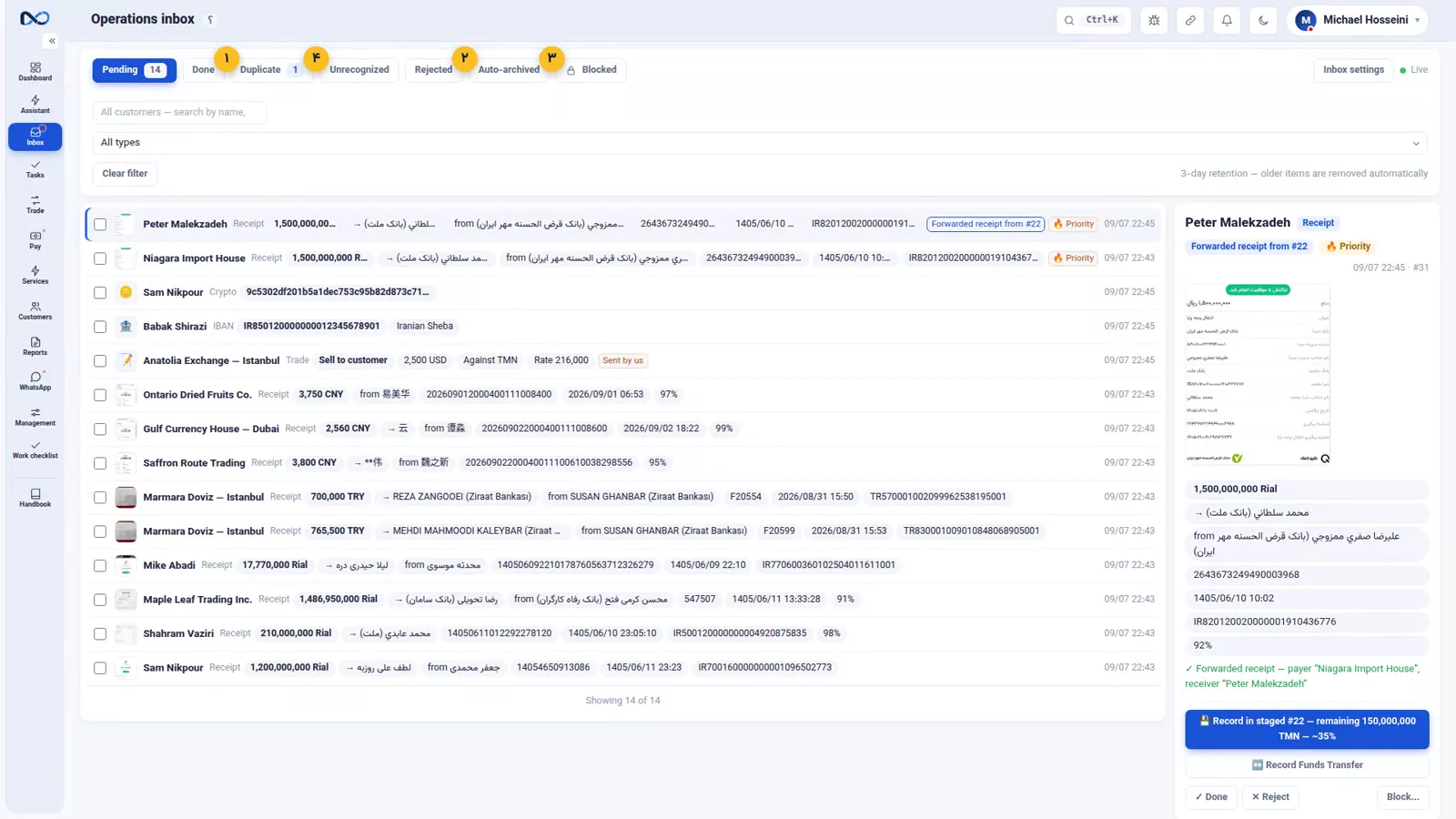
The inbox page has two columns: the list of items on the left, the details of the selected item on the right. The 'Pending' tab is the work queue itself — anything sitting there means you have not dealt with it yet, and the daily goal is to keep it empty.
The other tabs all mean one thing: the item has left the queue. 'Done' means its voucher is posted, 'Rejected' means it was not useful for the books, 'Auto-archived' means it sat with no action so long that it stepped aside on its own, and 'Duplicate' means the same file came in again in the same group.
What 'Duplicate' means, and what it does not
Duplicate means the same file was sent again in the same group. It does not mean the customer paid twice. If there really were two separate deposits, two separate receipts arrive.
And if the same receipt is forwarded into a different group, it is not a duplicate at all. The item stays active, Nexto sees that it was forwarded, recognises both parties, and suggests recording a funds transfer between them — the receipt one customer sent, another customer passed on.
From a trade text to a voucher
A simple format that reads without error
Your trader, sitting in the customer's group, simply writes:
Sell 2500 usd by toman (216000)
If your team writes trades in this format, Nexto builds the correct trade voucher with no error. Every piece has a source: the group's name tells it the customer; the number that wrote the message tells it which of your colleagues traded; Sell means you sell; 2500 is the amount and usd the currency sold; toman is what it converts into; and the number in parentheses is the rate — not the amount on the other side. Multiplying gives the final figure.
Press the button and the form opens filled
That message sits in the inbox typed as 'Buy & Sell', with every piece already read. Press 'Record Trade' and the trade form opens pre-filled: customer, direction, amount, both currencies and the rate. You confirm, and the voucher is posted — the same voucher you would otherwise build by hand, this time without a keystroke.
Receipts: recognising, reading, matching
First recognise, then read
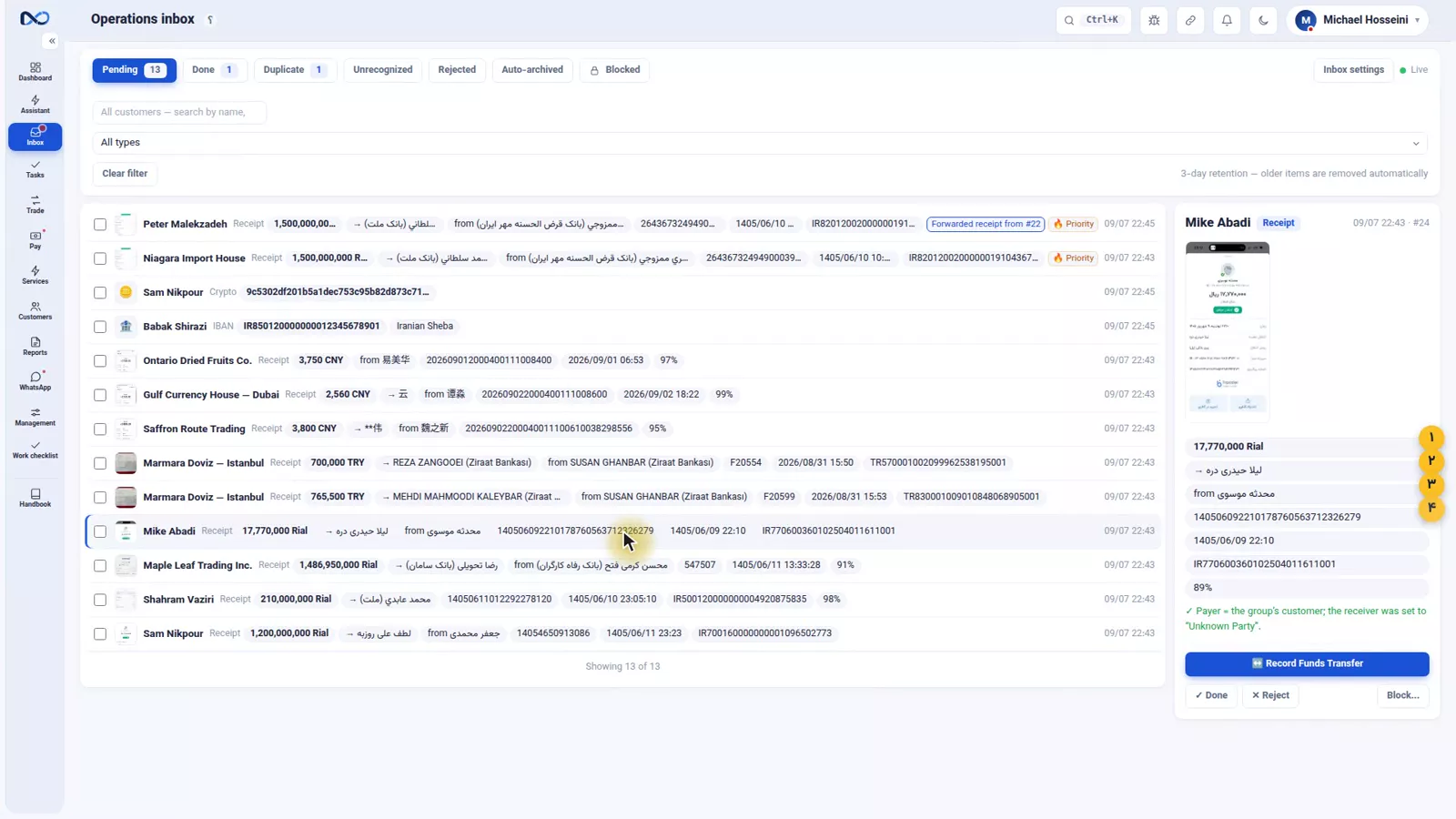
When an image arrives in a group, the AI first decides whether it is even a receipt. A product photo or a screenshot of a chat is set aside. If it is a receipt, the image becomes text: the amount, the payee and their bank, the sender, the tracking code, the date, the IBAN — each with a confidence level.
This is not blind character reading. The model knows the receipts of different banks and knows where each figure sits on the slip, which is why a handwritten Persian receipt, a Turkish receipt or a receipt in Chinese all get read. And it is not only images: a text message is typed too — an IBAN, a crypto transaction hash, or trade text.
Matching a customer and an open commitment
One step further, it works out which customer and which open commitment the receipt belongs to — from the group, the payee's name, the amount against the commitment's balance, and the IBAN — and writes its confidence right on the button. Instead of you searching, it says: this is probably for that commitment.
It suggests; you decide
Under each item are the buttons for what can be done with it: record it in that commitment, record a transfer, mark it done, reject it, block the sender. This is the most important sentence of the episode — the inbox itself posts nothing. It prepares and suggests; you press the button, a form opens pre-filled, and you confirm it yourself.
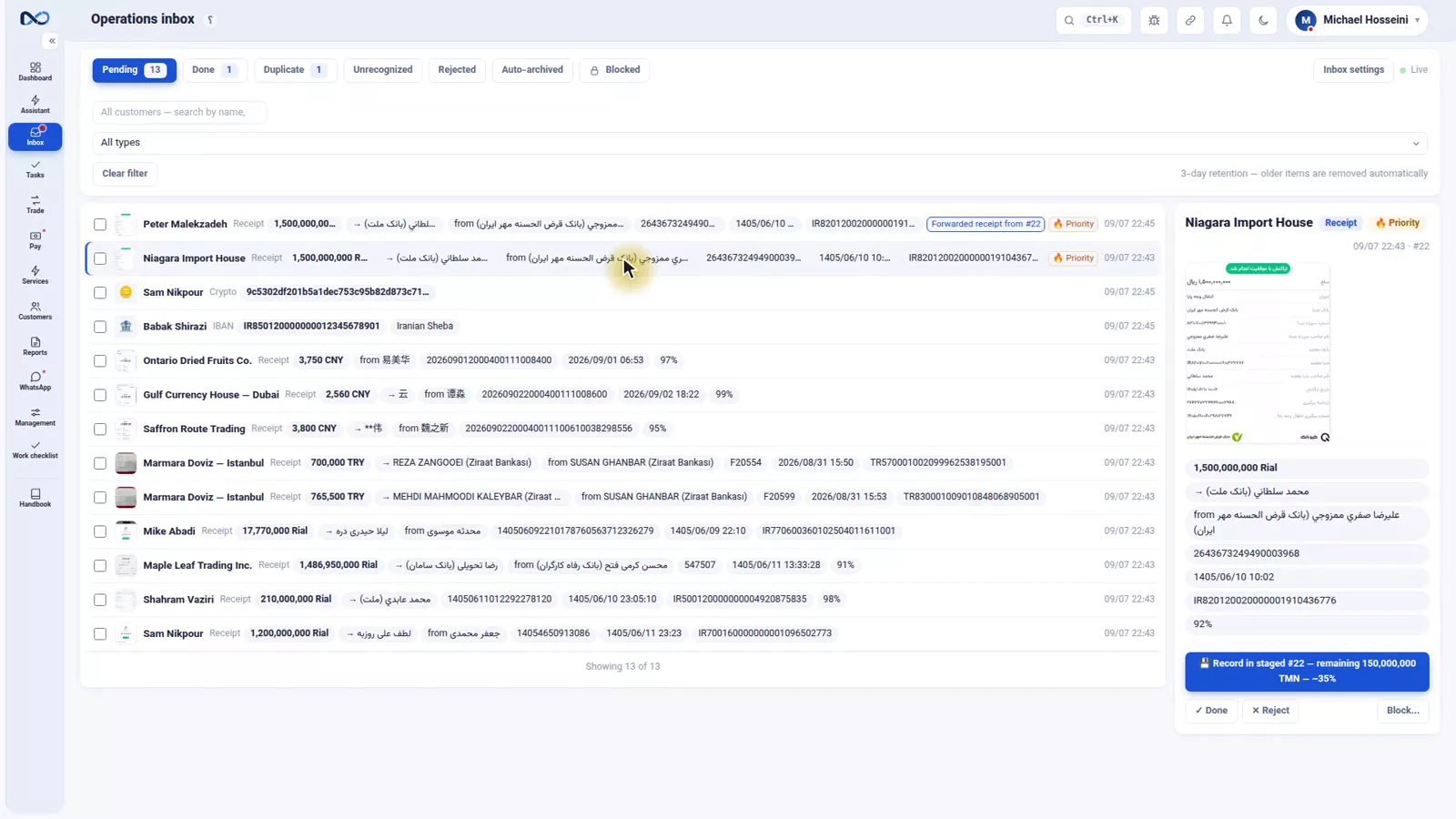
Take the first one. The commitment-part form opens filled in: the amount from the receipt, the tracking code from the receipt, and a description carrying that message's number. One glance, register the part, and the voucher is done. Back in the inbox, that item has moved from 'Pending' to 'Done' and the queue is one shorter.
When the queue gets busy
When you click a document-entry button, the item is marked 'being reviewed by you' for five minutes, so a colleague does not post the same one at the same time.
The queue also helps you triage. Amounts above a threshold you set, or receipts tied to an open commitment, rise to the top with a fire mark. Anything left without action past the response-time limit gets a red mark. And when several items should go the same way, you can select them together and archive or reject them in one go.
Settings and the performance report
The settings are yours to choose: after how many idle hours an item auto-archives; the response-time limit behind the red mark; the amount threshold for priority; whether an unreadable receipt gets an automatic 'please resend' reply into that group; which WhatsApp line reads the groups; and which colleagues can see the inbox at all.
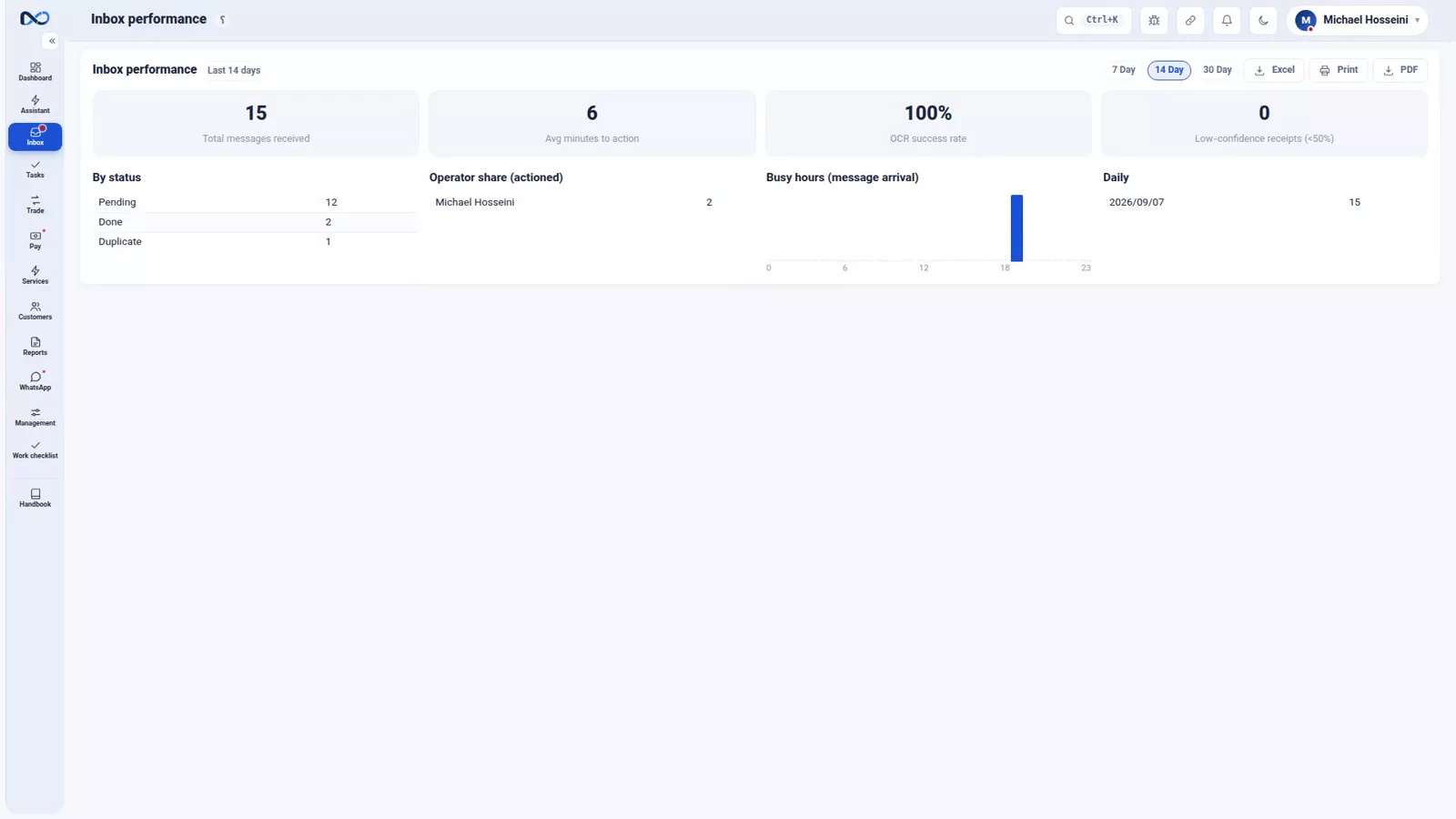
The performance report is for the manager, and covers the last fourteen days: how many messages arrived, how many minutes it takes to action a receipt, what share of receipts were read correctly, each operator's share, and the busy hours of the day. If the 'minutes to action' figure climbs, nobody is emptying the queue.
Notes and warnings
- The inbox does not decide. No voucher is ever posted on its own; a filled form always opens and the confirmation is yours.
- 'Duplicate' means the same file in the same group, not two deposits. Two real deposits arrive as two separate receipts.
- A receipt forwarded into another group is not a duplicate; its suggestion is 'Record Funds Transfer'.
- Write trade texts in the simple format. The number in parentheses is the rate, not the amount on the other side.
- Look at the confidence figure. A low number means go back and check the slip yourself.
- Empty the 'Pending' tab before the day ends; the 'minutes to action' figure in the report measures exactly that.
Where to go next
The previous episode, WhatsApp groups, templates and the send queue, built the path from Nexto out to WhatsApp; this one was the path back in. Next comes the AI assistant. For the voucher built from a trade message see buying and selling currency, and for parts and commitments see payment commitments and deposit requests.
FAQ
Does the inbox post vouchers by itself?
No. The inbox reads messages, understands them and suggests an action. When you press a button such as 'Record in staged' or 'Record Trade', the matching form opens with the information filled in, and the posting happens only when you confirm.
Does 'Duplicate' mean the customer paid twice?
No. Duplicate means the same file was sent again in the same group. Two real deposits arrive as two separate receipts. And the same receipt forwarded into another group is not a duplicate either — Nexto recognises the forward and suggests recording a funds transfer.
Are handwritten receipts, or receipts in other languages, read too?
Yes. A handwritten Persian receipt, a Turkish receipt and a Chinese receipt are all read. The AI knows the slips of different banks and gives every figure it extracts a confidence level.
How do I stop two colleagues posting the same receipt at once?
The inbox does it for you. The moment you click a document-entry button, that item is marked 'being reviewed by you' for five minutes so nobody else posts it at the same time.
How do I know the inbox is being used well?
From the inbox performance report, which covers the last fourteen days: how many messages arrived, the average minutes to action, the share of receipts read correctly, each operator's share and the busy hours. A rising 'minutes to action' means the queue is not being emptied.
Full video transcript
Every exchange has dozens of WhatsApp groups, and every hour — especially in the thick of the market — messages pour into all of them. The smart inbox reads every message of every group in real time; it keeps the things that could become a document — a receipt, an account number, trade text, a hash — and throws away the greetings and the chatter the system has no use for. Then it understands, as fully as it can, anything worth a document and turns it into a ready-made draft voucher; you only check it, and if it's right, confirm.
Now compare that with your colleagues reading every group one by one, hunting through a flood of messages for the document-like lines — with no guarantee they catch them all — and then, at great cost of time, turning each message into a document by hand. The inbox does the same work far faster and, without exaggeration, more accurately and with fewer errors. And one rule: this is not a message box, it's a work queue; anything in the 'Pending' tab means you haven't dealt with it yet, and the goal is to keep this tab empty.
This is the inbox page: the list on the left, the details on the right. The 'Pending' tab is the work queue itself. The other tabs all mean one thing: they've left the queue. Done means its voucher is posted; Rejected means it wasn't useful for the books; Auto-archived means it sat with no action so long it stepped aside on its own; and Duplicate means the same file came in again in the same group. A note about 'Duplicate': it means the same file was sent again in the same group, not that the customer paid twice.
If the same receipt is forwarded into a different group, it isn't a duplicate — the item stays active, Nexto sees it was forwarded and suggests a transfer between the two parties. And if there really were two separate deposits, two separate receipts arrive. This one: the same receipt from 'Niagara Import House' forwarded into 'Peter Malekzadeh's' group. Not a duplicate; Nexto has recognized both parties and suggests 'Record Funds Transfer'. And a trade.
Your trader, in the customer's group, simply writes: 'Sell 2500 usd by toman (216000)'. If you write trades in this simple format, Nexto builds the correct trade voucher with no error. See how: the group's name tells it the customer. The number that wrote the message tells it our staff member and trader. Sell means we sell. Two thousand five hundred is the amount, usd the currency sold, and it converts toman to Toman itself. The number in parentheses is the rate — two hundred sixteen thousand — and it is not the amount on the Toman side; multiplying gives the final amount.
That very message is sitting in the inbox, typed as a 'trade' with every piece read. We press the 'Record Trade' button: the trade form opens pre-filled with all of it — customer, direction, amount, currencies, rate — and you only confirm. Post. The trade voucher is done — the same voucher we built by hand in episode eight, this time without a single keystroke. Now the main job: the receipt. When an image arrives in a group, Nexto's AI first decides whether it's even a receipt — a product photo or a chat screenshot are set aside — and if it is a receipt, it turns the image into text: the amount, the payee and their bank, the sender, the tracking code, the date, the IBAN — each with a confidence level.
This isn't blind character reading; the AI knows the receipts of different banks and knows where each figure sits on the slip. Even a handwritten Persian receipt, a Turkish receipt, or a receipt in Chinese script and language. Do you read Chinese? The inbox does. And it's not only images: it also recognizes the type of a text message — an IBAN number, a crypto transaction hash, or trade text. One step further: it tries to work out which customer and which open commitment this receipt belongs to — from the group, the payee's name, the amount and the commitment's balance, and the IBAN — and writes its confidence right on the button.
Instead of you searching, it says 'this is probably for such-and-such commitment'. And then the suggested action: under each item there are buttons telling you what can be done with it — record it in that commitment, record a transfer, mark it done, reject. The most important sentence of this episode: the inbox itself posts nothing. It only prepares and suggests; you press the button and a form opens pre-filled for you to confirm yourself. Let's take one: record it in the commitment, and the form opens.
The commitment-part form is open, pre-filled: the amount from the receipt, the tracking code from the receipt, the description carrying that message's number. A glance, and register the part. The voucher is done — with one click, without typing. And back to the inbox: that item has moved from 'Pending' to 'Done'. The queue is one shorter. When you click a document-entry button, the item gets a 'being reviewed by you' marker for five minutes, so another colleague doesn't post the same one at the same time.
And if the queue gets busy, it helps you out: amounts above a threshold, or tied to an open commitment, rise to the top with a fire mark, and anything left without action past the allowed limit gets a red mark. You can select several items together and archive or reject them in one go. Its settings are yours to set: after how many idle hours it auto-archives; the response-time limit for the red mark; the amount threshold for priority; whether, when a receipt is unreadable, it sends a 'receipt unreadable, please resend' message into that group or not; which WhatsApp reads the groups; and which colleagues can see the inbox.
And the inbox performance report, for the manager: the last fourteen days — how many messages arrived, how many minutes it takes to action each receipt, what percentage of receipts were read correctly, each operator's share, and the busy hours. If the 'minutes to action' number climbs, it means nobody is emptying the queue. To sum up: the inbox is your daily work queue; the AI recognizes and reads a receipt, turns a trade message into a pre-filled form, and matches it to an open commitment; it suggests an action but doesn't decide; 'Duplicate' means the same file in the same group; and the daily goal: keeping the Pending tab empty.
This is where the market's busy hours become calm hours.
Try it yourself right now
A complete private demo with sample data — no installation, no credit card.
Create free demo