
A tour of the Nexto interface
The menu, Ctrl+K, the dashboard, tables and forms in Nexto, plus the two guards that stop mistakes - learn the interface once and every page feels familiar.
Watch this video on: YouTube
Software you use all day is either fast or exhausting, and the difference is rarely the accounting. It is whether you can find a customer without leaving the page you are on, whether a table filters the way you expect, and whether the program stops you before you do something you cannot undo.
This episode is not about an accounting task. It is about the parts of Nexto that repeat on every page - the menu, the search, the tables, the forms, the guide - looked at once, here, so that later episodes can talk about the work instead of the buttons.
It follows on from the four basics, where accounts, vouchers, debit and credit and currency were defined on paper. From here on they are on screen. Every Nexto page is built from three areas: the top bar, the side menu, and the body.
What you will learn
- How the side menu is organised, and how to collapse it when you need the room
- How to reach any page or any customer with two keys
- What the dashboard tells you at the start of the day
- How every table in Nexto filters, sorts and exports the same way
- The parts of a form that repeat everywhere: the account picker, the amount in words, the date, the field locks
- The two guards that protect you, and what personal settings each user controls
The menu and the top bar
The side menu is arranged by job
The menu groups pages by the job you are doing, not by the type of page: Trading and Rates, Receipts and Payments, Nexto Services, Customers and Accounts, Reports, WhatsApp, Management. Each group opens and closes with one click, and the page you are currently on stays highlighted so you never lose your place.
If you are short of screen space, collapse the menu and only the icons remain. The same button brings it back.
Ctrl+K: the one thing to take away
If only one thing from this episode stays with you, make it this. Wherever you are in Nexto, press Ctrl and K, then type a customer name or a page name.
Type "Persepolis" and the answer arrives as you type: the Persepolis Exchange account, one click away from its statement. Type the name of a page instead - "revaluation", for example - and that page comes up the same way.
The magnifier at the top of the screen, with Ctrl+K printed on it, does exactly the same job for anyone without a keyboard to hand. The largest slice of time this software gives back to you starts here.
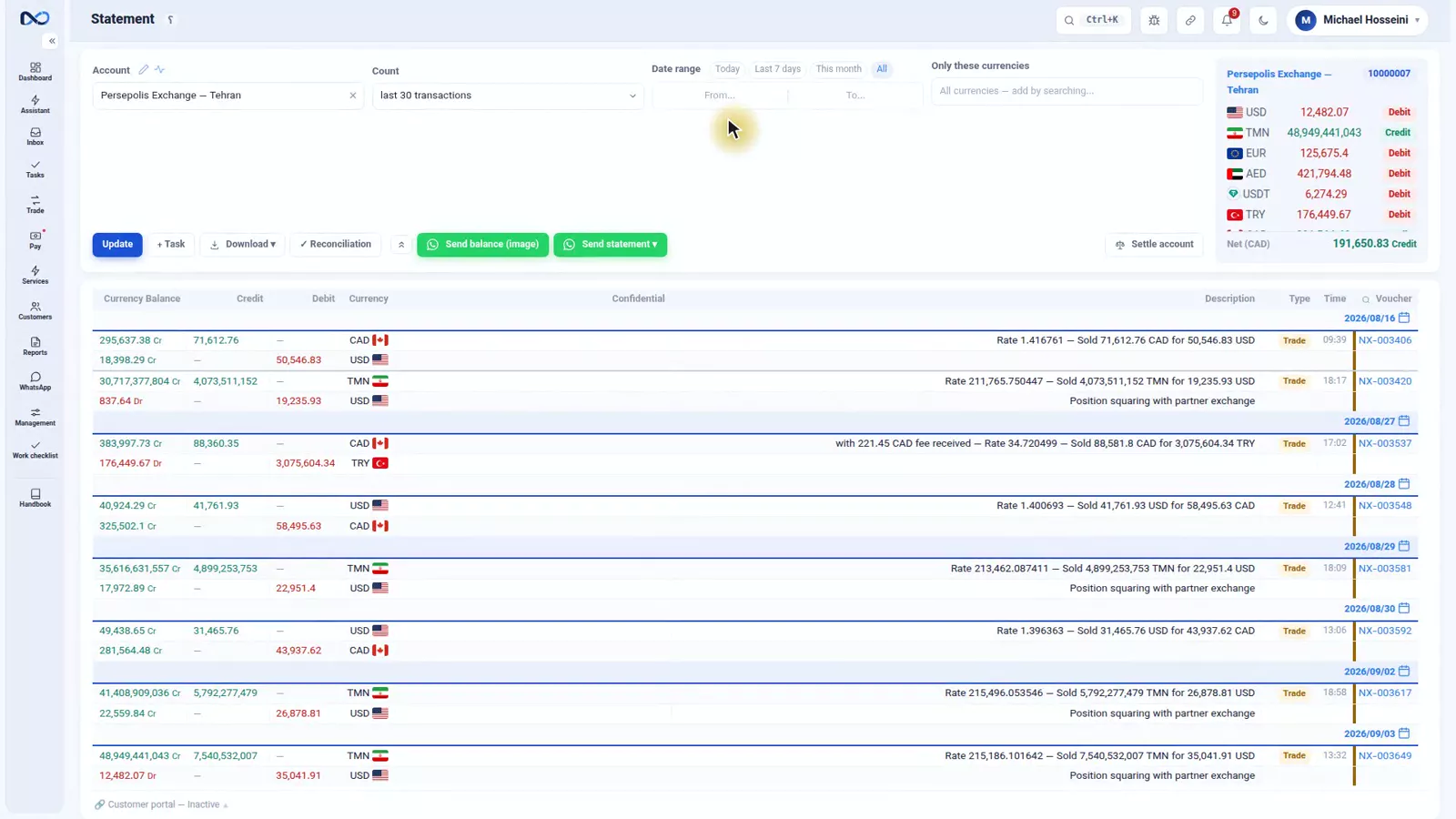
The rest of the top bar
- The question mark opens the guide for the page you are standing on - not a general manual, precisely this page. The guide has its own search box.
- The bell is your notifications: tasks delegated to you, documents that were flagged, and warnings about incomplete settings.
- Report a problem sends the state of the current page over to support.
- Share the page link, for a colleague.
- Your own name opens your profile, My Currencies, the light and dark theme, and log out.
The dashboard
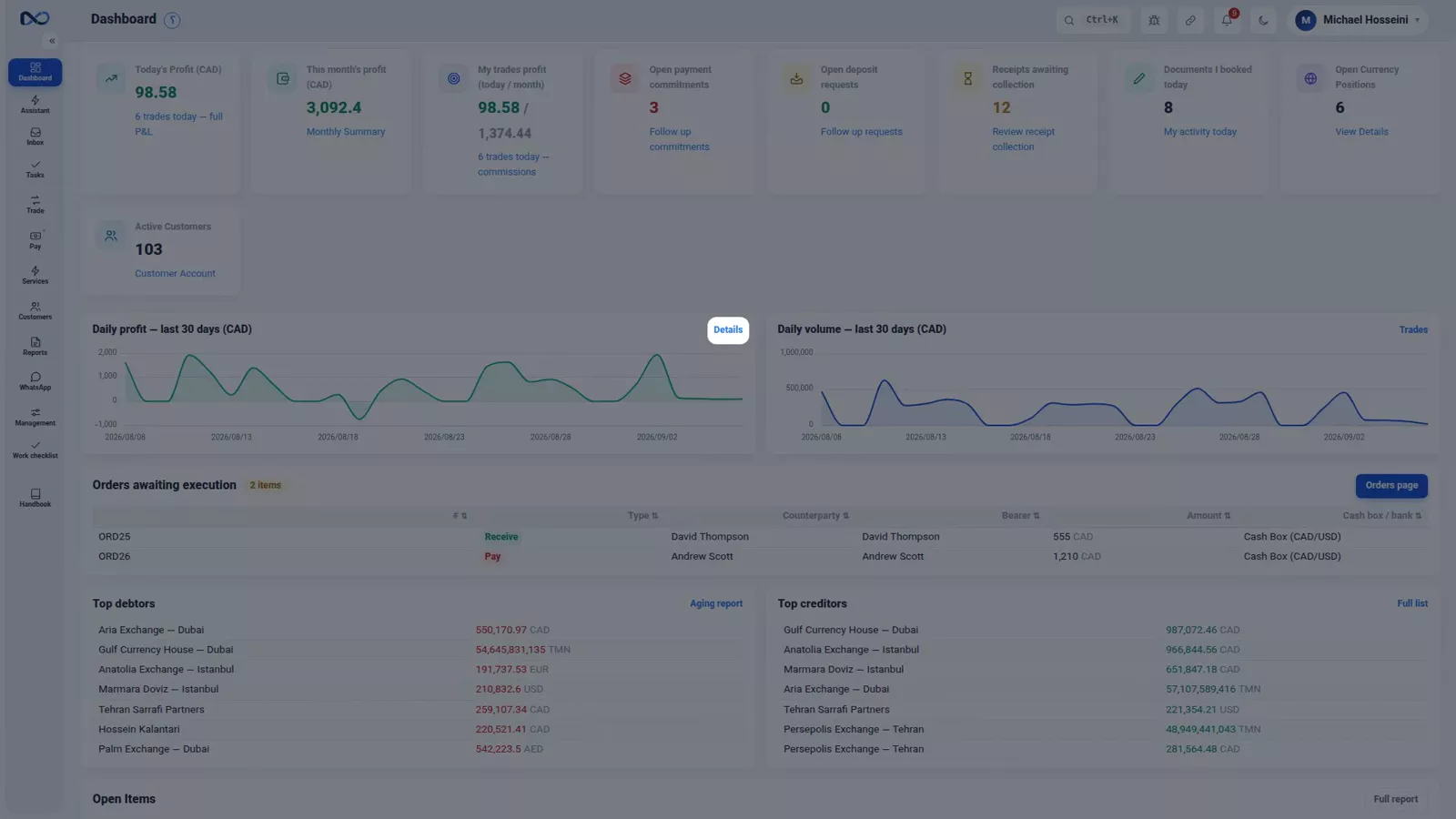
The dashboard is the first screen of every day, and it carries the things you want to know in the morning: today's profit and the month's, open commitments and deposit requests, receipts awaiting collection, cashier orders still pending, tasks delegated to you, and the latest vouchers.
Every card links through to its full page, so the dashboard is a starting point rather than a report. One thing to note: the profit figure appears only if you hold the permission for it, so the same dashboard looks different to a teller and to the owner.
Tables all behave the same way
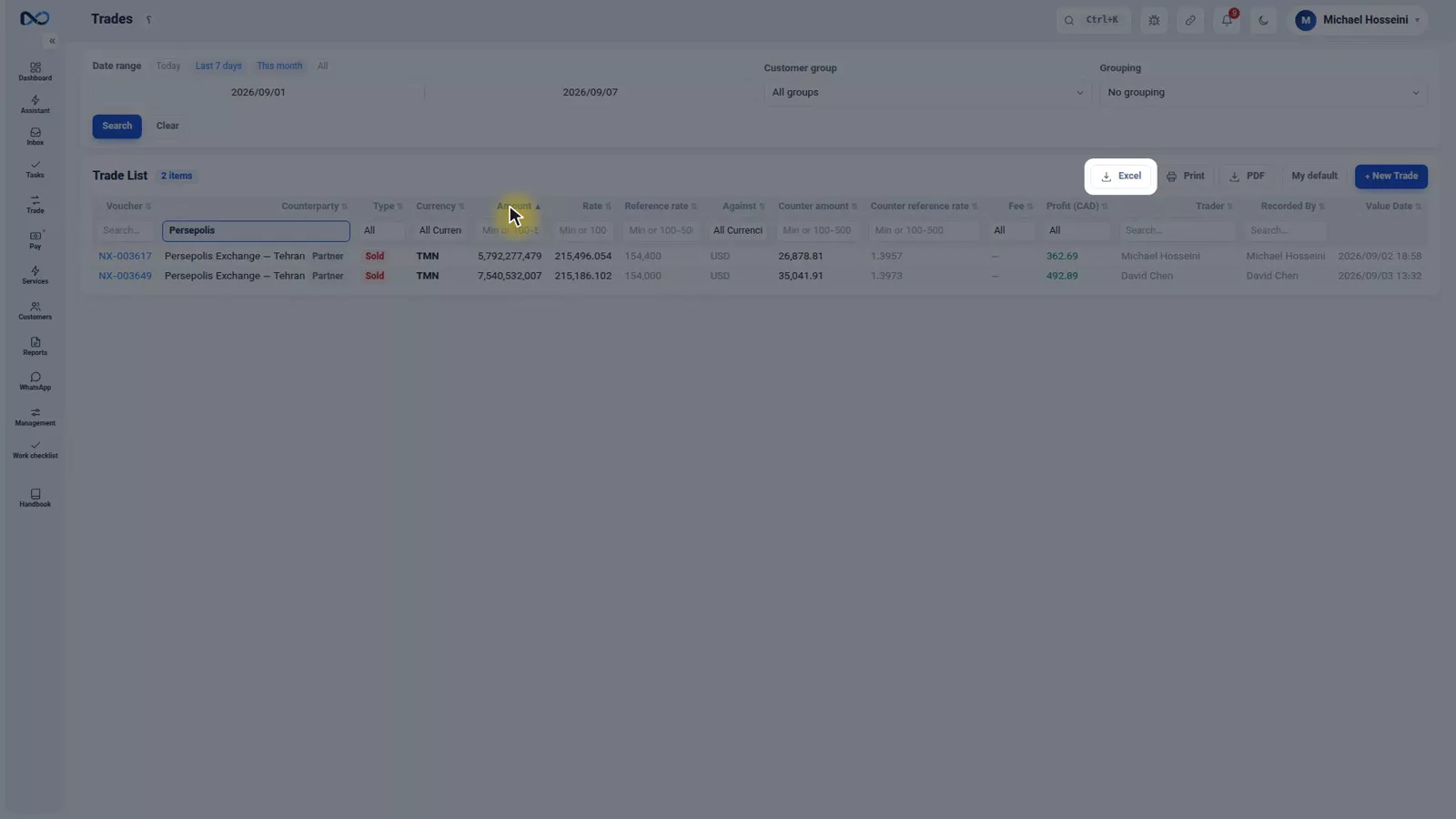
Most Nexto pages are a table, and once you know one you know all of them. Take the trades page, from the Trading and Rates group.
- The filter bar runs along the top: a date range with shortcuts for today, seven days and this month; the customer group; the grouping.
- Column filters sit under the headers. Write "Persepolis" in the Counterparty column and only that customer's trades remain.
- Sorting: click a header to sort by it, by Amount for instance.
- Excel, PDF and print always sit above the table, and they export whatever the page is currently showing, filter and all.
- My default: the filters you set every single time, saved once so the page opens with them.
Forms all speak one language
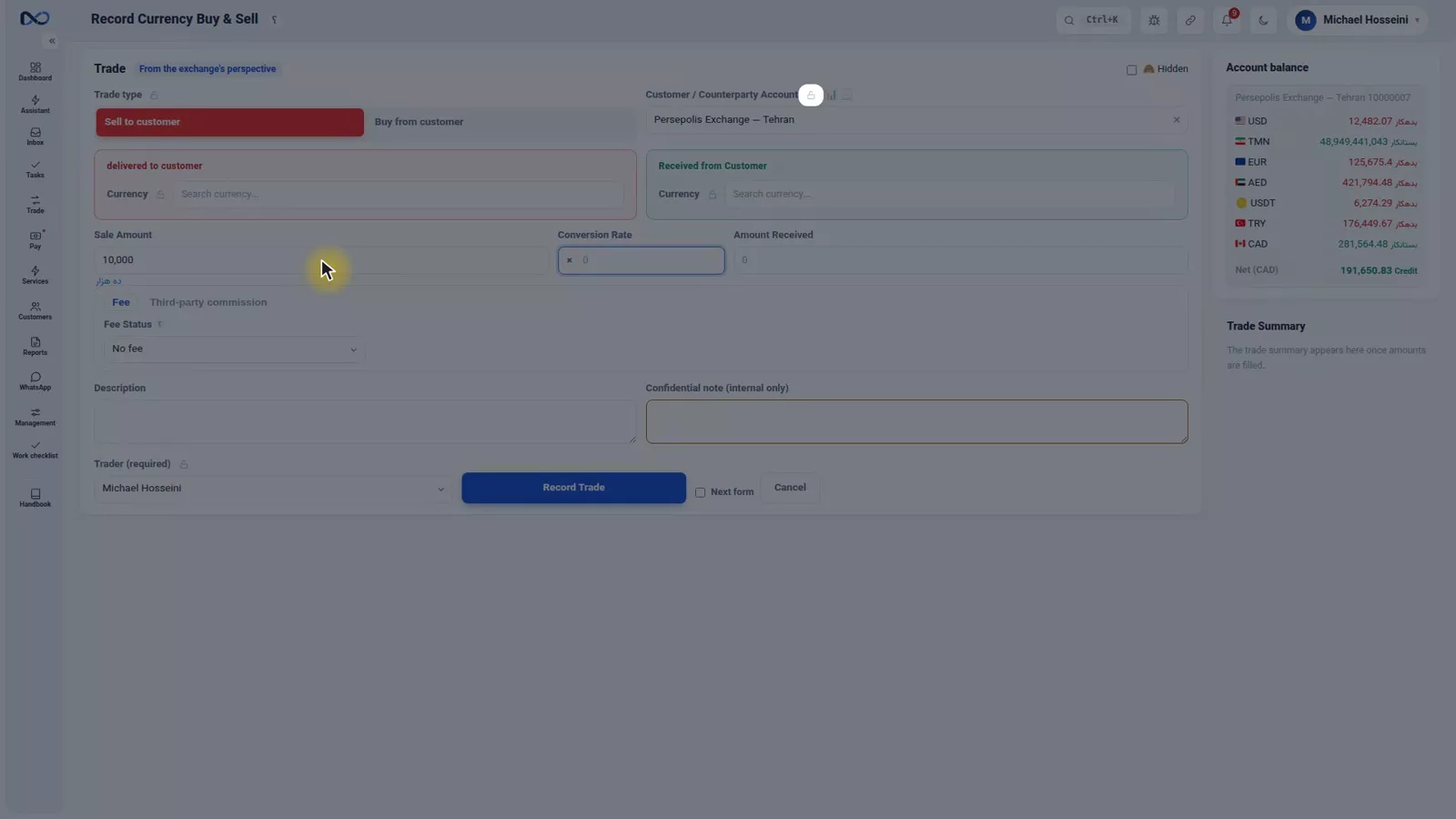
The same is true of forms. Open New Trade above that table, or Currency Buy and Sell from the menu, and the parts you meet there are the parts you meet everywhere.
- The account picker. Type the name, the code or even the customer's phone number and pick from the list. Next to it sits a shortcut through to that customer's statement and stats.
- The amount box. As you type a figure, the words appear underneath it, so you do not get the zeros wrong.
- Currency, chosen the same way.
- The date, in the Solar or the Gregorian calendar, whichever you prefer.
- The lock beside a field. If you need the same customer or the same currency for several vouchers in a row, lock the field so it is not cleared each time you save.
My Currencies keeps the picker short
One small setting pays for itself immediately: My Currencies, from your own name at the top of the screen.
Nexto carries dozens of currencies, but each user picks out only the ones they actually work with - the US Dollar first, then the Iranian Toman, then the UAE Dirham, then the Turkish Lira. From then on the currency pickers show only those four. The day a Euro deal turns up, add the Euro, do the job, and take it off again afterwards if you like.
A short list means fewer wrong picks. And it is personal: your colleague keeps a list of their own.
Two guards
Nothing irreversible happens without a confirmation
A reversal, a deletion, closing a period or reopening one - each of them brings up a confirmation window first. Reopening a closed period from Fiscal periods in the Management group asks before it does anything, and cancelling leaves everything exactly as it was.
An unfinished form is not lost
If the page closes halfway through a form, or the power goes out, the next time you open that same form Nexto asks whether to bring back what you had written. Restore, and the amount you had typed is back where it was.
And if you save a form that is incomplete, the error appears in red at the top of the screen with a sentence saying exactly what is wrong. When something goes through instead, a small green message appears at the bottom of the screen and fades away. Green at the bottom means it worked; red at the top means here is why it did not.
Shortcuts, personal settings and the phone
For someone booking vouchers all day there are keyboard shortcuts - Alt+T opens a trade, and the rest are listed in your profile, where you can change any of them.
The same place holds your own display language, your calendar, and your thousands and decimal separators, kept apart from the exchange's own settings. Your Turkish-speaking colleague sees a Turkish interface while you see English, on exactly the same data.
Nexto also works fully on a phone: the same pages, the menu sliding in from the edge, tables scrolling sideways. The design is desk-first, but the work can be done from the road in the morning, from the middle of the market, or from home in the evening. You can install it on the phone's home screen like an app.
Tips and warnings
- Ctrl+K is faster than the menu for almost everything. Reach for it before you go hunting through groups.
- Exports take the filter that is on screen. Check the filter bar before you send an Excel or a PDF to anyone.
- Use My default on the pages you open every day, rather than resetting the same filters each morning.
- The field locks are for a run of similar vouchers. Unlock them when you move on, or the next voucher inherits the wrong customer.
- The dashboard's profit card follows the profit permission, so do not assume a colleague is seeing the same figures you are.
- Personal settings are per user. Changing your calendar or separators does not change anything for the rest of the team.
Where to go next
The previous episode, the four basics, defines account, voucher, debit and credit, and currency. Next comes settings, currencies and your first users, the first episode of the day-one chapter, where you set up the exchange itself. The forms in this tour are used in earnest in buying and selling currency, the tables and exports return in the map of reports and exports, and the report-a-problem button is covered in backup, restore and support.
FAQ
How do I find a customer or a page quickly in Nexto?
Press Ctrl and K anywhere in the software and start typing a customer name or a page name. Matching accounts and pages appear as you type, and one click opens them. The magnifier in the top bar does the same thing without a keyboard.
How is the Nexto menu organised?
By the job you are doing rather than the type of page: Trading and Rates, Receipts and Payments, Nexto Services, Customers and Accounts, Reports, WhatsApp and Management. Groups open and close with a click, and the menu can be collapsed to icons.
Do Excel and PDF exports include my filters?
Yes. The Excel, PDF and print buttons above a table export exactly what the page is showing, including the filter bar and any column filters. Check the active filter before you send the file to anyone.
What happens if I close a form before saving it?
The next time you open that same form Nexto asks whether to restore what you had written, and restoring puts your entries back. It works after a closed page or a power cut.
Can two colleagues use different languages and calendars?
Yes. Language, calendar, thousands and decimal separators and keyboard shortcuts are personal settings in each user's profile, separate from the exchange's own settings, and they apply to the same shared data.
Does Nexto work on a phone?
Fully. The same pages are available, the menu slides in from the edge and tables scroll sideways, and you can install Nexto on the phone's home screen like an app. The design is desk-first, but nothing is missing on mobile.
Full video transcript
This episode is not about an accounting task at all; it is about the software itself. The things that repeat on every page — the menu, the search, the tables, the forms, the guide — we look at them once, here, so that we do not have to explain them again in every later episode. Ten minutes from now, whatever page you open will feel familiar. There are three areas: the top bar, the side menu, and the body. The side menu is arranged by the job you are doing, not by the type of page: Trading and Rates, Receipts and Payments, Nexto Services, Customers and Accounts, Reports, WhatsApp, Management.
Every group opens and closes with one click, and the page you are on is highlighted. If you are short of room, you collapse the menu and only the icons stay — and the very same button brings it back again. And the most important thing in this episode — if only one thing stays with you, let it be this: Control and K. Wherever you are in the software, press those two keys and type a customer name or a page name; for example, Persepolis. The answer arrives that same moment: the Persepolis Exchange account; one click, and its statement is open.
Write the name of a page instead and it behaves the same way: revaluation, and up comes that page. The magnifier at the top of the screen, with Ctrl+K printed on it, does exactly the same job, for anyone without a keyboard at hand. The biggest slice of time this software gives back to you starts right here. The rest of the top bar: the question mark opens the guide for this very page — not a general manual, precisely this page; and there is a search box inside the guide as well.
The bell, your notifications: tasks that have been delegated to you, documents that were flagged, and warnings about incomplete settings. The report-a-problem button, which sends the state of the current page over to support. Share the page link, for a colleague. And your own name: profile, My Currencies, the light and dark theme, and log out. Back to the dashboard, the first screen of every day. It carries the things you need to know in the morning: today's profit and the month's, open commitments and deposit requests, receipts awaiting collection, cashier orders still pending, tasks delegated to you, and the latest vouchers.
Every card has a link through to its full page. And the profit figure is visible only if you hold the permission for it. Most Nexto pages are a table, and all the tables behave in one and the same way. Take Trades, from the menu group Trading and Rates. Along the top is the filter bar: a date range with shortcuts for today, seven days, this month; the customer group; the grouping. Underneath the headers sits the filter for that column: in the Counterparty column, for instance, I write Persepolis, and only that customer's trades are left.
Headers sort when you click them; here by Amount. Excel, PDF and print always sit above the table, and they take whatever filter the page is showing. And My default: the filters you set every single time, you save once. Forms speak one language too. The New Trade button above this same table, or Currency Buy and Sell from the menu. The account picker: you type the name, the code or even the customer's phone number and choose from the list; next to it there is a shortcut to that customer's statement and stats.
The amount box: as you write a figure, the words appear underneath it so you do not get the zeros wrong. Currency, the same way. The date, in the Solar or the Gregorian calendar, whichever you prefer. And the lock beside the fields: if you need one customer or one currency for several vouchers in a row, you lock it so it is not cleared on every save. And one small setting that keeps the currency picker short for good: My Currencies, from your own name at the top of the screen.
Nexto carries dozens of currencies, but each user picks out only the ones they actually use: the dollar first, then the toman, then the dirham, then the lira — and from that point on the currency pickers show only those four. The day a euro deal turns up, you add the euro, do the job, and afterwards take it off again if you like. A short list means fewer wrong picks. And it is personal; your colleague has a list of their own. And two guards that are everywhere.
The first: nothing irreversible happens without a confirmation — a reversal, a deletion, closing or opening a period again, they all bring up a confirmation window. Take Fiscal periods, from the Management group: reopening a period that was closed. It asks, and we cancel; nothing at all happened. The second: if the page closes halfway through a form, or the power goes out, the next time you open that same form Nexto asks whether to bring back what you had written.
Here I have entered an amount, I close the page and open it again: it asks, I restore, and the amount is back where it was. And if you save a form that is incomplete, the error comes up in red at the top of the screen, with a sentence that says exactly what is wrong. And when something goes through, a small green message appears at the bottom of the screen and fades away — like this profile save. Green at the bottom means it worked; red at the top means here is why it did not.
For someone who books vouchers all day long there are keyboard shortcuts: Alt+T for a trade, and the rest right here in the profile — all of them changeable. In that same place you choose your own display language, the calendar, and the thousands and decimal separators, apart from the exchange's own settings; your Turkish-speaking colleague sees a Turkish interface and you see English, on the very same data. I press Alt+T: the trade form. And Nexto works fully on a phone as well: the same pages, the menu slides in from the edge, tables scroll sideways.
The design is desk-first, but on the road in the morning, in the middle of the market, or at home in the evening, everything can be done from the phone. And you can install it on the phone's home screen, like an app. To wrap up: the menu by job, Ctrl+K to reach anything, the question mark for the guide to the page you are on, tables and forms that work alike everywhere, and two guards — the confirmation and the form recovery. From the next episode on we stop talking about the interface and get to the work itself: day one, setting up.
Try it yourself right now
A complete private demo with sample data — no installation, no credit card.
Create free demo