
What Nexto is, and the map of this course
What Nexto is and what it deliberately is not, how the seven chapters of this course fit together, and which episode you should start from.
Watch this video on: YouTube
If you own an exchange office, or you work in one, two questions come back every single day: who exactly owes us how much right now, and where is our money? Most offices answer them with a paper ledger, a spreadsheet, a WhatsApp group and a good memory - four systems that never quite agree.
Nexto is accounting and workflow software built for that job: booking a trade, moving the money, messaging the customer, and the report at the end of the month, all wired into one ledger.
This first episode does not teach a task. It says what Nexto is, what it deliberately is not, how the course is laid out, and which episode you should start from - because that depends on whether you are opening a new office, moving across from other software, or managing the place.
What you will learn
- What Nexto covers: the chain from trade to payment to message to report
- What Nexto is not, and why that matters before you commit to it
- How the seven chapters of this course are arranged
- Which episode to start from as a beginner, a migrating office, or a manager
- The three ways to get help without leaving the software
What Nexto is
Start with a working day, not a feature list
A customer calls and wants 10,000 US Dollars. You quote a rate, book the trade, money moves from one account to another, you message the customer to say it has landed. By the end of the day you want to know what you made and where the money is sitting.
That chain - trade, payment, message, report - is how Nexto is arranged. Every link has its own page, and all of them write into the same ledger.
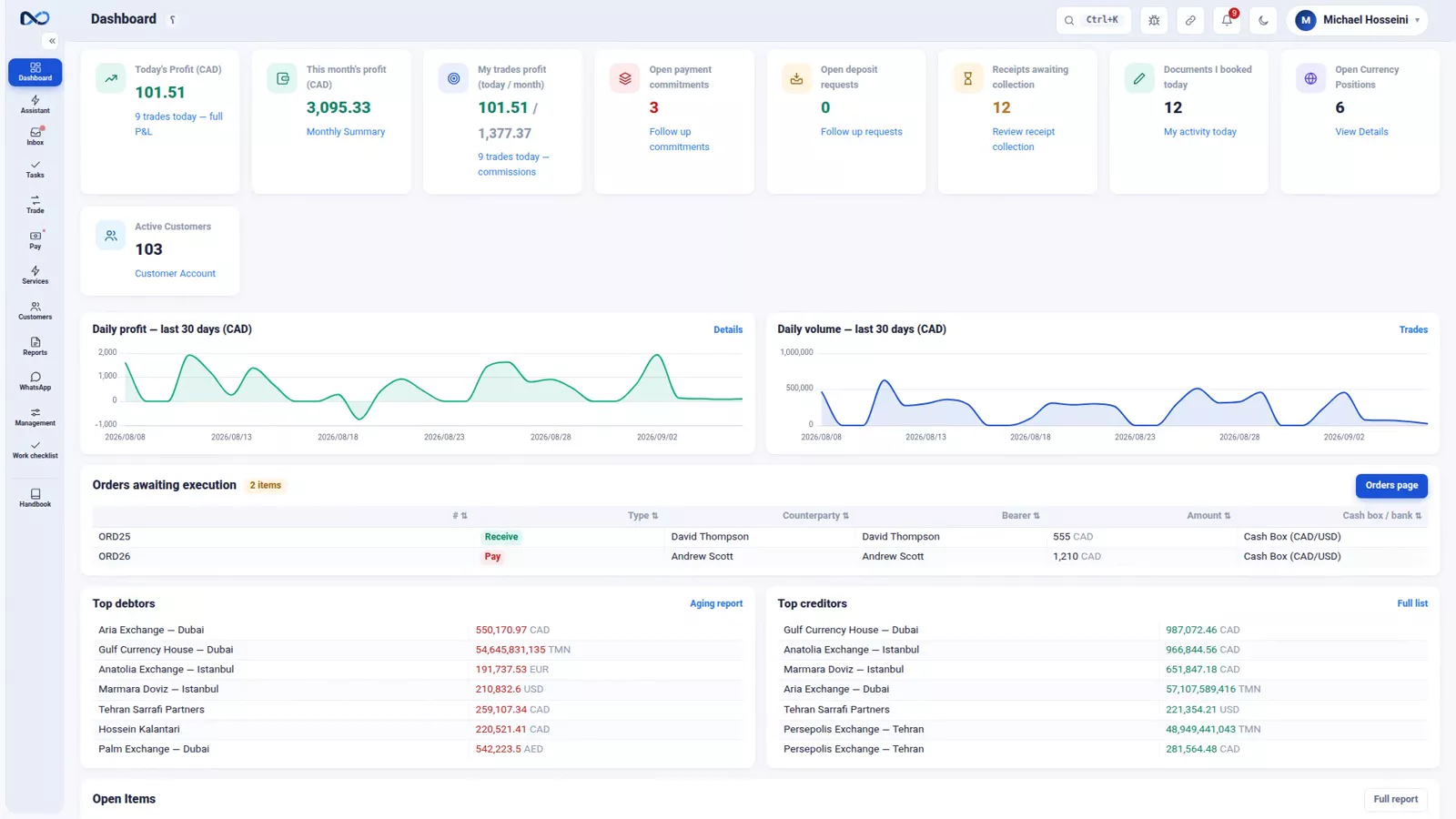
The first link: trades
Buying and selling currency, with a customer or a partner exchange, in cash or on account. The rate comes off your own board, and if the rate you type drifts away from that board, Nexto warns you that same instant rather than at the end of the month.
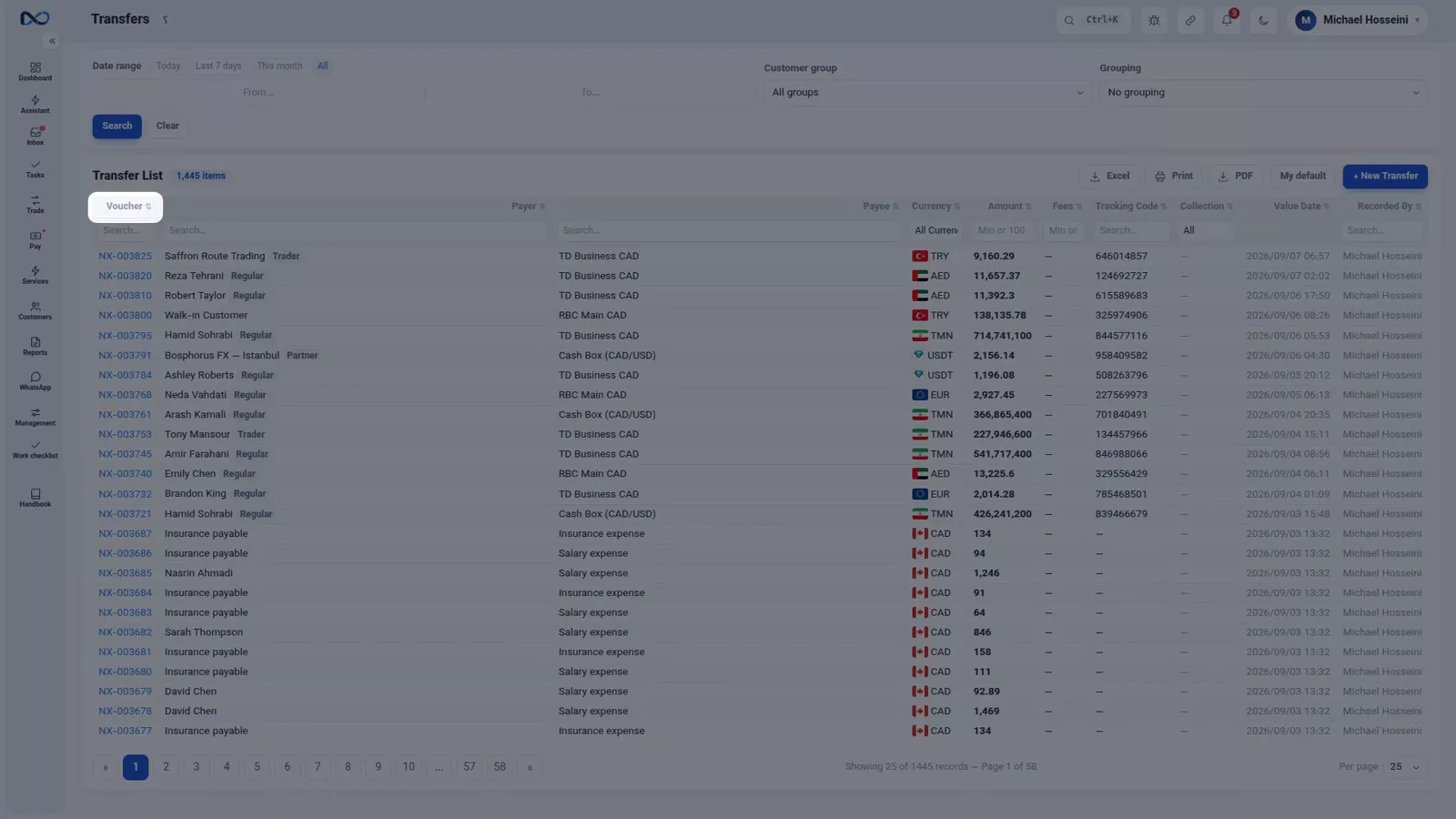
The second link: receipts and payments
Transfers between accounts, a commitment you have given a customer, a deposit request you are holding on him, cheques, and Tether (USDT). Different names, one behaviour: each becomes a voucher, and each changes balances.
The third link: talking to the customer
Nexto connects to WhatsApp. A receipt a customer drops into the group lands in the inbox, and one click turns it into a voucher. Receipts and statements go back out to the customer from the same place.

The fourth link: reports
A statement for every customer, where the money is, who owes you, where the profit is. Four questions an exchange office asks every day, each with its own report rather than its own spreadsheet.
What Nexto is not
Worth being blunt about at the start: Nexto is not a market, it does not set your rates, and it does not move money. It is your exchange office's ledger and its workflow, and nothing beyond that.
What it is, technically: web-based, so any browser from the desk or the phone, with nothing to install; and multi-user, so every colleague signs in as themselves with their own permissions. The interface comes in Persian, English, Turkish, Arabic, Kurdish and Russian, and each user picks their own language.
The map of the course
The course is laid out like a book: each chapter sits on the one before it.
- Chapter 1 - Before you touch anything. These three episodes: what Nexto is, the four basics, a tour of the interface.
- Chapter 2 - Day one. Settings, currencies and users, the rate board, the opening balances from your old books, your customers.
- Chapter 3 - The daily work. Buying and selling, cash and the till, where trade profit comes from, transfers, commitments and deposit requests, rial routing, cheques. The main body of the course.
- Chapter 4 - Crypto and closing the period. Tether, expenses and group documents, FX revaluation.
- Chapter 5 - WhatsApp and automation. The groups, the templates and the send queue, the smart inbox, the assistant.
- Chapter 6 - The reports. The answers to those four questions, one episode each, plus a map of the reports and the Excel and PDF exports.
- Chapter 7 - The team and running the office. Users and permissions, payroll, tasks and document review, backup and support, services and plans, and a health checklist.
Every episode runs between three and nine minutes and stands on its own, but if you keep the order, each one assumes you have seen the ones before it.
Where to start
Opening a new office, or coming off paper and Excel
Start at chapter 2 and take the episodes in order. Opening balances from the old ledger is where you enter the balances from your old books yourself, so do not skip it.
Moving across from another piece of software
The migration is not your job. The Nexto team moves all of your existing data - customers, accounts, balances and past documents - and on day one everything is balanced and in place, as if you had been in Nexto from the beginning.
So chapter 2 is orientation rather than work. Watch customers and accounts so you know where your customers sit, open a statement in the customer statement and the portal and reconcile a few balances against your old books, then go straight to chapter 3.
Managing the office and wanting to know what is going on
Chapter 6, the reports, and then the last episode, the exchange health checklist.
How to read these episodes
Everything is recorded on a sample exchange office, with made-up customers such as Persepolis Exchange and numbers that are only examples. There is no real data anywhere in this course.
Nexto is updated often, so every episode carries a stamp of the version it was recorded on; if a button sits elsewhere in your version, the logic is the same. And everything done here you can do at that same moment in your own program - the episode on one side, Nexto on the other.
Where to get help
Three routes, all from inside the software.
- The question mark at the top of every screen opens the guide written for exactly the page you are on.
- The full documentation sits on the Nexto website - the same guides as pages you can search.
- The report-a-problem button sends the state of that screen to support, covered in backup, restore and support.
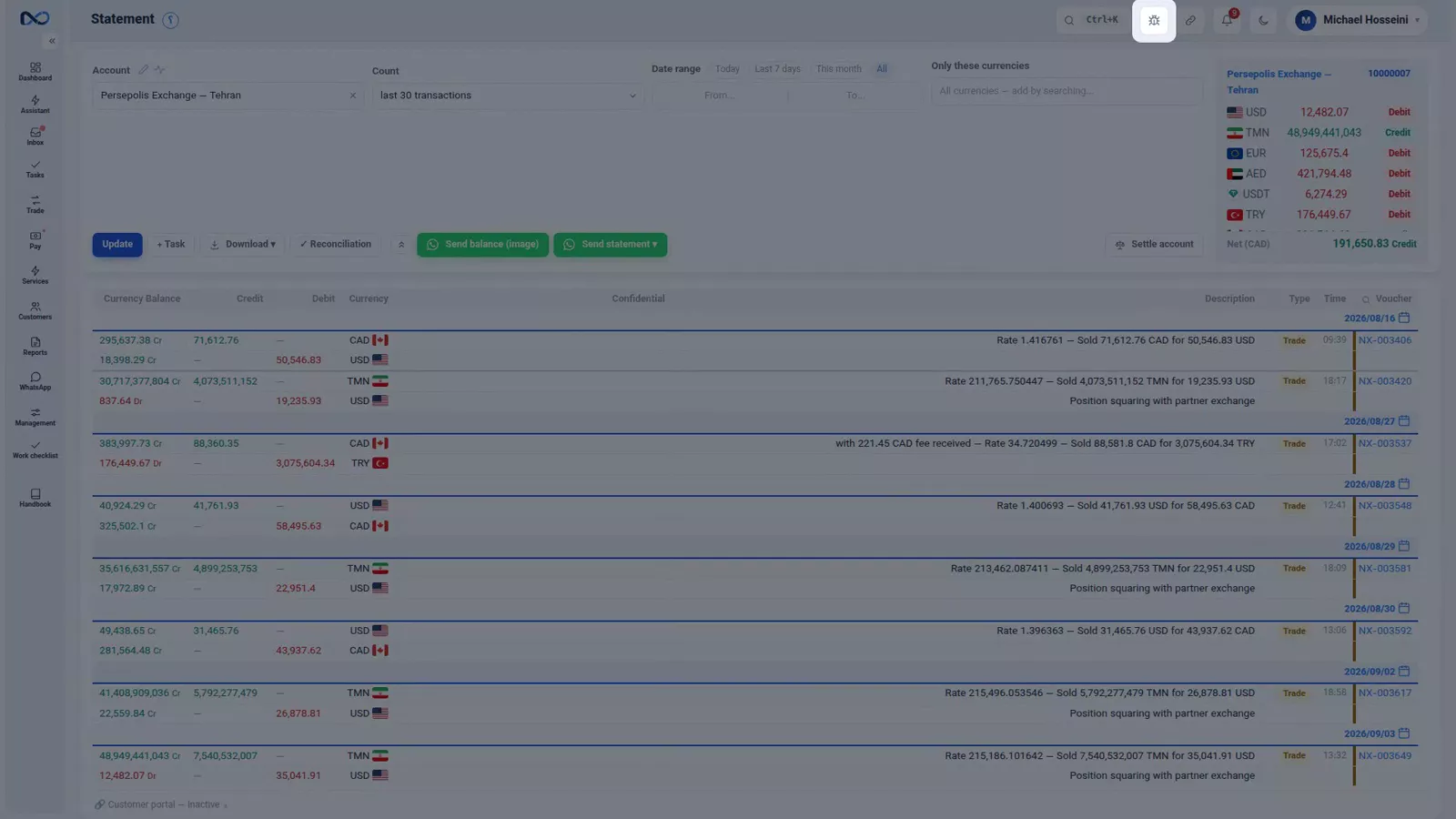
You do not have to remember any of it. You only have to know where the answer lives.
Tips and warnings
- Nexto does not set your rates and does not move money. Both stay your decision; the software records them and warns you when something drifts.
- If you are migrating from other software, do not start keying in opening balances. That work belongs to the Nexto team, and duplicating it leaves you with two sets of figures.
- Every user has their own language and permissions, so what a colleague sees on a page is not necessarily what you see.
- The numbers and customers in these episodes are invented. Never copy a figure from an episode into your own books.
Where to go next
This is the first episode, so there is nothing before it. Next comes the four basics, the words the whole of Nexto is built out of: account, voucher, debit and credit, currency. Then a tour of the interface covers the menu, the search and the tables you meet on every page, and settings, currencies and your first users opens the day-one chapter.
FAQ
What is Nexto?
Accounting and workflow software for an exchange office. It covers the chain from booking a trade, through the receipt or payment, to the WhatsApp message to the customer and the month-end report, with everything writing into one ledger.
What does Nexto not do?
It is not a market, it does not set your rates and it does not move money. Those remain your decisions; Nexto is the ledger and the workflow around them.
Which episode should I start from?
If you are opening a new office or coming off paper and Excel, start at chapter 2. If the Nexto team is migrating your data, look at customers and accounts and at a statement, then go to chapter 3. If you only manage the office, go to chapter 6 and the health checklist.
Can my colleagues use Nexto in a different language from mine?
Yes. Nexto is web-based and multi-user, the interface is available in Persian, English, Turkish, Arabic, Kurdish and Russian, and each user chooses their own language independently, on the same data.
Full video transcript
If you own an exchange office, or you work in one, and every single day you wrestle with the same question — who exactly owes us how much right now, and where is our money? — this course is for you. Nexto is accounting and workflow software for an exchange office: from booking a trade, to the WhatsApp message to the customer, to the month-end report, all in one place. This episode does not teach you a single task; it only says what Nexto is, how the course is laid out, and where you should start.
Let us start with a working day, not with a list of features. A customer calls: he wants ten thousand dollars. You quote a rate, you book the trade, money moves from one account to another, you message the customer to say it has landed, and by the end of the day you need to know what you made on that job and where the money is sitting. In Nexto it is exactly that chain: trade, payment, message, report. Every link has its own page, and all of them are wired into one ledger.
The first link, the trade: buying and selling currency with a customer or with a partner exchange, in cash or on account, at a rate that comes off your own board — and if it drifts away from the board, the software warns you that same instant. The second link, receipts and payments: transfers between accounts, a commitment you have given a customer, a deposit request you are holding on him, cheques, and Tether. All of them become vouchers, and all of them change balances.
The third link, talking to the customer: Nexto connects to WhatsApp. A receipt that a customer drops into the group lands in the Inbox, and one click turns it into a voucher; receipts and statements go back out to the customer from the same place. And the fourth link, reporting: a statement for every customer, where the money is, who owes you, where your profit is. Four questions every exchange office asks every day, and each one of them has its own report.
And what Nexto is not, so that it is clear from the very start: Nexto is not a market, it does not set your rates for you and it does not move money; it is your exchange office's ledger and its workflow. It is web-based: any browser, from the desk to the phone, with nothing to install. And it is multi-user, every colleague with their own permissions. And the interface itself comes in Persian, English, Turkish, Arabic, Kurdish and Russian, and every user picks their own language, separately from the rest of the team.
This course runs to thirty-one episodes, in seven chapters, and it is laid out like a book: each part sits on the one before it. The first chapter is these three episodes: before you touch anything — the four basics and a tour of the interface. The second chapter is day one: settings, currencies, users, the opening balances from your old books, and your customers. If you are just starting out, this is where you begin. Chapter three is the daily work of an exchange office: buying and selling, cash and the counter, where the profit on a trade comes from, funds transfers, commitments and deposit requests, rial routing, cheques.
Seven episodes, and they are the main body of the work. Chapter four is crypto and closing the period: Tether, expenses and group vouchers, FX revaluation. Chapter five is WhatsApp and automation: the groups and the send queue, the smart Inbox, the Assistant. Chapter six is the reports: the answers to those same four questions, one episode each, plus a map of the reports and the Excel and PDF exports. And chapter seven is the team and running the office: users and permissions, payroll and profit sharing, tasks and voucher review, backup and support, services and plans, and an exchange health checklist to close it out.
Every episode runs between three and nine minutes and stands on its own; but if you keep the order, each one assumes you have watched the ones before it. Two ways in, depending on where you are standing. If you are opening a brand new exchange office, or you have been working out of a paper ledger and Excel: start at chapter two and watch the episodes in order; episode six is the one where you enter the balances from your old books yourself. If you are coming across from another piece of software, here is the good news: the migration is not your job.
The Nexto team moves all of your existing data — customers, accounts, balances and past vouchers — and on day one everything is balanced and in its place, as if you had been in Nexto from the beginning. So chapter two is more of an orientation for you than a job of work: watch episode seven so you know where your customers sit, open a statement in episode twenty-two and reconcile a few balances against your old books, and then go straight to chapter three, the daily work.
And if you manage the office and you only want to know what is going on: chapter six, the reports, and the last episode, the checklist. Three things about the videos themselves. First: everything is recorded on a sample exchange office, with made-up customers like Persepolis Exchange, and numbers that are there only as examples; there is no real data anywhere in these videos. Second: Nexto is updated often; under every episode you will see a stamp of the version it was recorded on, and if a button sits somewhere else in your version, the logic is the same.
Third: everything we do in the video, you can do at the very same moment in your own program; that is our suggestion — the video on one side, Nexto on the other. And if you get stuck somewhere, there are three ways to get help, all of them from inside the program. The question mark at the top of every screen opens the guide written for exactly the page you are standing on. The full documentation sits on the Nexto website: the same guides, turned into pages you can search.
And the report-a-problem button, which sends the state of that screen over to support; you will see it properly in episode twenty-nine. You do not have to remember any of this; you have to know where the answer lives. So: Nexto is your exchange office's ledger and its workflow, this course is seven chapters and it builds from the ground up, and depending on where you stand you begin at chapter two — or, if the Nexto team has migrated your data, after one look at your customers and a statement, straight from chapter three.
Next episode, before anything else, we learn the four words the whole of Nexto is built out of: account, voucher, debit and credit, currency.
Try it yourself right now
A complete private demo with sample data — no installation, no credit card.
Create free demo