
Opening balances from the old ledger
Move balances from your old ledger into Nexto: record each one as debit or credit, run the overall revaluation, and lock opening mode once it reconciles.
Watch this video on: YouTube
No exchange office starts from zero. On the day you open Nexto you already have a ledger, or a spreadsheet, or a stack of notebooks full of balances — customers who owe you, customers whose money you are holding, and the cash sitting in your own box. All of it has to come across before the first real trade.
Nexto has a page built for exactly that, and it exists only on a fresh install. Once you lock it, it closes for good and the software moves into live operation. That is deliberate: opening balances are a one-time act, and a system that lets you keep adding them forever is a system where nobody can trust the totals.
The migration has three steps: recording the balances, running the overall revaluation, and the final lock. This episode follows on from the rate board and its guards, and the board matters here more than you might expect.
What you will learn
- How to record an opening balance for a customer, in any currency
- What the balance nature field means, and a test that gets it right every time
- Why your own cash box and bank accounts are opening balances too
- How to delete and re-enter a row before the lock
- What the Opening system account is and why the overall revaluation has to close it
- What the final lock does, and when you are ready to press it
Step 1: recording the balances
The opening page takes one row at a time: an account, a currency, an amount, a nature, and a note. Do not rush it. The page is designed to be worked with over several days while you reconcile against your old books, and nothing you enter here becomes permanent until the lock.
A customer who owes you
The first example from the old ledger: Persepolis Exchange owes 3,000 US Dollars. Pick the account, set the currency to US Dollar, set the amount to 3,000.
Then comes the most important field on the page: the balance nature. Debit means they owe you. Credit means the opposite — their money is with you.
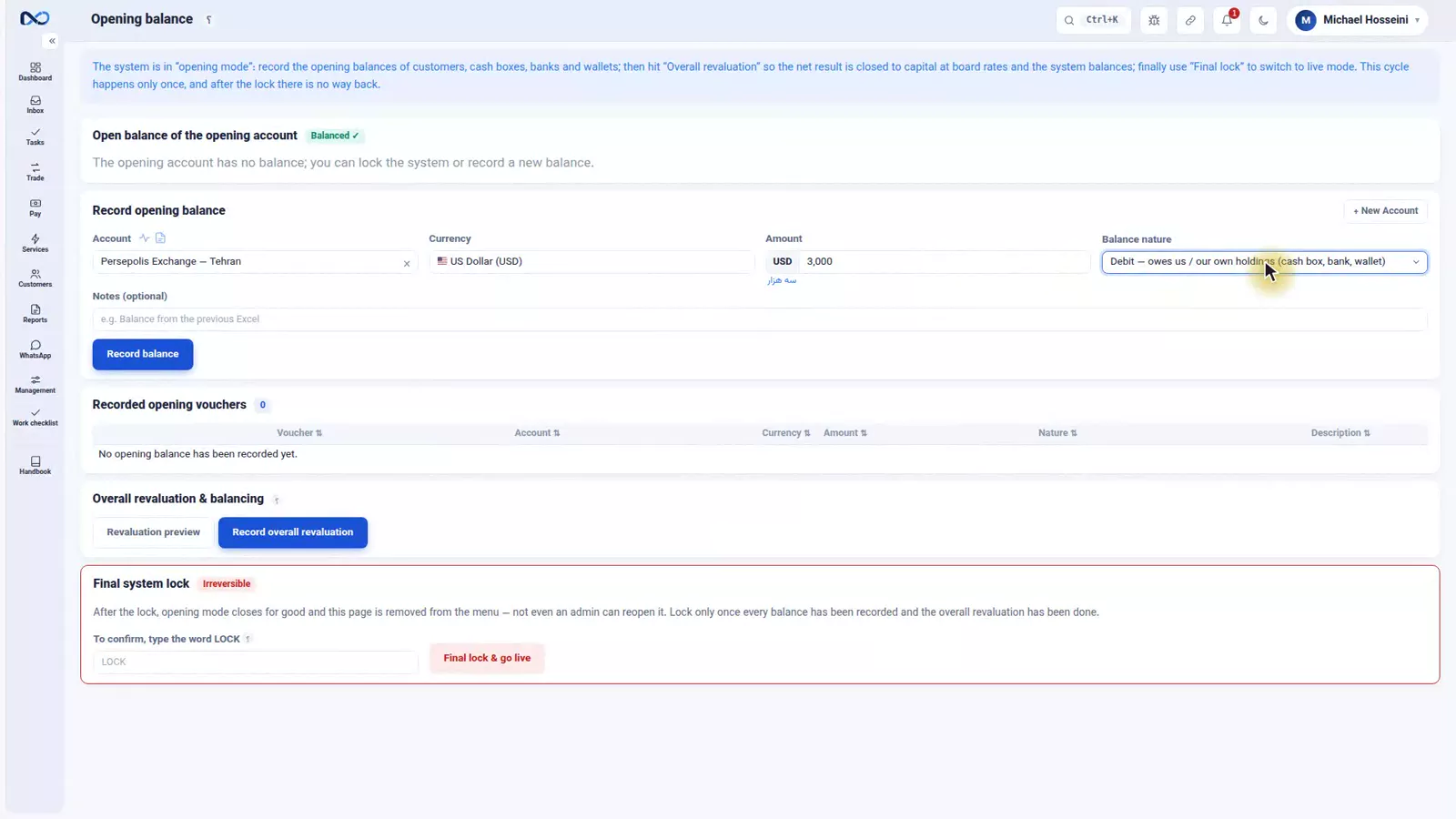
There is a test that never fails. Ask yourself: if this were settled today, which way does the money move? If they have to pay you, it is a debit. If you have to pay them, it is a credit.
Write a note — "balance from the old ledger" — so that in a year's time it is obvious where the number came from, and record it. The row joins the list.
A customer whose money you hold
The second example runs the other way. Hossein Kalantari has left 150,000,000 Toman on deposit, which means his money is in your hands. Pick Kalantari's account, set the currency to Toman, set the amount to 150,000,000, and set the nature to credit. It is the same form; only the nature changes. Note it as a deposit from the old ledger and record. Two rows.
Your own cash and bank
The third example is the one people forget: your own money. Your cash box and your bank accounts have balances too, and they must be entered here alongside the customers. Say you have 20,000 US Dollars in the box. Pick the cash box as the account, the currency US Dollar, the amount 20,000.
The nature here is debit, because your cash box has the money — anything you hold is recorded as a debit. Note it as the first count of the cash box balance, and record. Three rows.
If you got one wrong
Before the lock you can delete any row and enter it again. Nothing permanent has been created yet; everything on this page is still a draft. Use that freedom while you have it.
Take the nature seriously, though, because a wrong one is the mistake that hides. If you record a debit as a credit, the balance flips: someone who owed you 3,000 US Dollars now appears to be owed 3,000 by you. The number is right, the direction is wrong, and the gap between the two is 6,000 US Dollars.
Step 2: the overall revaluation
When you pour balances into a fresh system, the other side of each one has to go somewhere. Nexto collects it temporarily in a system account called Opening. That account cannot be left open — an exchange office does not have a permanent account called "wherever these came from".
The overall revaluation closes it. It converts all those balances to the reference currency at board rates and closes them off to capital, which is what makes the whole set balance.
That is why the board comes first. The rates on the board at this moment become the basis of the revaluation voucher, so if the board is stale, your opening capital figure is wrong from day one. Set the board, then come back.
Press preview and Nexto shows you the exact voucher it is about to post before anything happens.
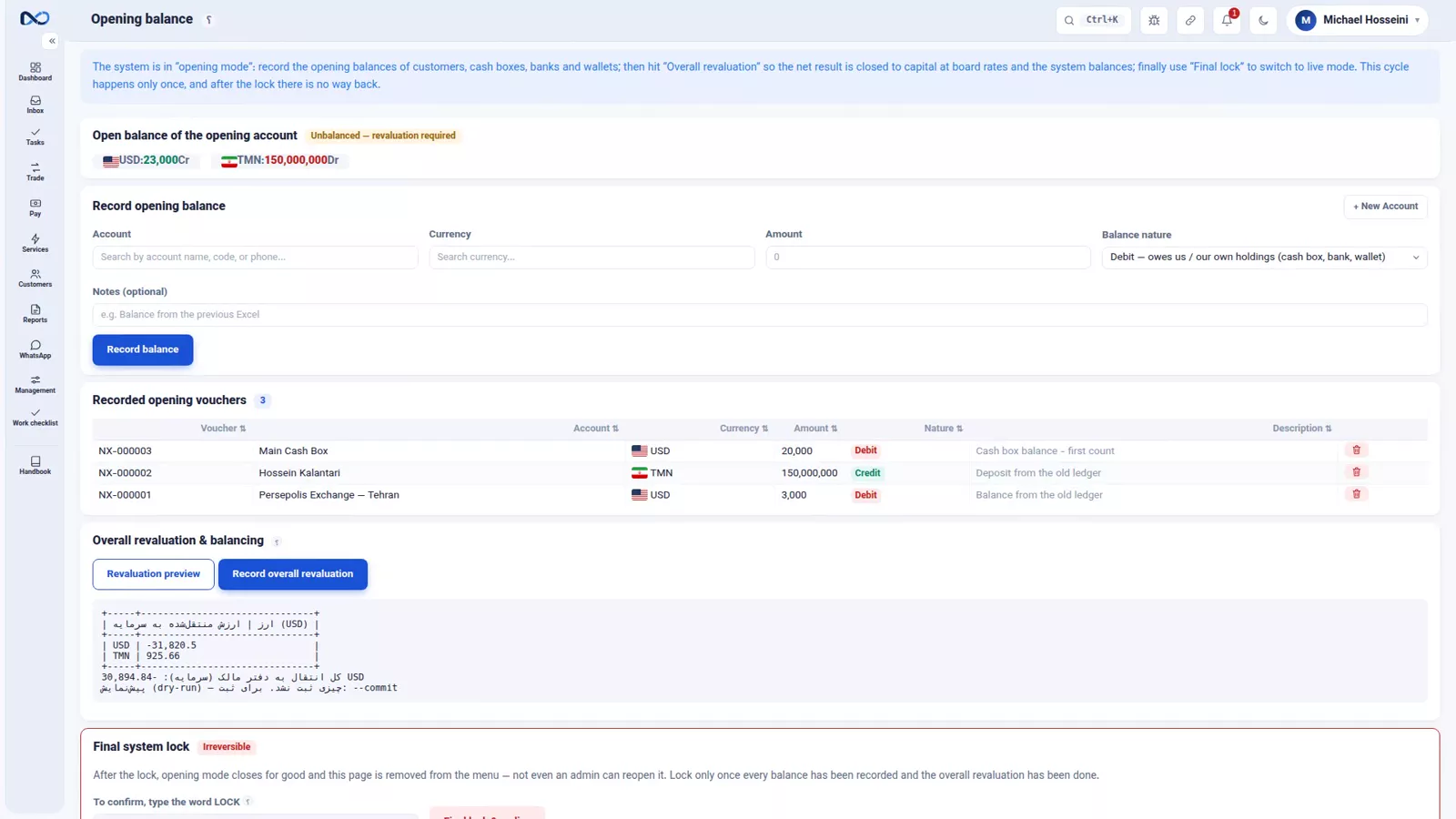
If it looks right, press Record overall revaluation. Nexto asks once whether you are sure, you accept, and the Opening account is balanced — its open balance is now zero.
Step 3: the final lock
The last step seals opening mode forever and shifts Nexto into live operation. It is serious enough that confirming it means typing the word LOCK by hand; there is no way to press it by accident.
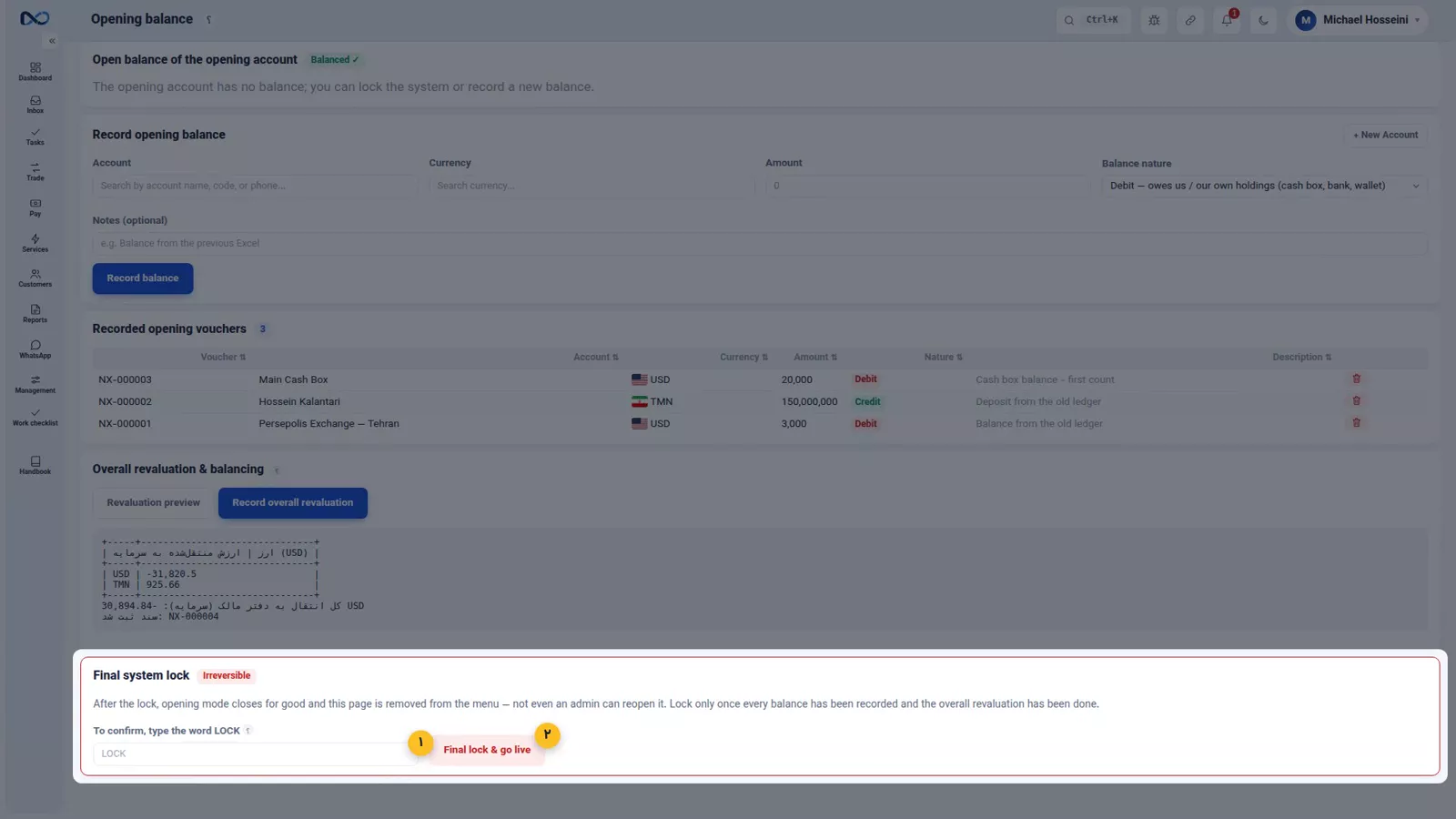
Do not press it on day one. Work with the page for several days, enter everything, and reconcile the balances against your old ledger customer by customer. When Nexto and the old books agree, lock it. Once it is locked, opening balances are history and every further movement is an ordinary document.
Tips and warnings
- The opening page exists only on a fresh install and is used once. There is no second pass later.
- The balance nature decides everything. Assets and receivables are debit; money you owe a customer is credit. When in doubt, ask which way the money would move if it were settled today.
- Do not leave out your own cash box and bank accounts. They are balances like any other, and they are debit.
- Refresh the rate board before the overall revaluation. Those rates are what the revaluation voucher is priced at.
- Always use preview before recording the revaluation, and read the voucher it shows you.
- Lock only after you have reconciled against the old ledger. The lock is irreversible and there is no rush to press it.
Where to go next
The previous episode, the rate board and its guards, sets up the rates the overall revaluation is priced from, so it is worth being current on before you revalue. Next comes customers and accounts, the record everything in Nexto connects to. If debit and credit are still new to you, the four basics explains them properly, and FX revaluation and closing the period shows the same revaluation idea as a routine you run at period end rather than once at the start.
FAQ
What are opening balances in Nexto?
They are the balances you already had before you started using Nexto — customer receivables, money you hold for customers, and your own cash and bank balances — entered once on a page that exists only on a fresh install.
Should an opening balance be debit or credit?
Ask which way the money would move if the account were settled today. If the customer has to pay you, it is a debit; if you have to pay them, it is a credit. Your own cash box and bank balances are debit, because you hold that money.
What happens if I enter the wrong balance nature?
The balance flips direction. A customer who owed you 3,000 US Dollars appears instead to be owed 3,000 by you — a 6,000 US Dollar gap on a number that looks correct at a glance. Before the lock, delete the row and enter it again.
Do I have to enter my own cash box balance?
Yes. Your cash box and bank accounts carry balances just like customer accounts, and they belong in the opening list. They are recorded as debit, because anything you hold is a debit.
What is the overall revaluation for?
Every opening balance leaves its other side in a system account called Opening. The overall revaluation converts those balances to your reference currency at board rates and closes them to capital, which balances the Opening account to zero.
When should I press the final lock?
Only after you have worked with the page for several days and reconciled every balance against your old ledger. The lock seals opening mode permanently and moves Nexto into live operation, and it asks you to type the word LOCK to confirm.
Full video transcript
No exchange starts from zero. The day you open Nexto, you already have a ledger or a spreadsheet full of balances that need to come in. This part is about exactly that migration, and it has three steps: recording the balances, the overall revaluation, and the final lock. This page exists only on a fresh install, and once you lock it closes for good. So don't rush; work with it for a few days and reconcile against your old ledger. Our first example from the old ledger: Persepolis Exchange owes us three thousand dollars.
We pick the account, set the currency to US Dollar, and the amount to three thousand. And now the most important field on this page: the balance nature. Debit means they owe you. Credit is the opposite, their money is with you. A simple way to never get it wrong: if it were settled today, which way does the money move? If they have to pay, it's a debit. We write a note, balance from the old ledger, so later it's clear where this number came from, and record it.
The second example is the reverse: Hossein Kalantari has left one hundred and fifty million toman on deposit with us, meaning his money is in our hands. We pick Kalantari's account, set the currency to Toman, and the amount to one hundred and fifty million. So we set the nature to credit. Same form, only the nature changes. In the notes we write deposit from the old ledger, and record. The second row is added to the list. And the third example, which many people forget: your own money.
Your cash box and bank account have balances too and must be entered. We have twenty thousand dollars cash in the box: we pick the account as the cash box, the currency US Dollar, and the amount twenty thousand. Here the nature is debit, because your cash box has it, and anything you hold is recorded as a debit. We write the note cash box balance, first count, and record. We now have three rows. And what if you made a mistake somewhere? Before the lock, you can delete any row and enter it again.
Nothing permanent has been created here yet; everything is a draft. And a warning about the wrong nature: if you record a debit as a credit, the balance flips; someone who owed you three thousand dollars now appears to be owed three thousand. Right number, wrong direction, and a six thousand dollar gap. Step two. When you pour in the balances, the other side of each one gathers temporarily in a system account called Opening. That account has to be closed, and the overall revaluation does exactly that: it converts all those balances to the reference currency at board rates and closes them to capital.
So before revaluing, the board has to be right, because these very rates become the basis of the voucher. We hit preview and see what voucher is about to be posted. Correct. We hit Record overall revaluation; the software asks once whether we're sure, we accept, and the opening account is now balanced: its open balance is zero. And step three: the final lock. Pressing it seals opening mode forever and shifts the software into live operation. It is serious enough that you must type the word LOCK to confirm.
We will not trigger it here, and you should do so only after you have worked with it for several days and reconciled the balances against the old ledger. Enter the balances with the right nature, assets and receivables as debit, liabilities as credit, set the board, run the overall revaluation, and lock only after you've reconciled. It happens once and then never again. Next part: customers and accounts.
Try it yourself right now
A complete private demo with sample data — no installation, no credit card.
Create free demo