
Rial routing and payment readiness
How rial routing works in Nexto - read the routing list and free capacity, record a payment readiness, allocate a deposit request and settle it with parts.
Watch this video on: YouTube
Two ordinary trades and you are already in the middle of it. You sold US Dollars to one customer and you are taking Iranian Toman for them, so he owes you Toman. From another customer you bought UAE Dirhams and you still have to pay the Toman for them, so you owe him Toman. Someone owes you on one side, and you owe someone on the other.
The obvious move is to wait for the first customer's money to land in your account and then pay the second one out of it. Do that and the money has moved twice: two transfers, two sets of fees, and the risk sitting on you in between. The better move is to introduce them. You hand your debtor your creditor's account number, he pays directly, and the money never comes into your account at all.
That is rial routing, and it is this episode and payment commitments and deposit requests put together.
What you will learn
- Why letting your debtor pay your creditor beats moving the same money twice
- How to read the routing list: balance, open commitments, free capacity and last transaction
- What free capacity really means, and why it is the column that decides
- How to record a payment readiness and use it to find a payer in seconds
- How to allocate a deposit request to a payer, and what Nexto creates when you do
- How parts bring the commitment, the deposit request and both balances down to zero
Who can pay: the routing page
Read the candidate list
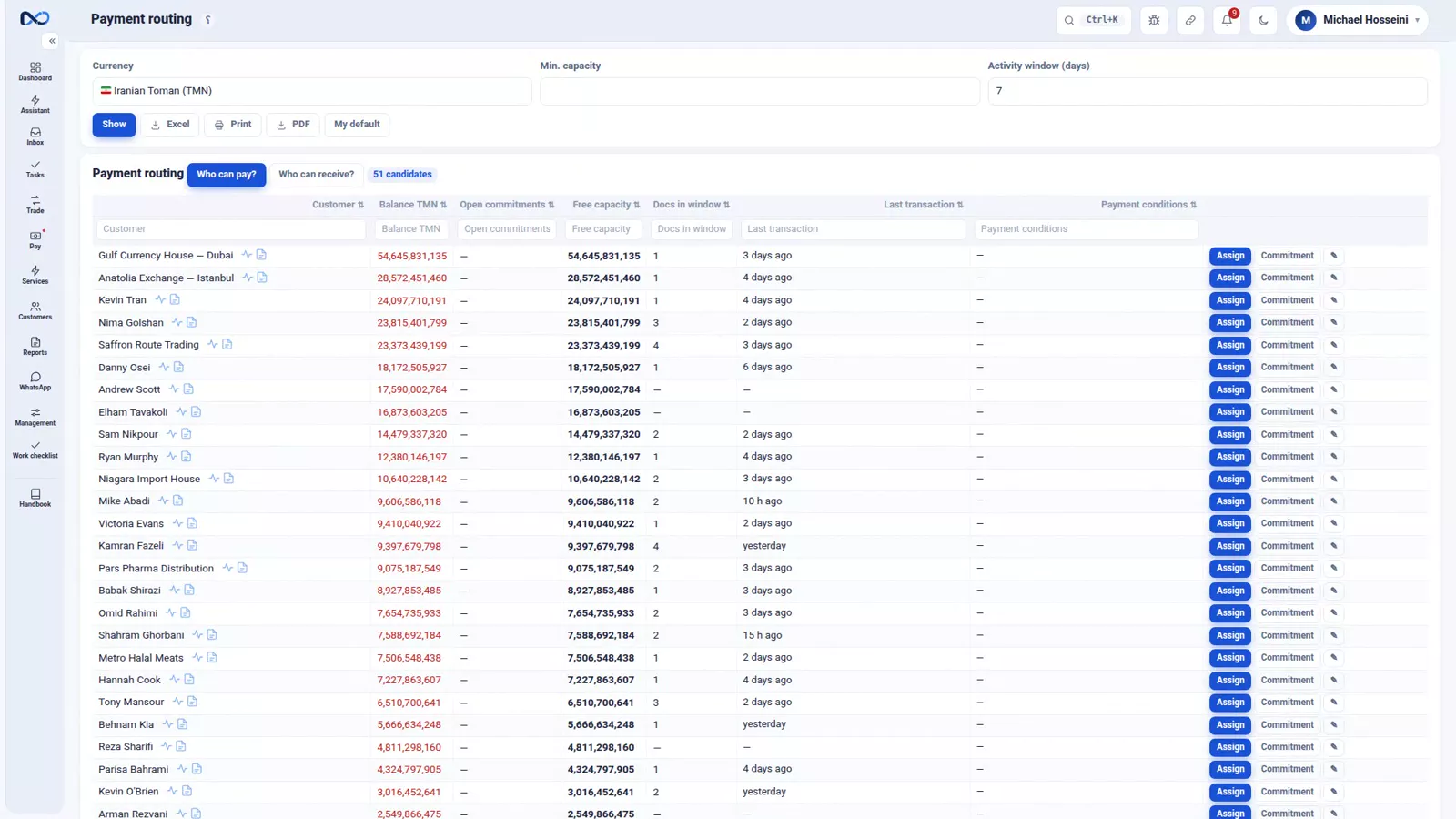
The routing page answers one question: who can pay? Every row is a candidate, and the columns are exactly the things a dealer used to weigh up in his head — the customer's Toman balance, their open commitments, their free capacity, and their last transaction, which tells you how active they still are. Instead of searching your memory for who owes what, you read a list.
Trust free capacity, not the debt
Free capacity is their debt minus the commitments you have already put on their shoulders, and it is the most important column on the page. It is how much you can really still ask of them. Someone who owes 100,000,000 Iranian Toman but has already had 80,000,000 allocated to him has only 20,000,000 of capacity left. Read the debt instead of the capacity and you will promise the same money to two people.
Keep the conditions current
The conditions column holds what each person is willing to pay, at what fee, and in what time window. You edit it with the pencil on their row. This is the part that goes stale fastest, and a candidate whose conditions were written three months ago is a phone call, not a plan.
Who can pay right now: payment readiness
What a readiness is
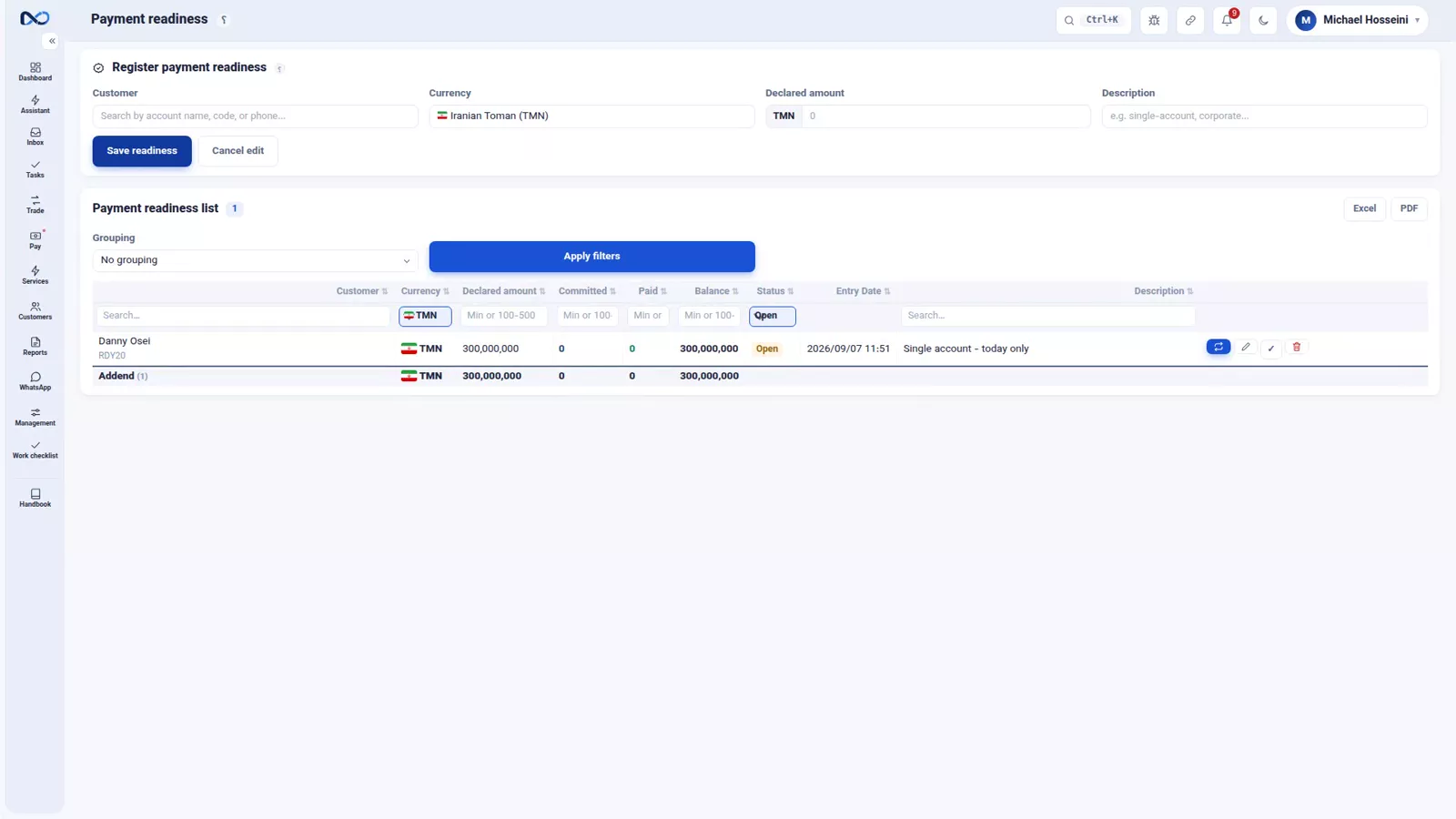
Payment readiness is the other half of the same search. It means a counterparty has announced that in one currency, up to a certain amount, they are ready to pay — today, right now. You do not create a readiness. They announce it; you record it and you make use of it.
Record one
Say Danny Osei is ready for up to 300,000,000 Iranian Toman today. Pick the account, the currency and the amount, add a note, and save the readiness. From that moment he moves up the candidate list. So when a payment is stuck on your hands, look at this list before anything else: someone may already be ready for exactly that job, and you do not need to start phoning around.
Allocation: handing over the account number
Step 1 — Assign the deposit request to a payer
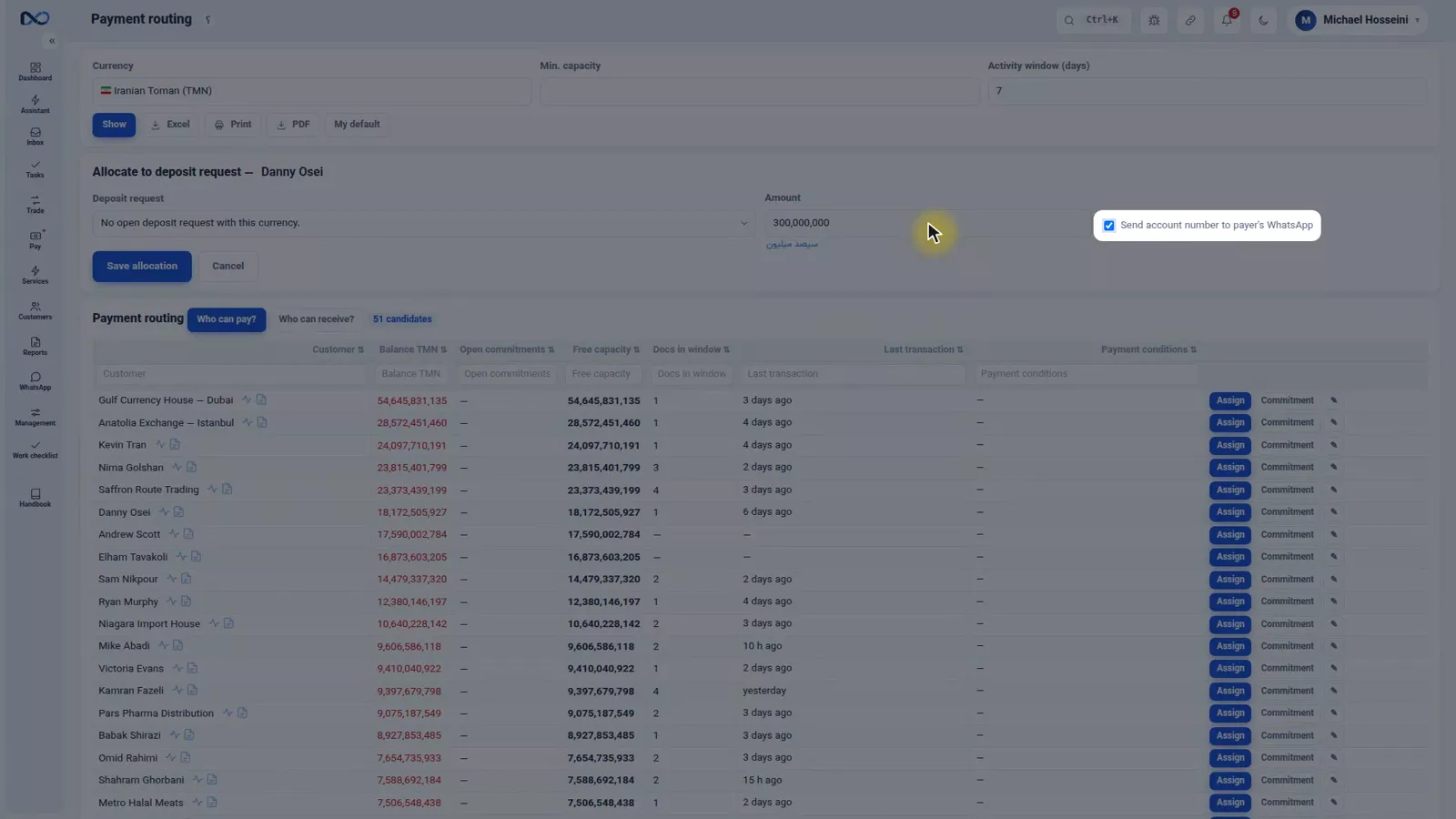
Back on the routing page, Danny Osei both owes you and has declared readiness, so he is your payer. The deposit request from the previous episode — Shirin Moradi's account number — is what he has to pay into. Press the assign button on his row, choose that deposit request, enter the amount, 300,000,000, and tick the option that sends the account number to the payer over WhatsApp. Then save the allocation.
Step 2 — Read what allocation created
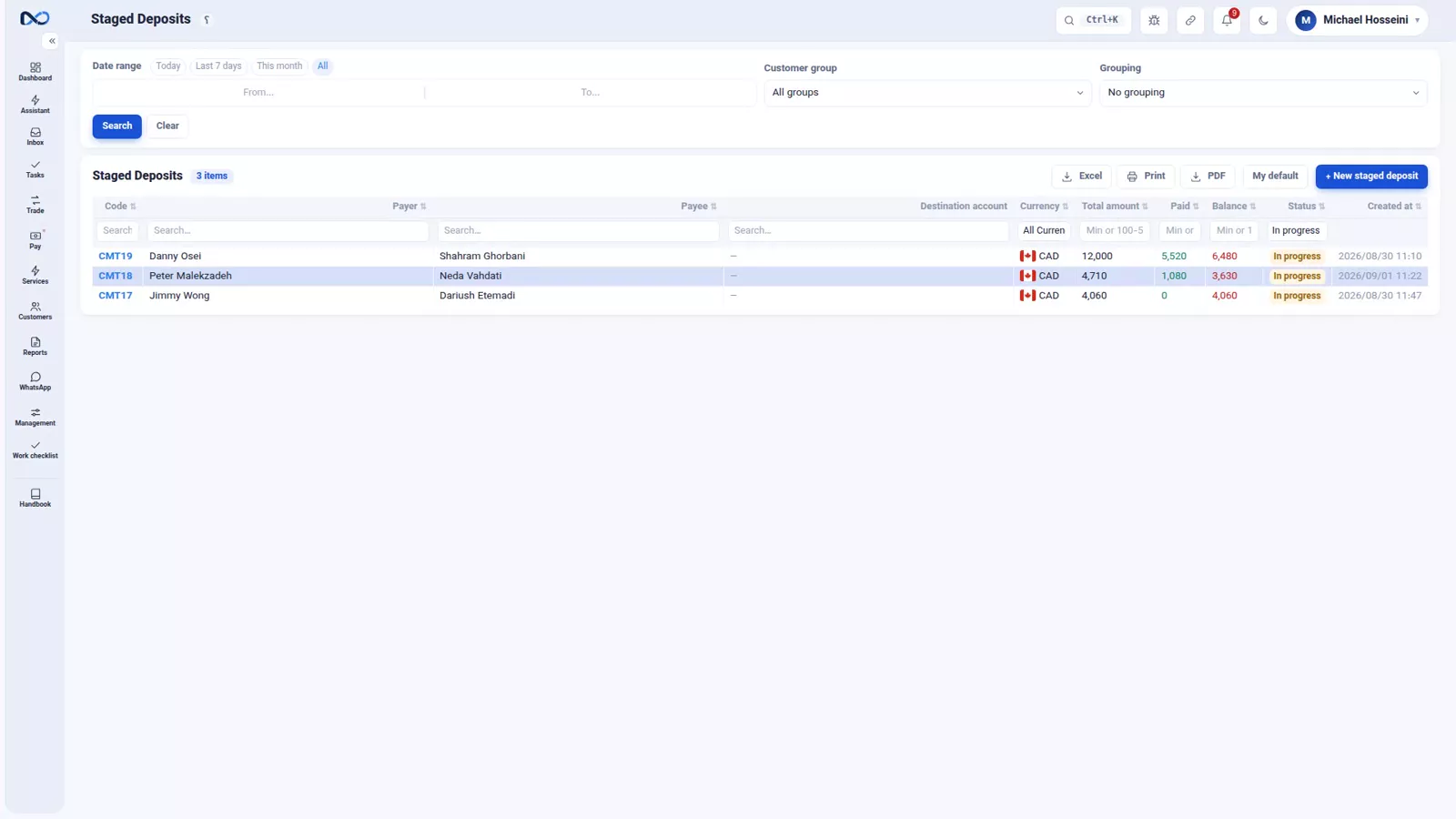
Allocation is that and nothing more: you gave the payer an account number, and Nexto recorded a payment commitment for him. No voucher has been booked and his debt has not gone down by a single rial. It is only on record that he is the one who is going to make this payment. The new commitment shows payer Danny Osei, payee Shirin Moradi, and the destination account is that same IBAN.
Step 3 — Register a part for every real payment
From here on it is the ordinary commitment routine. Osei pays 100,000,000 and sends you his slip; you register a part against the commitment, and that is the moment his debt actually comes down. Each part updates his commitment, Shirin Moradi's deposit request and the balances of both accounts together. You keep registering parts until the balance is zero and both documents close.
Step 4 — Watch the deposit request keep up
Shirin Moradi's deposit request updates at the same instant: 300,000,000 allocated, 100,000,000 paid, 200,000,000 unpaid remainder. Not one rial went through your own account. And if a request is urgent, tag it urgent: it then sits at the top of every list and at the front of the allocation queue, so it does not get lost under the pile of ordinary work.
Tips and warnings
- Read free capacity, never the raw debt. Debt minus the commitments already allocated is the only number that tells you what is left to ask for.
- Allocation is not a payment. Nothing is booked and no balance moves until a part is registered against the commitment.
- A readiness belongs to the counterparty. Record what they announced — the currency, the ceiling, the day — and do not invent one on their behalf.
- Conditions go out of date quickly. Update the fee, the amount and the time window on the row rather than remembering them.
- Use the WhatsApp tick when you allocate. It is how the payer receives the destination account without anyone retyping an IBAN.
- Keep the urgent tag for requests that genuinely cannot wait. If everything is urgent, the top of the list stops meaning anything.
Where to go next
The previous episode, payment commitments and deposit requests, builds the two documents this one connects: the promise to pay and the destination account. Next comes cheques, the other half of daily work where money is promised before it exists. For the plain version of a payment that has already happened, see transfers, receipts and payments; the account-number message relies on the setup in WhatsApp: groups, templates and the send queue; and once the routing is running, who owes you? tells you what is still outstanding.
FAQ
What is rial routing?
It is settling two obligations against each other instead of moving money twice. One customer owes you and you owe another, so you give your debtor your creditor's account number and he pays directly. The money never enters your account, and you do not carry the risk or the fees of two transfers.
What does free capacity mean on the routing page?
Free capacity is a customer's debt minus the commitments you have already allocated to them. Someone who owes 100,000,000 Iranian Toman but already carries 80,000,000 in allocations has 20,000,000 of free capacity — that is what you can still ask him to pay.
Does allocating a deposit request reduce the customer's debt?
No. Allocation only records that this customer is the one who will make the payment, and creates a payment commitment for him. No voucher is booked and no balance changes until you register a part against that commitment.
Who creates a payment readiness?
The counterparty announces it and you record it. A readiness says that in one currency, up to a certain amount, that person is ready to pay today. Recording it puts them higher on the candidate list, so the next time a payment is stuck you can see it instead of calling around.
What happens to the deposit request when the payer pays only part of the amount?
It updates immediately. After a 100,000,000 part against a 300,000,000 allocation, the request shows 300,000,000 allocated, 100,000,000 paid and 200,000,000 unpaid remainder, and the commitment and both account balances move with it.
How do I make one deposit request jump the queue?
Tag it urgent. An urgent request sits at the top of every list and at the front of the allocation queue, which is what stops it from being buried under the ordinary day's work.
Full video transcript
The story starts with two ordinary trades: you sold dollars to one customer and you are taking Toman for them - so he owes you Toman. From another customer you bought dirhams and you have to pay the Toman for them - so you owe him Toman. So on one side someone owes you, and on the other you owe someone. If the first one’s money comes into your account and then you pay the second one, the money has moved twice and you have carried the risk and the fees twice.
The right way: split the payment between them - let your debtor pay your creditor directly - so that it never comes into your account at all. This is what is called rial routing, and it is this episode and the last one combined: you have to know who owes and who is owed; who is able to pay - payment readiness - and who wants money and has given an account number - the deposit request. Then, when you hand the account number to the debtor, you allocate it, so that a payment commitment is created for him; and with every part he pays, the deposit request and the commitment both update, right to the end.
Nexto takes this search out of the dealer’s head and puts it on the screen. This is the routing page: who can pay? Every row is a candidate, and the columns are exactly the things you used to weigh up in your head: their Toman balance, their open commitments, their free capacity, and their last transaction - which tells you how active they are. Free capacity is the most important column: their debt minus the commitments you have already put on their shoulders.
That is how much you can really still ask of them. Someone who owes 100,000,000 but has already had 80,000,000 allocated to him has only 20,000,000 of capacity left. And the conditions column: how much each person is willing to pay, at what fee and in what time window - you edit it with this pencil. The other side: payment readiness. It means a counterparty has announced that in one currency, up to a certain amount, they are ready to pay - today, right now.
You do not create this; they announce it, you record it and you make use of it. Let us record one readiness: Danny Osei is ready for up to 300,000,000 Toman today. The account, the currency, the amount, a note, Save readiness. From this moment he moves up the candidate list. So when a payment is stuck on your hands, look at this list first: maybe someone is ready for exactly that job right now and you do not need to start phoning around. And now the main step: allocation.
We go back to routing; Danny Osei both owes us and has declared readiness. The deposit request we recorded in the last episode - Shirin Moradi’s account number - we allocate to him: the assign button, we choose the deposit request, the amount 300,000,000, and the tick that sends the account number to the payer over WhatsApp. Save allocation. And let us go and see what was created. That is all allocation is: we gave him the account number and Nexto created a payment commitment for him.
No voucher has been booked yet and his debt has not gone down by a single rial - it is only recorded that he is the one who will make this payment. Here is the new commitment: payer Danny Osei, payee Shirin Moradi, destination account that same IBAN. From here on it is the same payment commitment as the last episode: Osei paid in 100,000,000 and gave us his slip; we register a part for it - and that is the moment his debt comes down. With every part, his commitment updates, so does Shirin Moradi’s deposit request, and so do the balances of the two accounts; until the balance is zero and both are closed.
Not one rial went through your account. And Shirin Moradi’s deposit request updated at that same instant: 300,000,000 allocated, 100,000,000 paid, 200,000,000 unpaid remainder. And if something is urgent, tag it urgent: it sits at the top of every list and at the front of the allocation queue, so it does not get lost under the pile of ordinary work. The order of work: one customer owes you and you owe another, routing tells you who owes and how much capacity they have, readiness tells you who can pay right now, the deposit request tells you who wants money and where, allocation creates the commitment, and the parts run it down to zero.
The two ends of the story met, without the money ever coming into your account. Next episode: cheques - something that both is and is not.
Try it yourself right now
A complete private demo with sample data — no installation, no credit card.
Create free demo